

Your screen just stopped responding. You’re tapping, swiping, pressing — nothing. If your phone is frozen and you can’t restart it, that sick-in-the-stomach feeling hits fast. But here’s the truth: you don’t have to restart to fix it. In most cases, you won’t lose a single thing. I’ll walk you through seven real fixes — from using your voice to plugging in a mouse — that work even when your touch screen is completely dead. Let’s get your phone back.
Why Does a Phone Freeze? (And What’s Actually Happening)
Your phone freezes when its processor gets overwhelmed. Too many apps running at once, a single app leaking memory, a bad software update, or even extreme heat can cause the system to stall.
The screen isn’t broken. The phone isn’t dead. It’s basically stuck in traffic — nothing is moving, but the engine is still running.
That’s actually great news. It means there are ways to communicate with your phone even when the touch screen ignores you completely.
Before You Do Anything: 3 Quick Checks
Before jumping into fixes, run through these fast checks. They take 30 seconds and might save you 10 minutes.
- Is the screen actually frozen — or just slow? Sometimes a heavy app (like a game or video editor) takes 15–20 seconds to respond. Wait a moment before assuming the worst.
- Is the touch screen broken or just unresponsive? Try pressing the volume buttons. If they work, the phone is still running — the screen just isn’t reacting to touch.
- Is the battery completely dead? A phone with 0% battery looks exactly like a frozen phone. Plug it in and wait two minutes before trying anything else.
If you’ve confirmed the phone is genuinely frozen, move on to the fixes below.
Method 1 – Use Your Voice Assistant to Break the Freeze
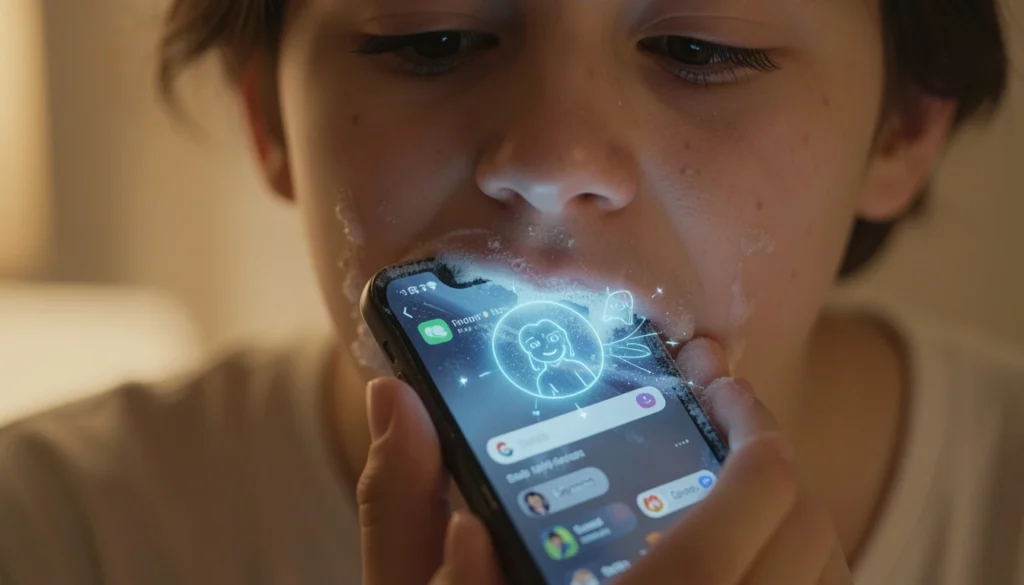
This is the first thing I try — and it has saved me more times than I can count.
I once had my phone freeze right in the middle of a video call with my boss. The power button was broken, and I couldn’t restart. Out of desperation, I said “Hey Siri, open Settings.” The voice assistant responded, navigated away from the frozen app, and the phone came back to life. That’s why this is always my first move.
What you need: Voice assistant enabled (Siri for iPhone, Google Assistant or Bixby for Android).
Step 1: Say your wake word clearly — “Hey Siri,” “Hey Google,” or “Hey Bixby.”
Step 2: Ask it to open a different app: “Open the Camera” or “Open Settings.”
Step 3: If the assistant responds and opens the app, the freeze is broken. You’re done.
Why this works: Voice assistants run on a separate process from the app that’s frozen. The touch screen being stuck doesn’t stop the microphone from listening.
What to do if it doesn’t work: Your phone’s microphone settings may have voice activation turned off, or the freeze is deeper than a single app. Move to Method 2.
Method 2 – Connect a Mouse or Keyboard (OTG Cable Trick)
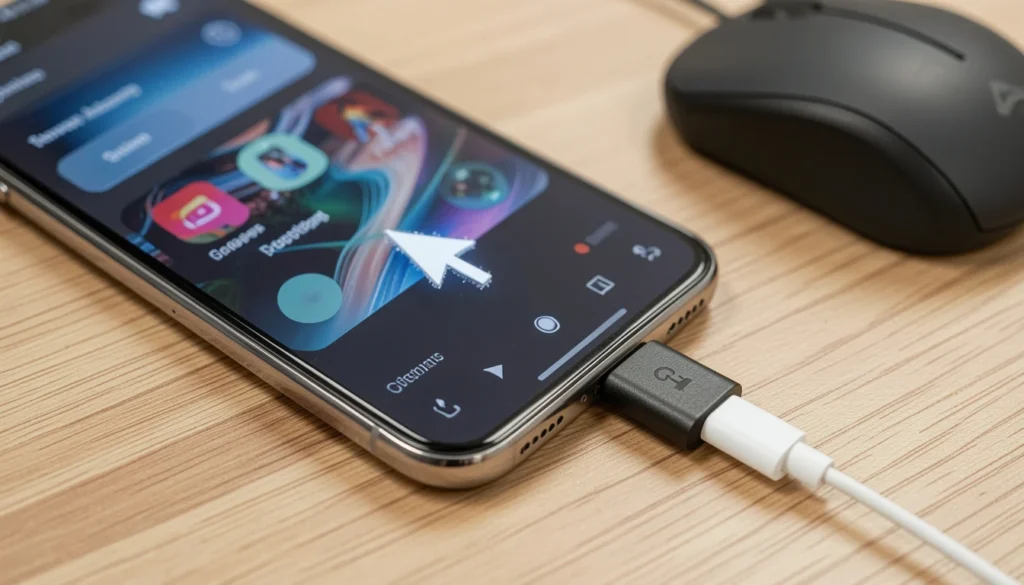
This one surprises most people. Yes, you can plug a regular USB mouse into your Android phone and control it like a computer — cursor and all.
A friend’s Pixel froze while navigating on a road trip. We had an OTG adapter in the bag, plugged in a basic travel mouse, and a tiny cursor appeared on his frozen screen. Two clicks later, the stuck app was closed and the phone was working again.
What you need: An OTG (On-The-Go) adapter and a USB mouse or keyboard. OTG adapters cost about $5 and are available everywhere.
Note: This works on most Android phones. iPhones with Lightning ports need a Lightning-to-USB adapter. iPhones with USB-C (iPhone 15 and newer) support it directly.
Step 1: Plug the OTG adapter into your phone’s charging port.
Step 2: Connect a USB mouse or keyboard to the adapter.
Step 3: A cursor should appear on your screen within a few seconds.
Step 4: Use the mouse to click the Home button or navigate away from the frozen app.
Why this works: The USB connection bypasses the touch screen entirely. The phone reads the mouse as a separate input device, no matter what state the screen is in.
Method 3 – Wait It Out: Let the Frozen App Crash Naturally
This sounds too simple — but it genuinely works, and it’s often the safest option.
When one app freezes, Android and iOS both have built-in watchdog timers. If an app stops responding for long enough, the operating system kills it automatically and returns you to the home screen.
What to do:
- Set your phone down and wait 3 to 5 minutes.
- Don’t keep pressing the screen — that can sometimes interfere with the crash process.
- Watch for the screen to flicker or dim slightly. That’s usually a sign the OS is stepping in.
Best for: Situations where only one app is frozen and the rest of the phone still partially responds (you can hear notification sounds, for example).
Not ideal for: Deep system freezes where the entire phone is locked up, including the lock screen.
Method 4 – Trigger Emergency or Find My Device
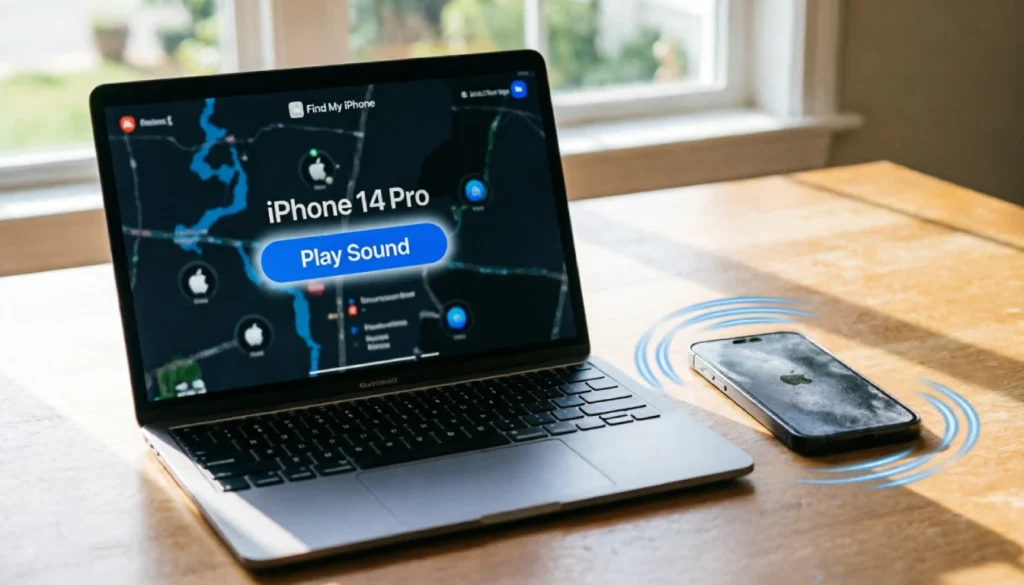
Even a completely frozen phone can often receive remote commands. This is one of the most underrated fixes out there.
For Android — Find My Device:
Step 1: On another phone or computer, go to android.com/find and sign in with the same Google account.
Step 2: Select your frozen device.
Step 3: Click “Play Sound.” This sends a signal directly to the phone and forces it to ring — even at full volume if it’s on silent.
That sudden audio interrupt can break a software freeze, especially if the freeze is stuck on a single process.
For iPhone — Find My:
Step 1: On another Apple device or icloud.com, open Find My.
Step 2: Select your frozen iPhone.
Step 3: Click “Play Sound” or “Send Message.”
You can also try sending yourself a notification from another device — a text, a calendar alert, or even an app notification. Incoming notifications sometimes jolt a frozen phone back to life.
Method 5 – Plug Into a Computer (iTunes, Finder, or ADB)
If nothing above has worked, it’s time to connect your phone to a computer. This approach can unfreeze a phone and even recover your data before any reset happens.
For iPhone
Step 1: Plug your iPhone into a Mac or PC with a USB cable.
Step 2: On Mac (macOS Catalina or later): Open Finder and look for your device in the sidebar. On Windows or older Mac: Open iTunes.
Step 3: If your phone is recognized, click “Back Up Now” before doing anything else. This saves everything.
Step 4: Once the backup is done, click “Update” (not Restore) — this reinstalls iOS without wiping your data.
For Android (ADB Method)
This is slightly more technical but very effective.
Step 1: Enable USB Debugging on your Android. (Settings > About Phone > tap Build Number 7 times > Developer Options > USB Debugging.) You may need to do this before the phone freezes — it won’t work if you can’t navigate to the setting.
Step 2: Plug into a computer with ADB installed.
Step 3: Open a command window and type:
adb shell input keyevent 3
That sends a “Home button” command directly to the phone, bypassing the touch screen. If that doesn’t work, try:
adb shell am force-stop com.app.package.name
Replace the package name with the frozen app’s ID to force-close it remotely.
Why this works: ADB communicates directly with the Android operating system over USB — the frozen screen is completely bypassed.
What If You Must Restart? Force Restart Without Losing Data
Sometimes the freeze is deep enough that none of the above methods work. In that case, a force restart (also called a hard reset) is your next step — and it will not delete your data.
A force restart cuts and restores power without touching your files, apps, or settings. It’s very different from a factory reset.
iPhone (Face ID models — iPhone X and newer)
- Quickly press and release Volume Up
- Quickly press and release Volume Down
- Press and hold the Side button until the Apple logo appears
iPhone 8
Same as above. Same button sequence.
iPhone 7
Press and hold Volume Down + Sleep/Wake for 10 seconds.
iPhone 6s and older
Press and hold Home + Sleep/Wake for 10 seconds.
Samsung Galaxy
Press and hold Power + Volume Down for 7–10 seconds.
Google Pixel
Press and hold the Power button for 30 seconds.
Most other Android phones
Press and hold Power for 10–15 seconds. Some models need Power + Volume Down.
Important: A force restart is safe. Your photos, messages, and apps will all be there when the phone comes back on.
How to Stop Your Phone From Freezing Again
Fixing a freeze is one thing. Making sure it doesn’t happen again is better.
- Clear background apps regularly. Apps running in the background consume RAM. Close the ones you’re not using.
- Keep your OS updated. Most phone freezes are caused by software bugs that manufacturers patch in updates.
- Don’t let storage fill up completely. Phones need free space to write temporary files. If your storage is 95%+ full, crashes become much more common. Aim to keep at least 10% free.
- Avoid extreme temperatures. Heat slows down processors and causes thermal throttling, which can lead to freezes.
- Restart your phone once a week. This clears RAM, flushes temporary files, and applies any pending updates. A weekly restart takes 60 seconds and prevents a lot of headaches.
- Uninstall apps you haven’t used in months. Old, unmaintained apps are a common cause of background crashes.
Frequently Asked Questions
Will I lose my data if my phone is frozen?
No. A frozen phone hasn’t lost your data — it’s just stuck. Even if you need to do a force restart, your files, photos, and apps stay put. Only a factory reset wipes data.
My phone is frozen and won’t turn off. What do I do?
Use the force restart method for your phone model listed in the section above. This works even when the power button seems unresponsive — you need to hold the right button combination long enough.
Can a frozen phone get damaged if I leave it?
Generally no, but if the phone gets hot while frozen, put it somewhere cool and ventilated. Overheating while frozen can occasionally cause battery issues over time.
Why does my phone keep freezing even after I restart?
A recurring freeze usually points to a specific app, low storage, or an outdated operating system. Start by checking for updates (Settings > Software Update) and deleting recently installed apps one at a time until the freezing stops.
Does the OTG mouse trick work on iPhones?
Yes, on iPhone 15 and newer (USB-C port) with a USB-C to USB-A adapter and a standard mouse. On older iPhones with a Lightning port, you’ll need a Lightning-to-USB Camera Adapter from Apple.
Final Thoughts
If your phone is frozen and you can’t restart it, don’t panic — and definitely don’t reach for a factory reset. Work through the list above in order. Most freezes are solved by Method 1 (voice assistant) or Method 2 (OTG mouse) in under two minutes.
The one fix I always try first? My voice. It costs nothing, takes three seconds, and works surprisingly often — even when the screen is completely unresponsive.
If you’ve been through a situation where your phone was frozen and you found a fix that worked, drop it in the comments. Real-world solutions help everyone, and I read every one.