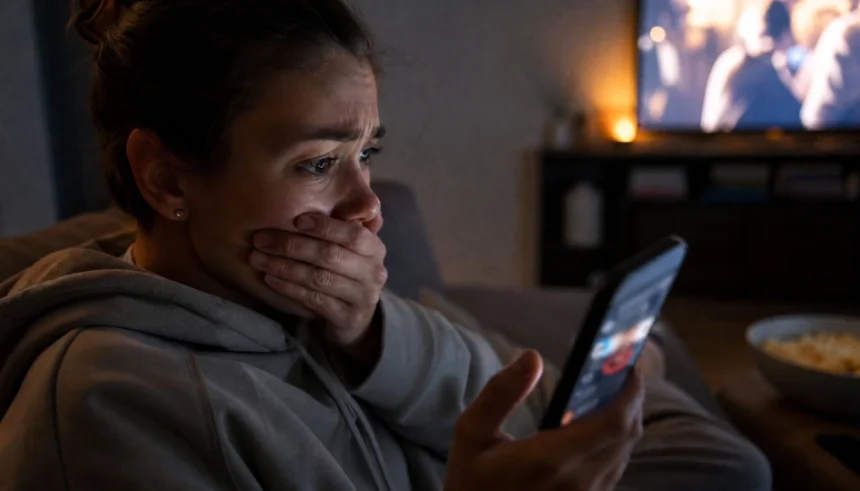
There I was, scrolling through Twitter on a lazy Saturday morning — coffee in hand, completely innocent — when a GIF stopped me cold.
It was from a movie I’d been waiting six months to see. Opening weekend. The biggest plot twist of the year, just… right there. No warning. No spoiler tag. Just a smiling fan sharing their “favorite moment.”
My stomach dropped.
I don’t know what’s worse — the spoiler itself or that helpless, hollow feeling afterward. You know the one. The “well, I guess I still have to see it but I already know the ending” feeling. It’s genuinely awful.
If you’ve ever been there, this article is for you. I’m going to walk you through everything I’ve learned about how to watch movies without spoilers, how to build a spoiler-free social media routine, and what tools actually work to protect your movie-watching experience.
Let’s fix this for good.
Why Avoiding Movie Spoilers Online Feels Impossible Right Now
Social media has changed the way we experience movies — and not always for the better.
Years ago, you had a week or two before spoilers started spreading. Now? The second a film hits theaters, fan reactions, plot reveals, and ending screenshots are everywhere within hours. It’s baked into how social media rewards engagement.
The platforms aren’t going to fix this for you. So you have to get a little strategic.
The good news? Once you have a system, it’s surprisingly easy to build a spoiler-free movie experience without completely disconnecting from the internet.
Step 1: Set Up Spoiler Filters on Every Platform Before the Movie Releases
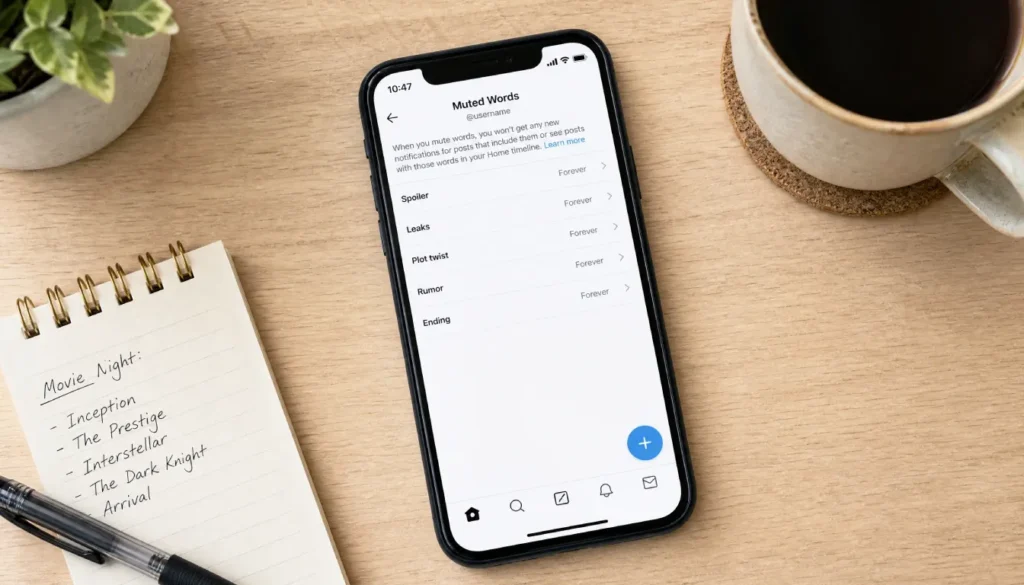
This is the move most people skip — and it’s the most important one.
Don’t wait until a movie premieres to scramble. Set your filters up before opening weekend. Here’s how to do it on each major platform:
How to Avoid Spoilers on Twitter / X
Twitter has a built-in mute words feature, and it’s genuinely useful once you know where to find it.
Go to Settings → Privacy and Safety → Mute and Block → Muted Words. Add the movie title, character names, director’s name, and any hashtags you expect fans to use. You can even set a time limit so the mute expires after a couple of weeks.
Mute words list ideas:
- The full movie title
- Short versions or abbreviations (e.g., “TGC” for a title)
- Lead actor names
- Common hashtags like
#[MovieName]Review,#Spoiler,#EndingExplained
How to Block Spoilers on Instagram
Instagram is trickier because you can’t mute specific words from your main feed the same way. But you can:
- Mute stories from accounts that post film content constantly
- Unfollow or restrict fan accounts for the movie until you’ve seen it
- Skip the Explore page entirely — it learns what you engage with, so avoid clicking anything movie-related in the days before
Stop Seeing Spoilers on TikTok
TikTok’s algorithm is almost eerily good at showing you exactly what you’re trying to avoid. If you start seeing spoiler-adjacent content, tap “Not Interested” on every single one — consistently. The algorithm picks this up fast.
You can also go to Digital Wellbeing settings and use Restricted Mode, though this is a broader filter.
Avoid Spoilers on Facebook
Go to Settings → News Feed Preferences and unfollow pages that post movie news, review clips, or entertainment updates. You can also use Facebook’s word filter in Settings → Blocking → Block words in News Feed (available in some regions).
Step 2: Install a Spoiler Blocker Extension on Your Browser
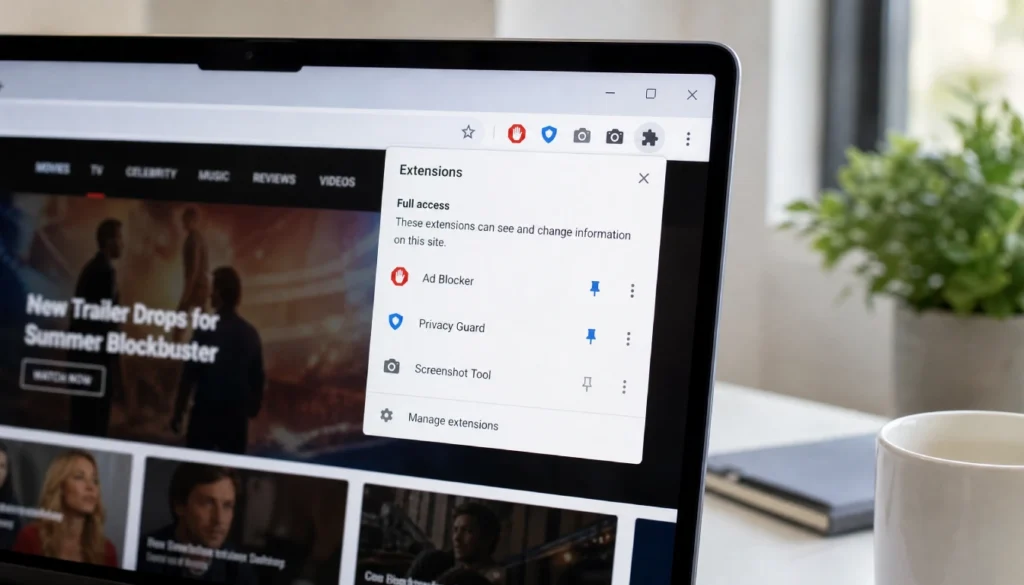
Your phone isn’t the only place spoilers live. Google search previews, YouTube thumbnails, and news articles can all give things away.
A browser extension is one of the easiest tools for social media spoiler avoidance on desktop.
Popular options to try:
| Extension | Platform | What It Does |
|---|---|---|
| Spoiler Shield | Chrome / Firefox | Blocks keywords on Facebook & Twitter |
| Movie Spoiler Blocker | Chrome | Hides movie-related thumbnails and titles |
| Unspoiler | Chrome | Blurs spoiler content based on keywords |
| uBlock Origin (custom rules) | All browsers | Manual keyword blocking — very powerful |
Most of these are free and take about two minutes to set up. If you’re serious about a spoiler-free movie experience, this step alone can save you a lot of frustration.
Step 3: Consider a Short Social Media Detox Around Premieres

I know this sounds dramatic. Hear me out.
You don’t have to delete your accounts or go off-grid for a month. A 24–72 hour social media blackout around a major release date is often all it takes.
Think about it: the first wave of spoilers hits hardest in the 12 hours after a movie opens. Fan accounts, reaction threads, meme pages — they all go wild immediately. If you can just stay off for a day or two and see the film quickly, you’re mostly safe.
Some people plan their entire opening-weekend schedule around this. It sounds intense, but when you love movies the way some of us do, it’s just… worth it.
Quick detox tips:
- Swap social apps with something low-risk during this window (podcasts, books, games)
- Tell close friends in a group chat: “I haven’t seen it yet — please no spoilers!”
- Set an app timer on your phone to limit social media to 10 minutes per day temporarily
Step 4: Manage YouTube Before It Ruins Everything
YouTube thumbnails are ruthless with spoilers. The algorithm rewards clickable thumbnails, and nothing gets clicks like a screenshot of a shocking scene.
Here’s how to stop YouTube from recommending spoiler videos:
- Don’t watch any trailers, reaction videos, or clips related to the movie until you’ve seen it
- Use the “Not Interested” and “Don’t Recommend This Channel” buttons aggressively
- Consider a browser extension like “Unhook” which removes YouTube’s recommendation sidebar entirely
The less you engage with related content beforehand, the less YouTube has to work with.
Step 5: Talk to Your Friends (Yes, Really)
This one feels awkward but it works.
There are gentle ways to ask people to stop posting movie spoilers without making it weird. A simple message in a group chat — “Hey, I haven’t seen [Movie] yet, can everyone hold off on details until I do?” — is usually all it takes.
Most people genuinely don’t think about the timing of what they post. They’re excited. A friendly heads-up is usually well-received.
If you’ve already accidentally seen a spoiler from a friend, don’t stew about it. Let them know — not to shame them, but so they think twice next time for you or someone else.
Mistakes That Will Get You Spoiled (Avoid These)
Even with all the right tools, certain habits will work against you. Watch out for:
- Checking Twitter right after opening night — even with muted words, things slip through
- Reading review headlines — critics love putting twists in titles
- Googling the movie at all before seeing it — autocomplete is not your friend
- Following fan accounts for franchises you care about — they post constantly
- Leaving notifications on for entertainment apps and news aggregators
What to Do If You Already Saw a Spoiler
It happens. Even with the best system, something slips through.
Here’s what I’ve found helps:
Give yourself a minute to be annoyed — that feeling is valid. Then let it go. A spoiler tells you what happens, but it doesn’t tell you how the scene lands emotionally. The performances, the music, the direction — that’s where the real experience lives.
Some of the most emotional movie moments I’ve had were in films where I already knew the ending. The journey still got me.
Don’t let a spoiler steal the whole experience.
Spoiler-Free Movie Watching
What words should I mute on Twitter to avoid movie spoilers?
Start with the full movie title, short abbreviations, lead actor names, the director’s name, and hashtags like #Spoilers, #[MovieName]Spoilers, and #EndingExplained. Update the list as new fan hashtags emerge.
Is there an app that blocks spoilers automatically on my phone?
Yes — apps like Spoiler Shield work across Twitter and Facebook on mobile. For broader protection, combining keyword muting within each app is the most reliable method.
How long should I stay off social media to avoid spoilers?
For most movies, 24–72 hours after opening weekend is the critical window. If you can see it opening day, you’re largely safe by the time the next weekend rolls around.
Can I avoid spoilers on YouTube without deleting my account?
Absolutely. Use the “Not Interested” button on any recommendation that’s adjacent to the movie, avoid watching trailers or clips in the lead-up, and consider the Unhook extension to hide YouTube’s recommendation engine.
What if my friends keep spoiling movies in group chats?
A gentle, direct message asking them to hold off until you’ve seen a movie works far better than most people expect. Most friends will respect the request once they know it matters to you.
Final Thoughts: You Deserve to Experience Movies the Way They Were Meant to Be Seen
The whole magic of going to the movies — or settling in at home with the lights off — is that feeling of not knowing what’s coming next.
That’s worth protecting.
With a few smart habits, the right browser tools, and a quick platform setup before each big release, you can take back your movie-watching experience. You don’t have to quit social media. You just have to be a little more intentional about it.
So next time something big hits theaters, set your muted words, close Twitter for the weekend, and go in fresh. You’ll thank yourself the moment that plot twist lands exactly the way the director intended.
And if you’ve got your own tips for staying spoiler-free — or a horror story about a spoiler that got you — drop it in the comments below. We’ve all been there, and I’d love to hear how you handle it.
Did this help? Share it with a fellow movie lover who’s been spoiled one too many times. They’ll appreciate it.