
Your PC is crawling. Pop-ups keep flashing. Maybe you saw a scary message saying your files are locked. And you do not have any third-party antivirus installed. That is a terrifying spot to be in.
Here is the truth: you do not need to buy anything. Windows 10 and 11 come with serious built-in security tools that most people never use. In this guide, I will walk you through exactly how to remove a virus without antivirus software, step by step, using only official Microsoft tools. No downloads. No paid software. Just your PC and these instructions.
Before You Touch Anything: Backup and Safety First
Before you run a single scan or delete a single file, do one thing: disconnect from the internet.
Unplug your Ethernet cable or turn off your Wi-Fi from the taskbar. Many viruses phone home to a server to receive instructions or send your data. Cutting that connection stops that immediately.
Then, if you can, back up your most important files to a USB drive or external hard disk. Do not back up program files or system folders. Just documents, photos, and anything you cannot afford to lose. If the virus has not touched those yet, this step protects them.
Quick safety checklist before you start:
- Disconnect from Wi-Fi or Ethernet
- Plug in a USB drive and copy your important files
- Write down or screenshot any error messages the virus is showing you
- Keep this guide open on a phone or a second device if possible
Now you are ready to act.
Is It Really a Virus? 9 Warning Signs to Look For
Not every slow PC means a virus. But these signs together are a strong signal that something is wrong:
- Your browser homepage changed, and you did not change it
- Pop-up ads appear even when your browser is closed
- Programs open or close on their own
- Your PC fan runs constantly, even when you are doing nothing
- You see a ransom note or “Your PC is infected” warning you did not trigger
- Files are missing or have strange new extensions like
.lockedor.crypt - Task Manager shows a process eating 80–100% CPU with no clear name
- Your antivirus (if you have one) has been disabled, and you cannot turn it back on
- Friends tell you they got strange emails or messages from your account
If you are ticking three or more of those boxes, keep reading. This guide will walk you through each method to get your PC clean.
Method 1: Boot into Safe Mode and Remove Viruses Manually
Safe Mode is the single most useful tool you have right now. It starts Windows with the bare minimum of drivers and programs. Most viruses cannot run in Safe Mode, which means you can find and delete them without them fighting back.
How to boot into Safe Mode on Windows 10:
Step 1: Click the Start menu, then the Power icon. Hold Shift and click Restart.
Step 2: Your PC will restart to a blue screen called “Choose an option.” Click Troubleshoot.
Step 3: Click Advanced Options, then Startup Settings, then Restart.
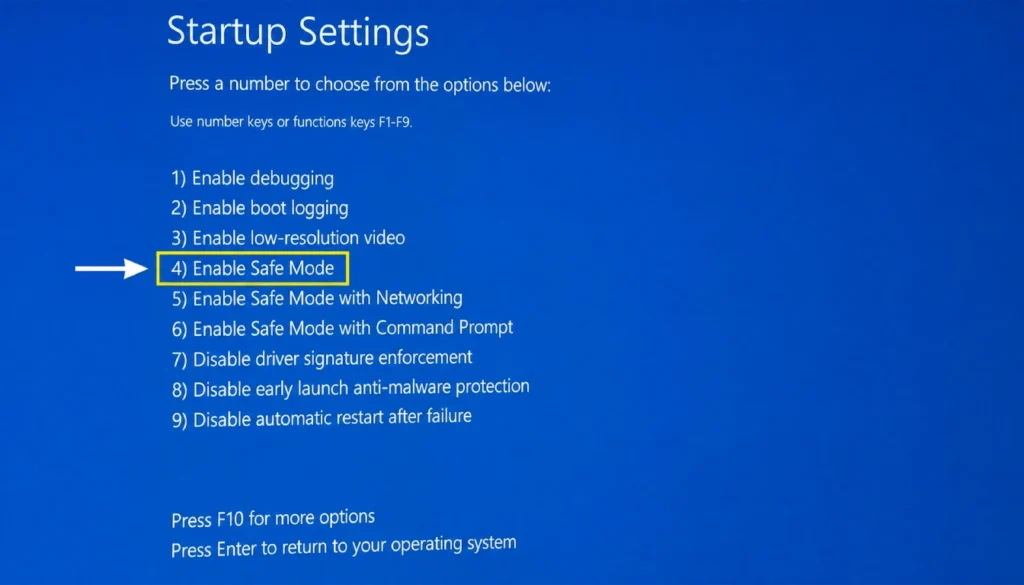
Step 4: When the numbered list appears, press 4 on your keyboard to select “Enable Safe Mode.”
Your PC will restart and load into Safe Mode. The screen will look basic, with “Safe Mode” in each corner. That is normal.
Once in Safe Mode, do this:
- Press Windows + R, type
%temp%, and press Enter. This opens your Temp folder. Select everything (Ctrl + A) and delete it. Many viruses hide here. - Press Windows + R, type
appwiz.cpl, and press Enter. This opens Programs and Features. Look for anything you did not install, anything with a strange name, or anything installed on the day your PC started acting up. Right-click and uninstall it. - Check your browser extensions. Open your browser (even in Safe Mode), go to Settings, and remove any extension you do not recognise.
I have used this method more than a dozen times for family and friends. The Temp folder alone has cleared up infections that looked terrifying from the outside.
Method 2: Use Windows Defender Offline Scan (Before Windows Starts)
This is one of the most powerful tools on your PC, and almost nobody knows it exists.
Windows Defender Offline Scan runs before Windows fully loads. That means it can catch viruses that hide inside normal Windows processes, the kind that disappear the moment Windows boots up and are therefore invisible to a regular scan.
How to run Windows Defender Offline Scan:
Step 1: Press Windows + I to open Settings.
Step 2: Go to Update and Security, then Windows Security.
Step 3: Click Virus and Threat Protection.
Step 4: Under Current Threats, click Scan Options.
Step 5: Select Microsoft Defender Offline Scan and click Scan Now.
Step 6: Click Scan to confirm. Your PC will restart and run the scan before Windows loads. This takes about 15 minutes.
When the scan finishes, Windows will start normally and show you a report. Any threats it finds will be listed, and Defender will have quarantined or removed them automatically.
This is the scan I ran on my aunt’s laptop when she had fake pop-ups covering her entire screen. After the offline scan was completed, every single one of them was gone.
Important: Make sure Windows Defender is turned on before you try this. Go to Windows Security and confirm that Real-Time Protection is active. If something turned it off, turn it back on from that same screen.
Method 3: Kill Suspicious Processes with Task Manager
Some viruses stay alive by running as a background process. Even after you delete their files, they keep restarting. Task Manager lets you stop them in their tracks.
How to use Task Manager to stop a virus process:
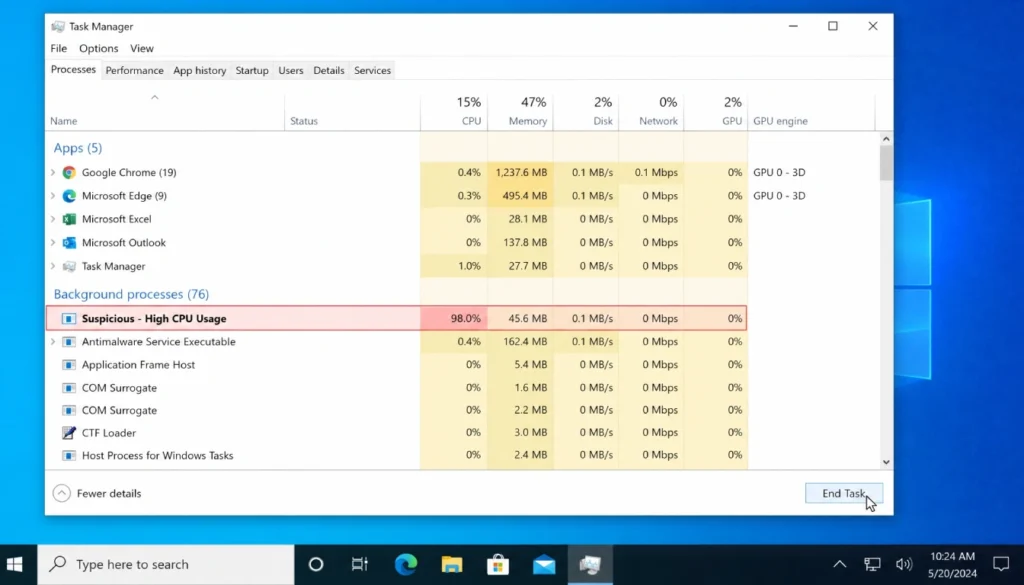
Step 1: Press Ctrl + Shift + Esc to open Task Manager.
Step 2: Click More Details at the bottom if you see a simplified view.
Step 3: Click the CPU column header to sort processes by CPU usage, highest first.
Step 4: Look for anything that is using a lot of CPU or memory and has a name you do not recognise. Right-click any suspicious process and click Open File Location. If the file is buried in a weird folder like C:\Users\Name\AppData\Roaming\randomletters\That is a red flag.
Step 5: Go back to Task Manager, right-click that process, and click End Task.
Step 6: Return to the file location and delete the file or folder.
What to look for:
- Processes with random strings of letters as their name (e.g.,
xkqztp.exe) - Two processes with the same name but different descriptions
- Processes that restart immediately after you end them (this means the virus has a watchdog, move to Method 4)
Do not end processes like svchost.exe, explorer.exe, or System. Those are legitimate Windows processes, even if they look unfamiliar.
Method 4: Remove Stubborn Malware Using Command Prompt
Some malware hides its files so they do not appear in File Explorer. They set themselves as hidden system files, which makes them invisible to a normal user. Command Prompt can reveal and delete them.
This is the method people avoid because it looks technical. It is not. You are just typing a few specific commands.
How to use Command Prompt for manual virus removal:
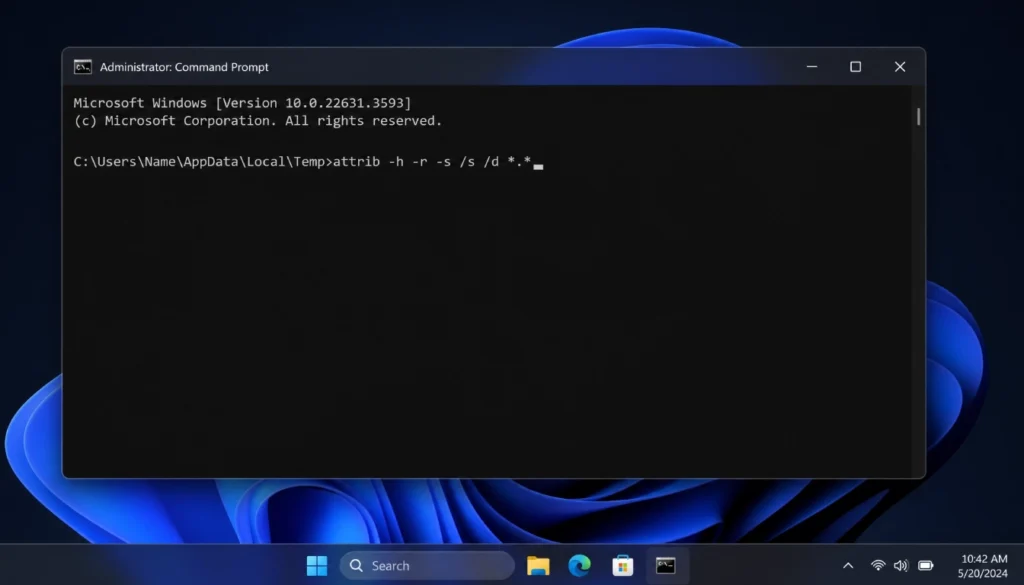
Step 1: Press Windows + S and type cmd. Right-click Command Prompt and select Run as Administrator.
Step 2: Navigate to the folder you want to clean. For example, to check your Temp folder, type:
cd C:\Users\YourUsername\AppData\Local\Temp
Replace YourUsername With your actual Windows username.
Step 3: Type this command and press Enter:
attrib -h -r -s /s /d *.*
This removes the hidden, read-only, and system attributes from all files in that folder, making them visible.
Step 4: Type dir And press Enter to see all files now visible. Look for anything suspicious, especially .exe files with random names.
Step 5: To delete a suspicious file, type:
del filename.exe
Replace filename.exe With the actual file name.
Other folders worth checking with this method:
C:\Users\YourUsername\AppData\RoamingC:\Users\YourUsername\AppData\LocalC:\Windows\Temp
The first time I used this command, I found four hidden .exe files in a Temp folder that Windows Explorer showed as empty. They were all part of the same infection. Deleting them stopped the pop-ups cold.
Method 5: Roll Back with System Restore (When All Else Fails)
If you have tried everything above and your PC still acts infected, System Restore is your last resort before a full reinstall.
System Restore rolls Windows back to an earlier point in time, called a restore point. Windows creates these automatically before major updates. If your PC was clean two weeks ago and was infected today, you can go back to two weeks ago.
Important: System Restore does not delete your personal files (documents, photos). But it will uninstall programs installed after the restore point date.
How to use System Restore:
Step 1: Press Windows + S and search for Create a restore point. Open it.
Step 2: Click System Restore, then Next.
Step 3: Windows will show you a list of restore points with dates. Pick one from before your PC started acting strangely.
Step 4: Click Next, then Finish. Your PC will restart and roll back. This takes 10–30 minutes.
Step 5: When Windows loads again, check if the symptoms are gone.
If you do not see any restore points, this feature may have been turned off. In that case, your remaining options are running the Defender Offline Scan again, resetting Windows (Settings, Update and Security, Recovery, Reset this PC), or taking the PC to a repair shop.
After the Cleanup: Prevent Future Infections Without Third-Party Antivirus
Once your PC is clean, spend 10 minutes setting up these protections. They are all free and built into Windows.
Turn on Windows Defender in real-time: Go to Windows Security, Virus and Threat Protection, Manage Settings, and make sure Real-Time Protection is on. Leave it on permanently.
Turn on Controlled Folder Access: This stops programs from changing files in your Documents, Pictures, and Desktop folders without your permission. Go to Windows Security, Virus and Threat Protection, Manage Ransomware Protection, and turn it on.
Keep Windows updated: Go to Settings, Update and Security, Windows Update, and install all pending updates. Most viruses exploit old, unpatched Windows vulnerabilities.
Use a standard user account for daily tasks: If you use an Administrator account every day, any virus you catch automatically gets Administrator rights. Create a standard user account for daily use and keep the Admin account for installs only.
Be careful with downloads: Most infections come from software downloaded outside official sources. Stick to the Microsoft Store, official websites, and trusted developers. If an installer asks you to turn off antivirus before installing, delete it immediately.
Check your browser extensions regularly: Set a monthly reminder to open your browser extensions list and remove anything unfamiliar.
These steps together give you solid protection without spending a single rupee on third-party software.
Frequently Asked Questions
Can I remove a virus without antivirus software completely?
Yes, in most cases. Windows Defender, Safe Mode, Task Manager, and Command Prompt together can remove the majority of common viruses and malware. Advanced threats like rootkits sometimes require specialised tools, but those are rare for everyday users.
Will Safe Mode remove the virus automatically?
No. Safe Mode stops the virus from running so you can find and delete it manually. It does not remove anything on its own.
Is Windows Defender good enough on its own in 2026?
For most home users, yes. Microsoft has improved Defender significantly over the past few years. Pair it with smart browsing habits, and you are well covered.
What if the virus comes back after I delete it?
This usually means there is a secondary process (a watchdog) restarting it. Use Method 3 to find all related processes and end them before deleting the files. Then run a Defender Offline Scan to catch anything remaining.
Should I reset my PC if nothing works?
If all five methods fail, resetting Windows (keeping your files) is a reasonable next step. Go to Settings, Update and Security, Recovery, Reset this PC, and choose “Keep my files.” This reinstalls Windows while leaving your personal documents intact.
Can a virus survive a Windows reset?
In rare cases, a deeply embedded rootkit can survive a reset. If that happens, you need to do a full factory reset using Windows installation media from Microsoft’s website, which wipes everything and starts fresh.
Does this guide work on Windows 11 too?
Yes. All five methods work on Windows 11. The menus look slightly different, but the steps are the same. Defender Offline Scan and Safe Mode work identically on both versions.
Final Thoughts
Removing a virus without antivirus on Windows 10 is absolutely possible. You do not need expensive software or a trip to a repair shop for most infections.
Start with Safe Mode and the Temp folder. Run a Defender Offline Scan. Kill suspicious processes in Task Manager. Use Command Prompt to find hidden files. And if all else fails, roll back with System Restore.
I have walked family members and friends through every one of these methods, and they work. The key is to stay calm, follow each step without skipping, and disconnect from the internet first.
If this guide helped you remove a virus without antivirus software on your Windows 10 or 11 PC, share it with someone who might need it. And if you are still stuck after trying all five methods, drop your specific situation in the comments, and I will do my best to help.