

I once stood outside a train station in Naples, Italy, phone signal completely dead, no local SIM, and absolutely no idea which direction my hotel was. I had Google Maps open, but it was spinning. Just… spinning. That little blue dot had no clue where I was, and honestly, neither did I.
It was 11 PM. My bags were heavy. I was tired.
That trip taught me one of the most practical travel lessons I know: always download Google Maps offline before you leave. Not at the airport. Not on the train. Before you leave home, with good Wi-Fi and a fully charged phone.
If you’ve ever been stranded with no signal abroad, this guide is for you. I’ll walk you through exactly how to use Google Maps offline when traveling internationally, what it can and can’t do, and how to get the most out of it so you never have that Naples moment.
Why Offline Google Maps Is a Travel Essential
Roaming charges are real. International data plans are expensive. And in many countries, including parts of Southeast Asia, rural Europe, and remote islands, mobile data is either patchy or nonexistent.
Offline Google Maps solves all of that. You download a region or city to your phone while you’re on Wi-Fi, and then you use GPS (which works without data) to navigate. No roaming fees, no buffering, no panic.
It’s one of those things that seems obvious in hindsight, but most first-time international travelers don’t know about it until something goes wrong.
How to Download Google Maps for Offline Use
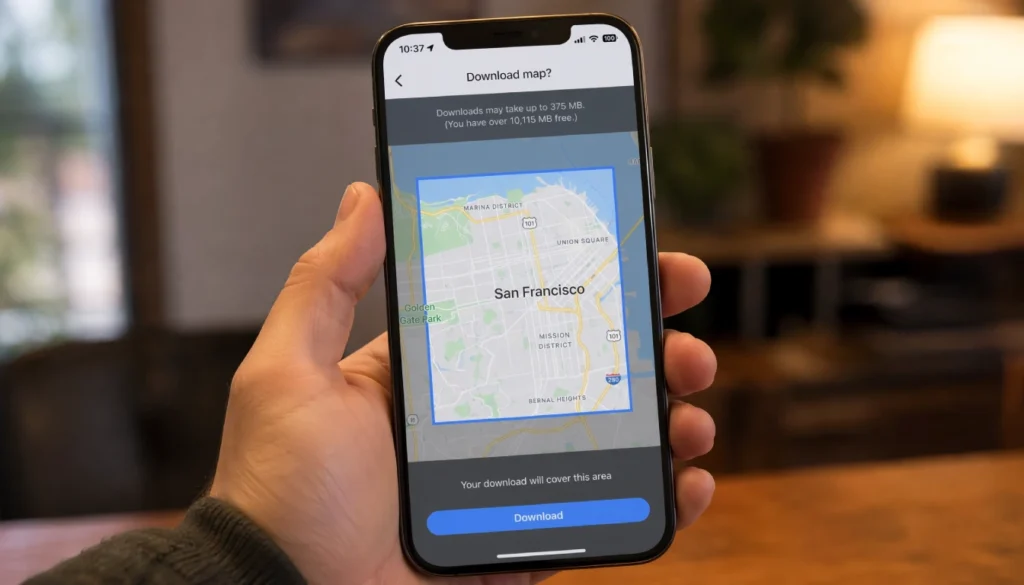
This takes about five minutes. Do it before your trip, not at the airport.
On Android or iPhone:
- Open Google Maps and make sure you’re signed in.
- Search for the city or region you’re visiting, like “Bangkok” or “Paris.”
- Tap the name of the place at the bottom of the screen.
- Tap the three-dot menu in the top right corner.
- Select “Download offline map.”
- Adjust the area you want to cover, then tap “Download.”
That’s it. The map saves to your phone’s storage and works completely without internet.
A few things to keep in mind:
- Larger areas take more storage. A full city like Tokyo can use 200–400 MB. A small town might be under 50 MB.
- Offline maps expire after 30 days. Google will remind you to update them, but if you’re on limited Wi-Fi, update before you travel.
- You can download multiple regions for a multi-country trip. Just repeat the process for each area.
What Works Offline (And What Doesn’t)
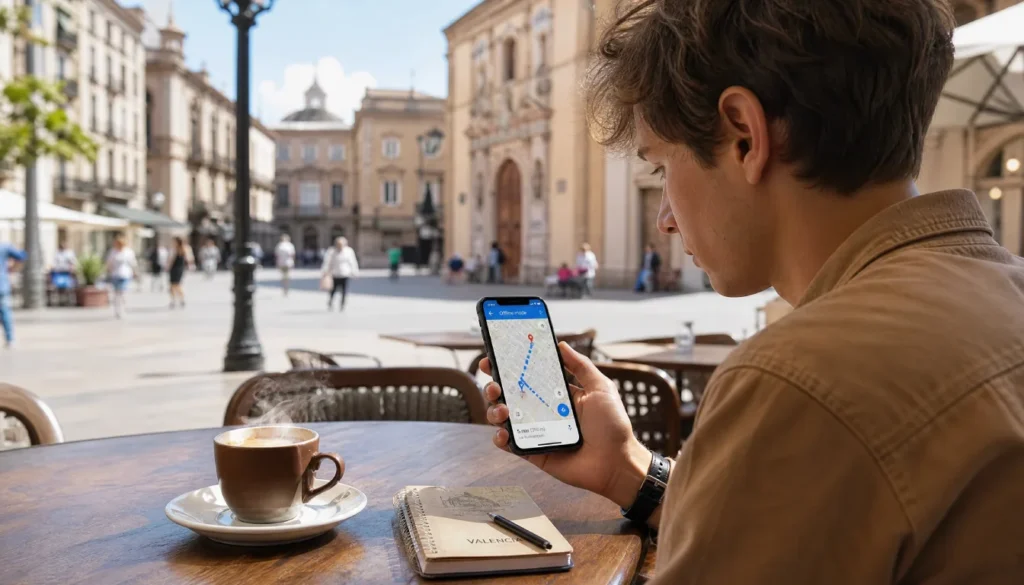
This is where a lot of people get confused. Offline Google Maps is useful, but it’s not the same as the full online version.
What works:
- Turn-by-turn directions for driving, walking, and cycling
- Voice navigation (yes, it speaks to you offline)
- Searching for saved places and bookmarks
- Viewing your GPS location in real time
- Compass and basic map browsing
What doesn’t work without data:
- Public transport routes (bus and metro times need a connection)
- Live traffic updates and rerouting around congestion
- Street View
- Real-time business hours and reviews
- Sharing your location with others
- Searching for places you haven’t already saved
Knowing this ahead of time helps you plan. If you need public transport schedules in a foreign city, download a separate offline transit app or screenshot the routes before you go.
How to Navigate Without Internet: Step by Step
Once your map is downloaded, using it is simple. Here’s what to do when you land:
- Put your phone on airplane mode or turn off mobile data to save battery and avoid roaming charges.
- Open Google Maps. It will load your offline map automatically.
- Let GPS find your location. This takes 10–30 seconds and works without data.
- Search for a saved place or type in an address. (Note: searching only works for places in your saved areas or offline map region.)
- Tap “Directions” and choose walking, driving, or cycling.
- Start navigation. Voice directions will work just like online.
One tip: before you leave your hotel each morning, search for your destination while you’re still on the hotel Wi-Fi. That way, you have the route ready before you step outside.
Before You Travel: A Quick Offline Maps Checklist
A little prep goes a long way. Here’s what to do in the week before your trip:
| Task | When to Do It |
|---|---|
| Download offline maps for all destinations | 1–3 days before departure |
| Save your hotel, airport, and key spots | Night before you fly |
| Screenshot public transport routes | Night before you fly |
| Charge your phone fully | Morning of travel |
| Check that the offline map is not expired | Day of departure |
| Turn off auto-updates to save storage | Before your trip |
Saving your hotel, restaurants, and landmarks as stars or list items in Google Maps means you can find them even when your search isn’t working offline.
Google Maps Offline Tips That Most People Miss
You don’t have to just use it for basic navigation. A few lesser-known features make offline Google Maps even more useful.
Name your offline maps. When you download an area, you can rename it something like “Italy Trip” or “Bangkok Islands.” This makes it easy to manage if you’re visiting multiple countries.
Use it in airplane mode from day one. Airplane mode kills roaming completely. With your offline map downloaded, you still get full GPS navigation, zero data charges, and decent battery life.
Download before you get on the plane. Airport Wi-Fi is slow and unreliable. Downloading a 300 MB map on airport Wi-Fi is painful. Do it at home.
Carry a backup option. If you’re going somewhere remote, consider a secondary offline map app like Maps.me or HERE WeGo as a backup. They cover rural and trail areas that Google Maps sometimes misses.
Common Mistakes to Avoid
Even frequent travelers get these wrong sometimes.
Forgetting to update expired maps. Maps expire after 30 days. If you downloaded your Bangkok map a month before your trip, it might already be expired when you land. Check the expiry date in Google Maps under Downloads.
Not saving key locations before leaving Wi-Fi. You can’t search for new places when you’re fully offline. Save your accommodation, local supermarket, and key attractions while you have internet.
Relying on offline maps for public transport. Bus and metro times don’t work offline. Always screenshot or save transit routes while on Wi-Fi.
Downloading too small an area. When you select the offline download region, make sure you cover enough ground. If you’re road-tripping, download the full route, not just one city.
Offline Google Maps vs. Using Mobile Data Abroad
Is it worth getting a local SIM or international data plan instead? It depends on your trip.
| Option | Cost | Works offline? | Best for |
|---|---|---|---|
| Google Maps offline | Free | Yes | Budget travel, short trips |
| International SIM card | $10–$30 | No (needs data) | Long stays, heavy phone use |
| Travel eSIM | $5–$20 | No (needs data) | Frequent travelers, digital nomads |
| Pocket Wi-Fi rental | $5–$15/day | No (needs Wi-Fi) | Japan, South Korea, group travel |
| Roaming on home plan | $10+/day | No (needs data) | Emergency use only |
For most short trips and backpacker routes, offline Google Maps combined with Wi-Fi at hotels and cafes is enough. For longer stays or business travel, a local SIM is worth it.
Frequently Asked Questions
Can I use Google Maps offline in Europe without data roaming?
Yes. Once you download the offline map for your destination, GPS navigation works without any data connection. You won’t be able to get live public transit info, but turn-by-turn walking and driving directions work perfectly.
How much storage does downloading a whole city on Google Maps take?
It varies. A large city like London or Tokyo uses around 200–500 MB. A smaller city might be 50–150 MB. Check your phone’s available storage before downloading multiple regions.
What happens if I don’t update Google Maps offline before my trip?
Offline maps expire after 30 days. If yours has expired, Google Maps will ask you to update it. You’ll need Wi-Fi to re-download. Always check the expiry date in the Downloads section before you leave home.
Can I use Google Maps offline on an iPad with no cellular plan?
Yes. As long as you download the map ahead of time on Wi-Fi, your iPad’s GPS will work without a cellular connection. Navigation and turn-by-turn directions will function normally.
Does offline Google Maps work in airplane mode?
Yes. This is actually one of the best ways to use it. Airplane mode stops all roaming and data use. Your GPS still works, and your downloaded maps load without any connection.
You’re More Prepared Than You Think
Using Google Maps offline when traveling abroad is one of those small habits that makes a huge difference. It costs nothing, takes five minutes to set up, and can save you from a lot of stress in an unfamiliar place.
You don’t need a fancy data plan or a pocket Wi-Fi device to navigate confidently. A downloaded map, a charged phone, and a bit of prep the night before is often all it takes.
The next time you’re heading overseas, take ten minutes before your trip to download your destination’s offline map, save your key spots, and screenshot your transit routes. Future you, standing outside a train station in a foreign city, will be very grateful.
Have you used Google Maps offline on a trip before? Did it save you, or did you run into any issues? Drop a comment below and share your experience. Your tip might help another traveler avoid their own Naples moment.