You’re scrolling through your feed, and something stops you. The photo looks stunning. Almost too perfect. And then a quiet thought creeps in: “Is this even real?”
If that sounds familiar, you’re not alone. Knowing how to spot AI-generated images in 2026 tips has become a genuine life skill. AI tools have gotten so good that even careful, skeptical people get fooled every day. But there are real, visible clues you can catch, and free tools that do the heavy lifting for you. This guide walks you through exactly what to look for, in plain language, no tech background needed. Let’s get into it.
Why AI Images Are So Hard to Spot in 2026
A year or two ago, AI images were easy to catch. Blurry faces, obvious textures, and that slightly plastic look gave them away fast. That’s not the case anymore.
Models like Midjourney v7, DALL-E 4, and Stable Diffusion 3.5 produce images that pass a glance without any problem. Lighting looks natural. Skin looks real. Even the noise and grain patterns mimic real camera sensors.
The reason it’s gotten harder comes down to training data. These models have now been trained on billions of real photographs, and they’ve learned to copy the subtle imperfections that once made real images feel genuine.
That said, they still make mistakes. They’re just quieter mistakes now. Here’s where to look.
12 Telltale Visual Clues You Can Use Right Now
You don’t need any tool to catch most AI images. Your eyes are enough if you know where to focus. Work through these checks before you share or believe anything.
Hands and Fingers: The Classic Mistake
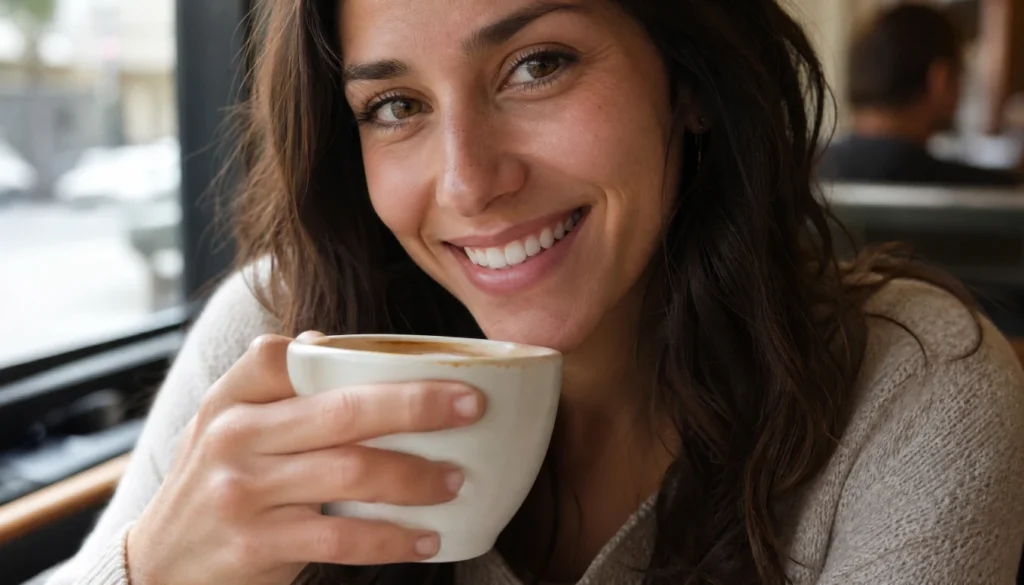
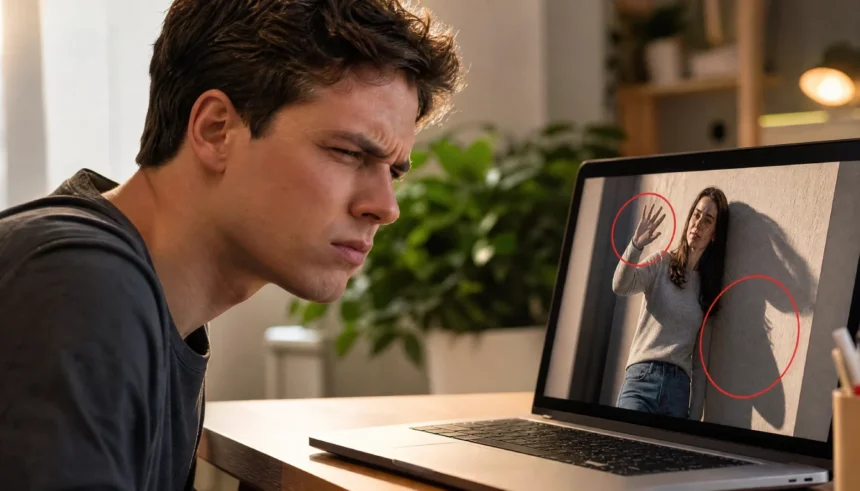
Hands remain the most reliable tell. AI models still struggle with finger count, finger length, and how skin wraps around joints. Look for:
- Six or more fingers on one hand
- Fingers that bend at the wrong angle or merge
- Nails that blend into objects being held
- Palms that look flat or textureless
I’ll be honest. Last month, I nearly shared what looked like a beautiful travel portrait. The composition was perfect. When I zoomed in, the woman’s hand holding her coffee cup had four and a half fingers. After that, I made it a habit to zoom in on hands before sharing anything.
Lighting and Shadows That Don’t Match
Real light has one source (or a few consistent ones). Shadows follow rules. In AI images, you’ll often see:
- Shadows pointing in two different directions in the same scene
- A face lit from the left, while the background light comes from the right
- Reflected light on surfaces that doesn’t match what’s nearby
This is harder to catch than the fingers trick, but once you train your eye, it becomes second nature.
Weird Background Blending and Textures
AI models fill backgrounds by predicting what should be there. The result often looks slightly off:
- Brickwork or tile patterns that repeat in a way no real wall would
- Trees or bushes that blur into each other without individual structure
- Objects near the edges of the frame that look half-formed or smeared
Zoom into the corners of any suspicious photo. Corners are where AI models pay the least attention.
Eyes, Teeth, and Other Unnatural Details
Eyes in AI images sometimes have an unsettling quality, too symmetric, too glossy, or with pupils that don’t reflect the same light source. Teeth can look like a single flat surface rather than individual teeth with natural gaps and shade variation.
Check for:
- Irises that look painted rather than layered
- Eyelashes that merge into a single solid line
- Teeth that blend or look evenly spaced in an unnatural way
Unreadable or Warped Text in Images
If a photo contains text, a sign, a label, a newspaper, or a coffee cup logo, read it. AI models are still notoriously bad at generating coherent text inside images. You’ll see:
- Letters that look real from a distance but spell nothing when zoomed in
- Brand names with extra characters or reversed letters
- Store signs with random symbol combinations
This single check catches a lot of fakes. If you can’t read the text in the image, that’s a strong signal.
Side-by-Side: Real Photo vs AI Image (2026 Examples)
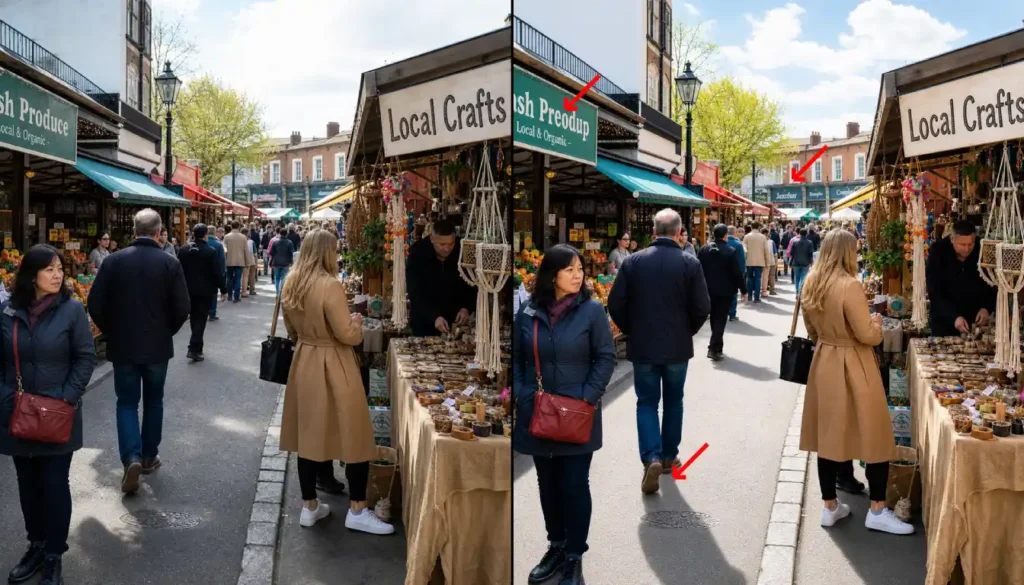
Look at the comparison above. The AI version looks convincing at first glance. But when you compare the two directly, several things stand out:
- Shadows: In the AI version, the stall umbrella casts a shadow that points in a different direction from the people’s shadows below it.
- Background text: The market signs in the AI version contain letters, but they don’t form any real words.
- Crowd depth: Real photos have genuine variation in how people stand and move. The AI crowd looks slightly copy-pasted with subtle facial repetition.
You won’t always have a side-by-side to compare. But training your eye on examples like this makes the patterns stick.
Free Tools to Detect AI Images in 2026
Visual checks get you far, but free detection tools add another layer of confidence. These tools analyze metadata, pixel patterns, and model fingerprints to give you a probability score.
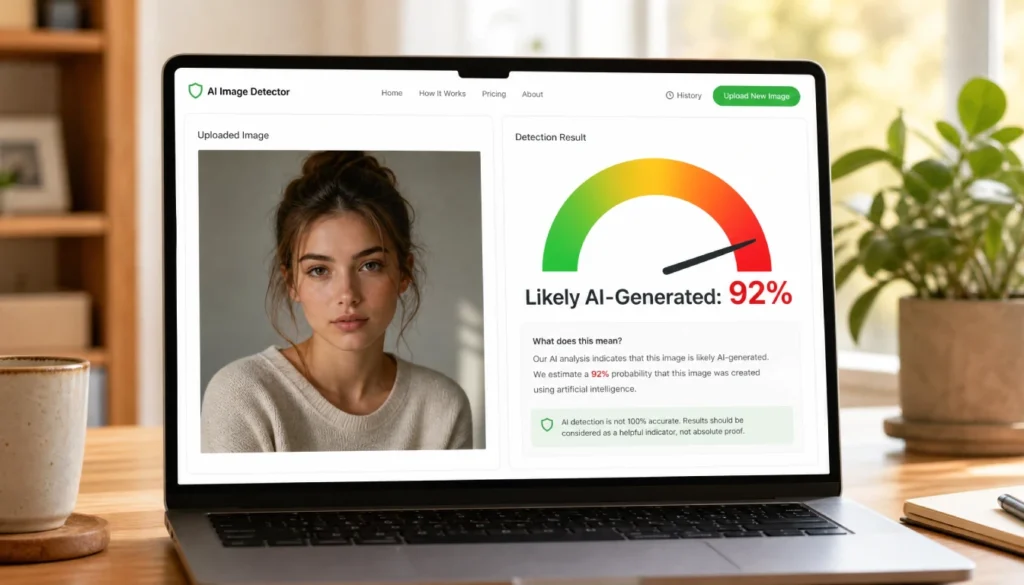
Here are the best free options available in 2026:
- Hive Moderation (hivemoderation.com): Upload any image and get a percentage score. It’s fast, free for basic use, and handles most common AI models well.
- AI or Not (aiornot.com): Simple interface, one-click results. Good for quick checks on social media screenshots.
- Illuminarty (illuminarty.ai): Goes deeper, showing you which regions of the image the model flagged as AI-generated. Great when you want to understand why, not just what.
- Google’s About This Image: Built into Google Search. Right-click any image, select “Search image,” and look for the “About this image” panel to see its history and source.
I tested all four tools using the same AI-generated portrait from Midjourney. Hive Moderation scored it at 94% AI. AI or Not called it correctly in under three seconds. Illuminarty highlighted the background blur and the hand region as the most suspicious areas. Google’s tool found no prior use of the image online, which itself was a flag since the person in it supposedly had a public profile.
No tool is perfect. Use them as one signal among several, not as the final word.
How to Verify an Image in 3 Simple Steps
If you’re staring at a suspicious image right now, don’t overthink it. Run through this three-step check:
Step 1: Zoom into the hands, background text, and eyes. Spend 30 seconds on each. If any of the 12 visual clues above appear, you already have your answer.
Step 2: Upload the image to a free detection tool. Use Hive Moderation or AI or Not. Drag and drop the image file or paste the URL. Read the score. Anything above 80% is a strong indicator.
Step 3: Run a reverse image search. Go to images.google.com, click the camera icon, and upload the photo. If it shows up on stock image sites, AI generation galleries, or has no prior history despite supposedly being a real person or event, that’s your final confirmation.
The whole process takes under 60 seconds. You don’t need any technical skills.
What If You’re Still Not Sure? Quick Checks
Sometimes an image passes the visual checks and scores 50-60% on a detection tool. Not conclusive either way. Here’s what to do:
- Check the source. Where did this image first appear? A verified news outlet or official account is a different situation from a three-week-old social media account with no history.
- Look at the context. Does the claim attached to the image match reality? An “exclusive photo” of a celebrity at a location they weren’t at, verified by their own posts, is a red flag regardless of the detection score.
- Search the claim, not just the image. Sometimes the image is real, but the caption is fabricated. A 2024 Reuters study found that over 60% of misleading viral images used real photos with false context. The photo itself can be genuine, while the story around it is entirely made up.
- Ask yourself the motive question. Who benefits from this image being believed? That question alone will save you from sharing a lot of nonsense.
Frequently Asked Questions About Spotting AI Images
Can AI images fool detection tools? Yes. Some AI generators now include anti-detection features. That’s why you should never rely on a single tool. Use the visual check, the tool, and the reverse image search together.
Are all perfect-looking photos AI? No. Professional photographers produce stunning, technically perfect images. Perfection alone is not evidence. Look for specific flaws, not just polish.
What about AI video in 2026? Video deepfakes follow similar rules. Watch the edges of faces, ears, and hair regions, and listen for audio that doesn’t match lip movements. The signs of AI video mistakes in 2026 are evolving quickly and deserve a separate guide.
Can I use these tips on mobile? Yes. Zoom in with a pinch gesture on any photo. Hive Moderation and AI both work on mobile browsers without needing an app.
Is it legal to share AI images without disclosing they’re AI? In many countries in 2026, no. The EU AI Act and several US state laws now require disclosure of synthetic media in certain contexts, especially political advertising and journalism. Always check local rules if you’re a publisher.
Conclusion
Knowing how to spot AI-generated images in 2026 comes down to three things: trained eyes, a good free tool, and a quick source check. You don’t need to be a tech expert. You need to slow down for 60 seconds before sharing.
Start with hands. Move to shadows. Read any text in the frame. Then drop the image into Hive Moderation or AI or Not. If something still feels off after that, run a reverse image search.
The images are getting better, but the mistakes haven’t disappeared. They’ve just gotten smaller. Now you know where to look.
If this guide helped you, share it with someone who keeps forwarding suspicious photos. And if you’ve spotted an AI image using one of these tricks, drop the story in the comments. I’d genuinely like to know which clue caught it.