

You’ve been put in charge of a scattered team, and your software budget is zero. Maybe you’ve already tried to manage a virtual team for free using a mix of WhatsApp, email threads, and shared spreadsheets. It works, until it really doesn’t.
The good news: you don’t need to spend a cent to run things properly. This guide covers the best free remote work tools for communication, task tracking, file sharing, and time management. By the end, you’ll have a complete, no-cost tool stack you can set up this afternoon.
What to Look for in a Free Remote Team Tool
Not all free plans are worth your time. Some lock essential features behind a paywall after your trial ends. Others cap you at three users or delete your data after 30 days.
Before you sign up for anything, run it through this checklist.
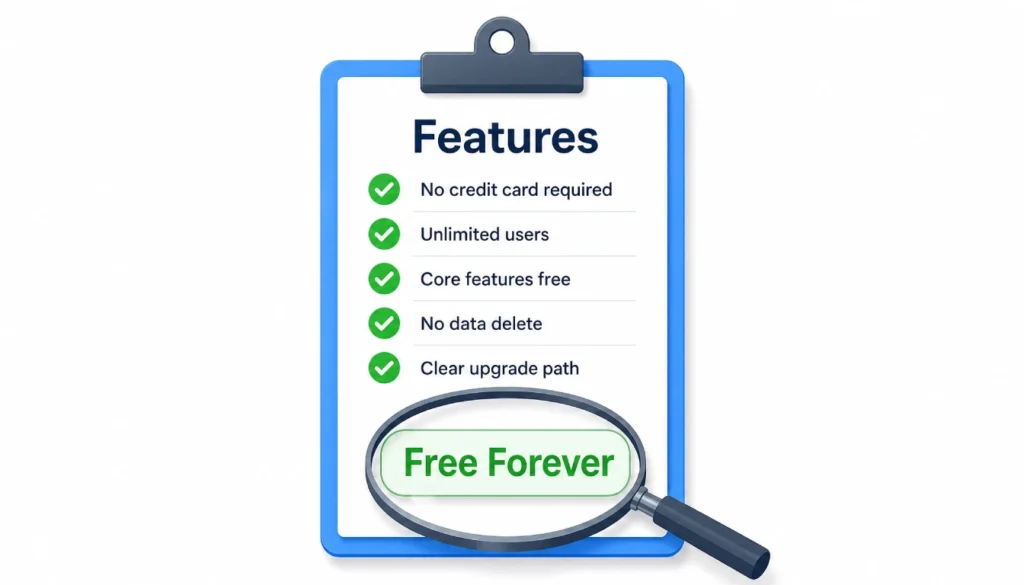
Here’s what to check before committing:
- No credit card required to sign up. If they ask for payment details upfront, skip it.
- Unlimited users on the free plan, or at least enough for your team size.
- Core features are accessible, not just teasers. You should be able to do real work without upgrading.
- No automatic delete. Some tools delete your data after 30 days of inactivity on the free tier.
- Clear upgrade path. If you grow, you want to know exactly what paid looks like, with no surprise bills.
I’ve spent time on the free plans of more tools than I can count. The nine below passed every item on that checklist.
The 9 Free Tools, Categorised by Need
When I first had to manage a 7-person remote team with exactly $0 for software, I felt completely stuck. Communication was a mess of WhatsApp groups, long email chains, and spreadsheets that nobody updated. After a frustrating month, I sat down and tested over 20 free tools myself. Three of them turned out to be far better than I expected, and I’ve used the same stack for two years running. Here’s what I learned.
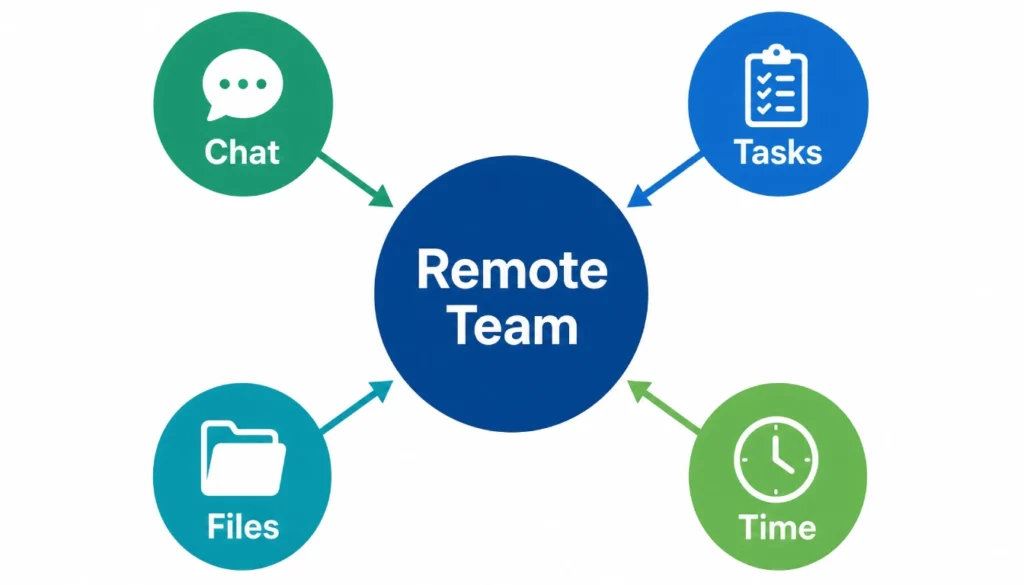
Communication and Video Calls
1. Slack (Free Plan)
Slack’s free plan gives you everything a small remote team needs to stay in sync. You get unlimited users, direct messaging, and up to 90 days of message history.
Key free features:
- Unlimited public and private channels
- Up to 10 third-party app integrations
- One-on-one audio and video calls
- Searchable message history for the last 90 days
The 90-day limit sounds tight, but for day-to-day communication, it’s more than enough. I’ve been on the free plan for one team since 2022 and have only hit the limit once, when trying to pull up an old client conversation.
2. Google Meet
Google Meet is the simplest free video call tool available right now. No download required, no time limits on one-to-one calls, and meetings with up to 100 participants are free.
Key free features:
- Unlimited one-on-one calls
- Group calls up to 60 minutes (up to 100 people)
- Screen sharing and real-time captions
- Works directly in any browser
For a team that already uses Gmail, this is the obvious pick.
Project and Task Management
3. Trello (Free Plan)
Trello is the go-to free project management software for remote small teams who want a visual board, not a complicated system. You drag cards between columns to track what’s in progress and what’s done.
Key free features:
- Unlimited cards and up to 10 boards
- Unlimited users and storage (10MB per file)
- Basic checklists, due dates, and labels
- Mobile apps for iOS and Android
It’s not perfect for complex projects with dependencies, but for most small teams, it covers everything in the basic workflow.
4. ClickUp (Free Forever Plan)
ClickUp’s free plan is one of the most generous in this space. You get 100MB of storage, unlimited tasks, and multiple views, including list, board, and calendar.
Key free features:
- Unlimited tasks and unlimited users
- Multiple project views (list, board, calendar)
- Time tracking and goal setting
- Real-time activity feed
The interface has a steeper learning curve than Trello, but the depth it offers at zero cost is hard to beat.
File Sharing and Document Collaboration
5. Google Drive (Free)
15GB of free cloud storage per Google account. That’s enough for most remote teams to share documents, spreadsheets, and presentations without paying anything.
Key free features:
- 15GB of shared cloud storage
- Real-time document collaboration via Google Docs, Sheets, and Slides
- Shareable links with permission controls
- Version history on all documents
If your team already uses Gmail, Drive is already there. You’re just creating folders.
6. Notion (Free Plan)
Notion blends note-taking, wikis, and databases into one place. The free plan is now unlimited for individual use and includes shared spaces for up to five guests.
Key free features:
- Unlimited blocks and pages
- Five guest collaborators
- File uploads up to 5MB
- Templates for team wikis and project docs
I use Notion as my team’s internal knowledge base. Everything from onboarding docs to meeting notes lives in one place, and new team members can get up to speed without asking me a dozen questions.
Time Tracking and Productivity
7. Clockify
Clockify is the only genuinely unlimited free time tracker available right now. No cap on users, no cap on tracked time, no expiry.
Key free features:
- Unlimited users and unlimited tracking
- Project and client-based tracking
- Weekly and monthly reports
- Browser extension and mobile app
For remote teams where accountability matters, Clockify gives you a clear picture of where time is actually going.
8. Toggl Track (Free Plan)
Toggl is cleaner and easier to use than Clockify, though the free plan caps you at five users.
Key free features:
- Up to five users
- One-click time tracking
- Basic reporting and project breakdown
- Idle detection (stops timer if you walk away)
If your team is five people or fewer, Toggl Track is the better experience.
The All-in-One Bonus Tool
9. Basecamp (Personal Plan)
Basecamp’s Personal plan is technically free and gives you access to three projects, 20 users, and 1GB of storage. It combines message boards, to-do lists, file sharing, and group chat in one place.
Key free features:
- Three active projects
- 20 users
- Built-in group chat (Campfire)
- To-do lists, schedules, and message boards
If you want one tool instead of five, Basecamp Personal is worth a look. It won’t scale past three projects, but for a single team running one or two workstreams, it removes a lot of friction.
How to Combine These into One Free Workflow
The tools above are more useful when they connect into a daily routine. Here’s the simple workflow my team runs on, completely free.
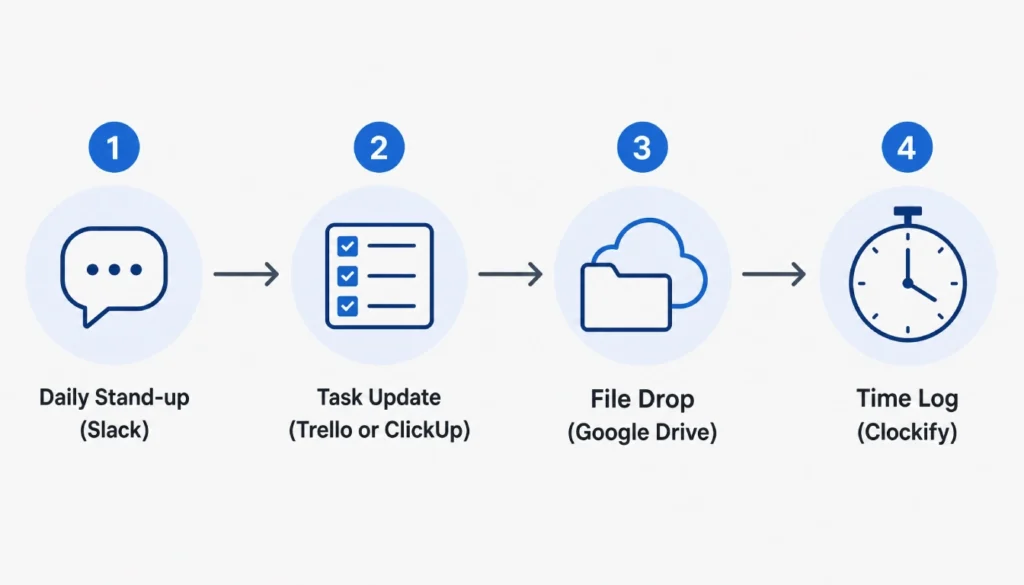
Morning: Post a quick async stand-up update in your Slack channel. Two or three lines: what you did yesterday, what you’re doing today, any blockers.
Midday: Update your Trello or ClickUp board. Move cards, close tasks, add comments. This takes five minutes and keeps everyone aligned.
End of day: Log your time in Clockify or Toggl. Drop any shared files into the relevant Google Drive folder. If there’s a decision or update worth documenting, add a Notion page.
That’s it. No meetings required unless something needs live discussion. When you do need a call, Google Meet handles it in seconds.
The Hidden Costs of “Free” Tools (And How to Dodge Them)
Free doesn’t always mean free. Here are the traps to watch for.
Storage limits that creep up. Google Drive’s 15GB fills up faster than you expect if your team shares large files. Use a shared team account, not personal accounts.
Feature gates after sign-up. Some tools give you a 14-day trial of their paid features, then downgrade you without warning. Check what the free plan actually includes before you build a workflow around it.
User caps that hit at the wrong time. Toggl Track’s five-user limit sounds fine for a small team until you bring on a contractor. Know your limits before you need them.
Data loss on inactivity. A few tools delete your data if the account is inactive for 30 or 60 days. Clockify and Notion don’t do this, but always read the terms.
Integrations that cost extra. Slack’s free plan caps you at 10 integrations. That’s enough for most teams, but map out your needs early so you don’t hit a wall later.
A Simple Starter Stack (Pick-and-Mix)
You don’t need all nine tools. Here’s a simple starting point based on team size.
Solo manager with a team of 3-5:
- Slack (communication)
- Trello (tasks)
- Google Drive (files)
- Toggl Track (time)
Manager with a team of 6-10:
- Slack (communication)
- ClickUp (tasks and goals)
- Google Drive plus Notion (files and documentation)
- Clockify (time, unlimited users)
- Google Meet (video calls)
Team that wants one tool:
- Basecamp Personal (communication, tasks, files in one place)
- Clockify (time tracking, Basecamp doesn’t include this)
Frequently Asked Questions
Can I actually manage a remote team for free, long-term?
Yes, if your team is under 10 people and your projects aren’t overly complex. The tools above have been free for years and show no signs of changing their core plans.
What’s the best free team communication tool for remote workers?
Slack is the most widely used and integrates with almost everything. If you want something simpler with no message history limits, Discord is worth trying for smaller teams.
Is there free project management software for remote small teams that handles multiple views?
ClickUp’s free forever plan includes list, board, and calendar views with unlimited tasks and users. It’s the strongest option at zero cost.
Do these tools work on mobile?
All nine tools have iOS and Android apps. Slack, Trello, ClickUp, Clockify, and Toggl Track are particularly strong on mobile.
What happens to my data if I stay on the free plan?
Most tools keep your data indefinitely as long as your account stays active. Clockify and Google Drive have no data expiry on free plans. Always confirm before building a long-term workflow around a new tool.
Your First Afternoon: Set Up Your Free Remote Office
If your team is currently running on email threads and group chats, follow these three steps this afternoon.
Step 1: Install your communication hub. Sign up for Slack (no credit card needed). Create a workspace for your team. Set up three channels: #general for announcements, #work for project updates, and #random for everything else. Invite your team. Done in 15 minutes.
Step 2: Choose one task manager. Sign up for Trello (it’s the easiest to start with). Create a board called “Current Projects.” Add three columns: To Do, Doing, Done. Add one card per active task, assign them to the right person, and set a due date. Your team now has a shared view of what’s happening, without any email chains.
Step 3: Set up file sharing. Create a shared Google Drive folder called “Team Workspace.” Add your onboarding document, your project brief, or whatever your team refers to most. Share the folder with your team with edit access. You’ve just replaced scattered email attachments with a single source of truth.
Those three steps take under two hours and replace most of what teams pay for with subscription software.
Managing remote teams with free tools to manage a remote team on a tight budget isn’t a workaround. It’s a real, tested approach that works for teams of all sizes. Start with the stack that fits your team size, build your daily workflow around it, and upgrade only when you’ve outgrown what the free plans offer.
If you found this useful, share it with another manager who’s figuring out remote work on a shoestring. And if your team uses a free tool that isn’t on this list, drop it in the comments.