I lost three years of photos once. Not to a broken phone. Not to a stolen device. To a cloud subscription I forgot to renew.
One day, the storage was full, syncing stopped, and I had no idea. By the time I noticed, half my gallery was gone. That moment changed how I think about phone backups completely.
If you’ve ever felt uneasy handing your personal photos, messages, and contacts over to a server you can’t see or control, you’re not alone. A lot of people are quietly moving away from cloud-dependent systems in 2026. And honestly? Backing up your phone to a PC without cloud storage is easier than most people think.
This guide covers exactly how to do it, step by step, for both Android and iPhone users.
Why Skip the Cloud Entirely?
Before we get into the how, let’s talk about the why, because this isn’t just a tech preference. It’s a practical decision.
Cloud storage sounds convenient until it isn’t. Subscriptions cost money. Servers go down. Data breaches happen. And with new privacy regulations tightening globally in 2026, more users want full control over where their data lives.
A local phone backup to your PC means your files sit on hardware you own. No monthly fees. No internet required. No third-party access. Just your data, stored safely offline.
What You’ll Need Before You Start
You don’t need much. Here’s a quick checklist:
- A USB cable (the one that came with your phone usually works)
- A PC running Windows 10, Windows 11, or macOS
- At least 5–10 GB of free storage on your computer
- About 20–30 minutes of your time
That’s it. No special apps are required for most basic backups, though we’ll cover some free tools below for a more complete backup.
How to Back Up an Android Phone to PC Without Cloud
Step 1: Connect Your Phone via USB
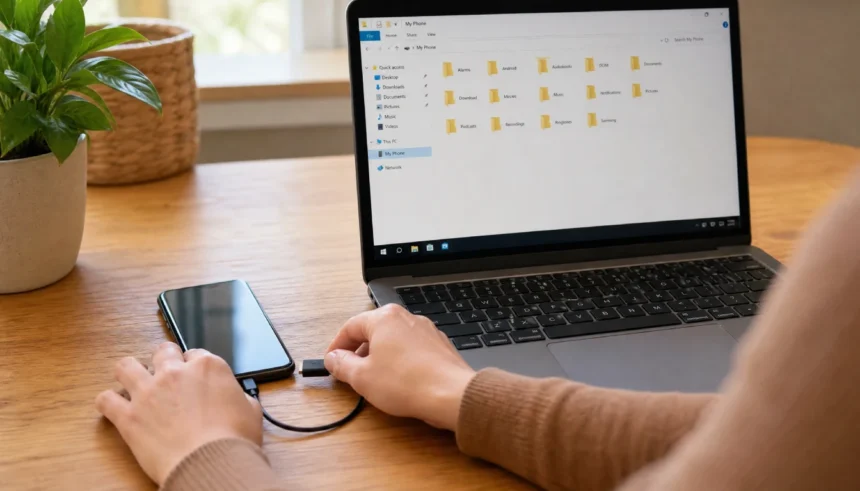
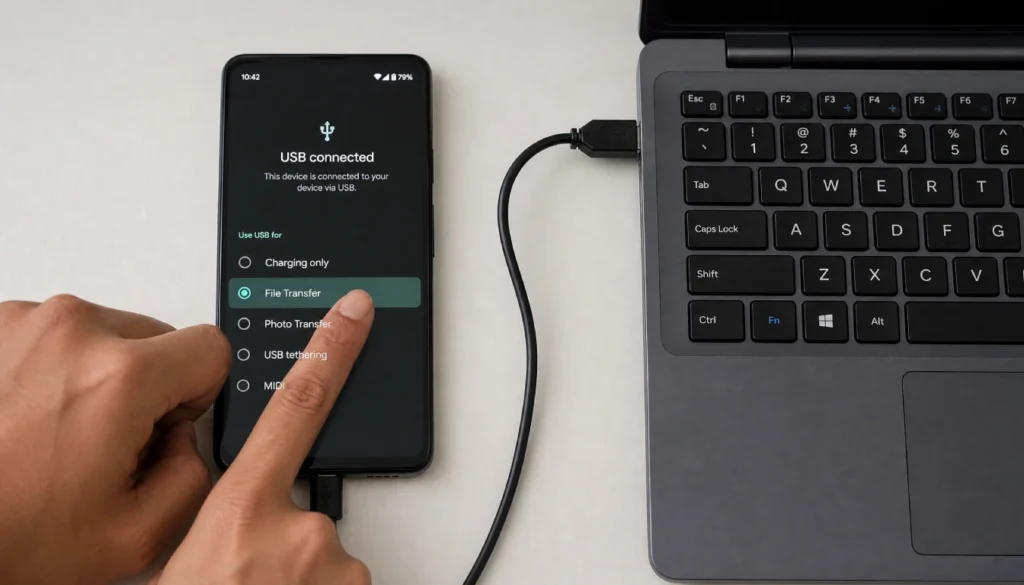
Plug your Android into your PC using a USB cable. When prompted on your phone, select “File Transfer” or “MTP mode.” This lets your computer read your phone like a storage drive.
If your phone doesn’t ask, pull down the notification shade and tap the USB connection option manually.
Step 2: Open Your Phone on PC
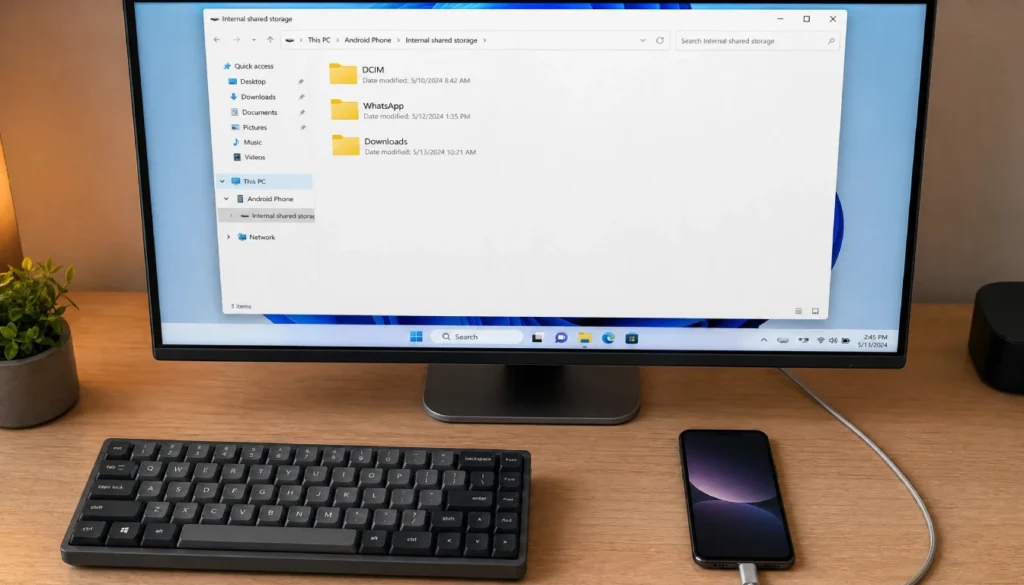
On Windows, open File Explorer. Your phone should appear under “This PC” as a connected device. Click it, then open “Internal Storage.”
On Mac, you’ll need to install Android File Transfer (free from Google) to access your Android’s storage.
Step 3: Copy Your Files
Manually drag and drop folders to your PC. The folders you want to prioritize:
- DCIM (all your camera photos and videos)
- WhatsApp (messages, media, and voice notes if you want to back up WhatsApp messages to PC without Google Drive)
- Downloads
- Documents
- Music
This covers your photos, videos, and most personal files. It’s a solid offline phone backup with zero internet required.
Step 4: Backup Contacts and SMS
Photos are easy. Contacts and texts are trickier because they’re stored in app databases, not simple folders.
For contacts, go to your phone’s Contacts app, tap the three-dot menu, and select Export. Save the file as a .vcf to your phone storage, then copy it to your PC.
For SMS (text messages), use a free app like SMS Backup & Restore (no cloud required). It exports your messages as an XML file directly to your phone storage. Then copy that file to your PC like any other document.
Step 5: Use ADB for a Full System Backup (Power Users)
If you want everything, including app data, settings, and call logs, Android Debug Bridge (ADB) is your best option. It’s a free command-line tool from Google.
Connect your phone, enable USB Debugging in Developer Options, then run:
adb backup -all -f full_backup.adb
This creates a compressed backup file on your PC. It’s the most thorough local backup option for Android, and it works completely offline.
How to Back Up an iPhone to PC Without iCloud
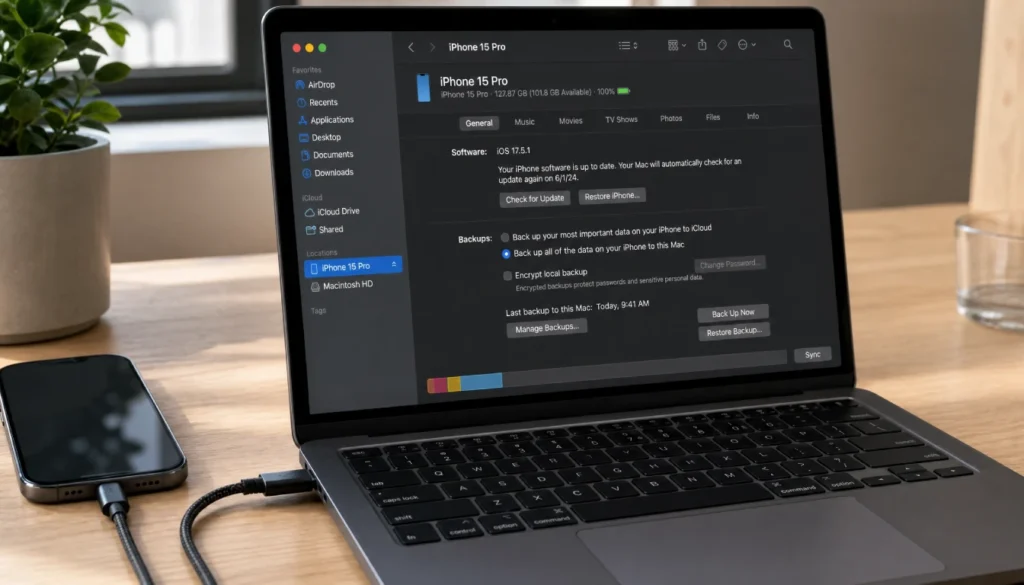
In Finder, select your iPhone from the sidebar, go to Backups, and choose “This Computer” to save a full local backup without iCloud.
Apple has made local backups easy through iTunes (Windows) and Finder (Mac). Here’s how to do it.
Step 1: Connect Your iPhone via USB
Use a Lightning or USB-C cable to connect your iPhone to your computer. Trust the connection on your phone if prompted.
Step 2: Open iTunes or Finder
On Windows, open iTunes. Your iPhone will appear in the upper left corner.
On macOS Catalina or later, open Finder. Your iPhone shows up in the sidebar under “Locations.”
Step 3: Choose “Back Up to This Computer”
In iTunes or Finder, find the “Backups” section. Select “This Computer” (not iCloud). You can also check “Encrypt local backup” to include passwords and health data in the backup.
Click “Back Up Now.”
That’s it. Your full iPhone backup, including contacts, messages, photos, and app data, is saved directly to your PC without iCloud involved.
The backup location on Windows is: C:\Users\[YourName]\AppData\Roaming\Apple Computer\MobileSync\Backup\
On Mac, it’s stored in Finder under your iPhone’s backup folder.
Step 4: Transfer Photos Separately (Optional)
If you just want your photos without running a full backup, you can import them directly. On Windows, your iPhone shows up like a camera when connected. Open the Photos app or File Explorer and import your images straight to a folder on your PC.
Best Free Software for Offline Phone Backup to PC
Sometimes you want more than manual file transfers. These tools make the process faster and more organized.
| Tool | Works With | Cloud Required | Key Feature |
|---|---|---|---|
| MobileSync Backup (iTunes) | iPhone | No | Full encrypted local backup |
| ADB (Android Debug Bridge) | Android | No | Full system backup via terminal |
| SMS Backup & Restore | Android | No | SMS and call log backup |
| Android File Transfer | Android + Mac | No | Simple file access on Mac |
| CopyTrans Shelbee | iPhone + Windows | No | Local iPhone backup without iTunes |
All of these are free. None of them require cloud access or an internet connection.
Common Mistakes to Avoid
A few things trip people up when doing a local backup for the first time:
Not selecting File Transfer mode on Android. If your phone is set to “Charging only,” your PC won’t see your files. Always check the USB notification.
Forgetting contacts and messages. Photos are obvious. Contacts and texts need an extra step. Don’t skip them.
Overwriting old backups. If you back up to the same folder every time, new files overwrite old ones. Create dated folders (like “Backup_June2026”) so you always have a previous version to fall back on.
Not testing the backup. After backing up, spot-check a few photos and try opening your contact export file. Confirm it actually worked before you rely on it.
Frequently Asked Questions
Can I back up my entire phone to my computer without any cloud?
Yes, absolutely. Both Android and iPhone support full local backups to a PC using USB. Android uses ADB or manual file transfer. iPhone uses iTunes or Finder. No cloud account or internet connection needed.
How do I back up my phone without WiFi or mobile data?
Use a USB cable and connect directly to your PC. All the methods in this guide work fully offline—no WiFi or data required at any point.
What is the best way to back up a phone to a computer offline for free?
For iPhone, iTunes or Finder is the best option. It’s built-in, free, and creates a complete local backup. For Android, a combination of manual file transfer and ADB covers almost everything, including contacts and SMS.
How do I transfer contacts from my phone to my PC without the cloud?
Export your contacts as a .vcf file from your phone’s Contacts app, then copy that file to your PC via USB. On iPhone, you can also use iTunes to include contacts in your local backup.
Is a local phone backup as safe as cloud storage?
It depends on your setup. A local backup is fully private and costs nothing to maintain. The risk is that if your PC is lost, damaged, or stolen, the backup goes with it. For extra protection, copy your backup to an external hard drive and store it separately.
Final Thoughts
You don’t need the cloud to keep your data safe. A simple USB cable, 20 minutes, and a bit of free storage on your PC are all it takes to create a solid, private, offline backup of your phone.
Do it once, and you’ll feel a lot better knowing your photos, contacts, and messages are stored somewhere you actually control.
If you found this guide helpful, drop a comment below and let me know which method worked best for you. Android or iPhone, USB backup or ADB, I’d love to hear how it went. And if a friend is still relying entirely on cloud storage, share this with them. It might save them from the same headache I had three years ago.