
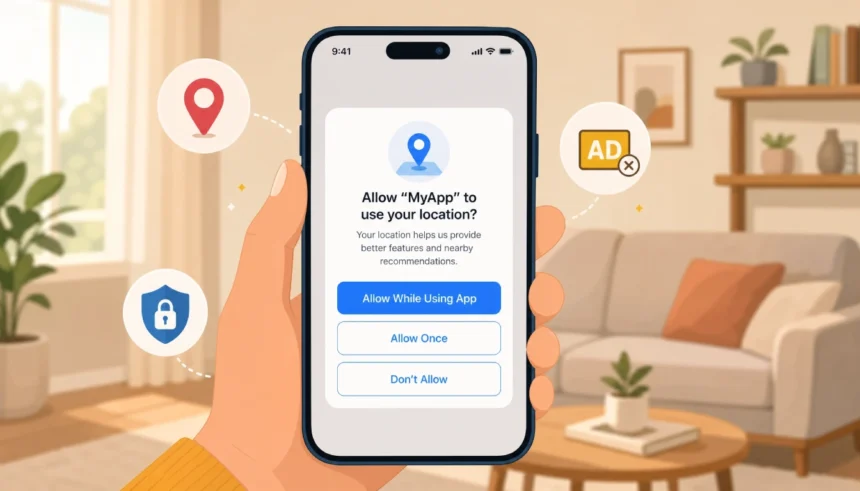
You just downloaded a new app. A pop-up appears: “Allow [App] to access your location?” Your thumb hovers. If you tap wrong, will you be tracked? Will the app stop working?
Almost everyone has been in that moment. It feels like a privacy pop quiz with no right answer printed on the screen.
This guide explains every option in plain English. It covers why apps ask for location permission in the first place, what “Always vs While Using” actually means, and exactly how to check or turn off app location access on your iPhone or Android phone. By the end, you’ll make that call with confidence.
What Do the “Allow Location” Popup Options Actually Mean?
When an app asks for your location, you typically see four choices. Here is what each one does.
Allow Once gives the app your location one single time. The next time you open the app, it asks again. This is the most private option and works well for apps you rarely use.
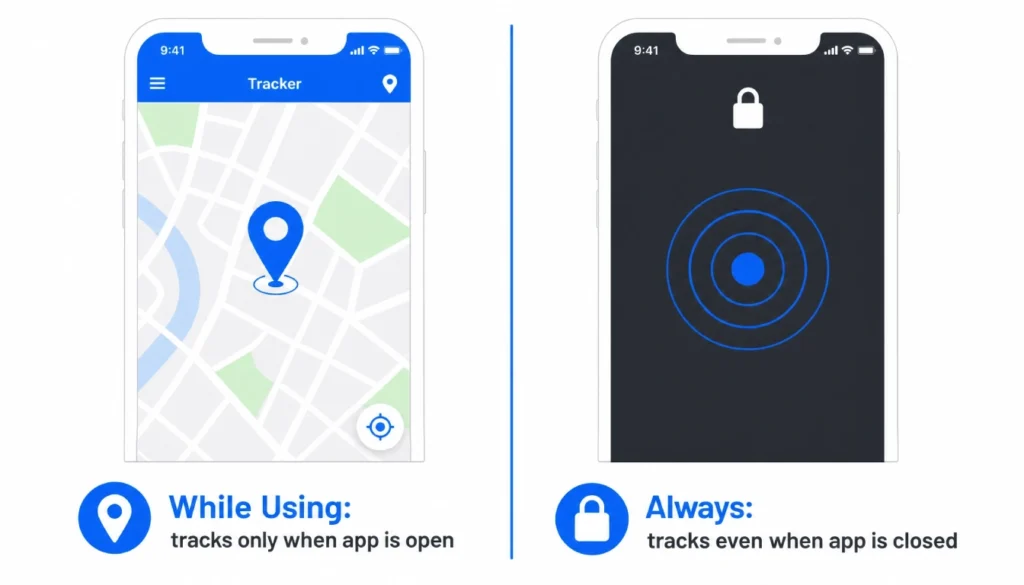
Allow While Using App shares your location only when the app is open on your screen. The moment you switch to another app or lock your phone, access stops. This is the setting most people should choose most of the time.
Always lets the app see your location even when it is completely closed and running in the background. A navigation app updating your route is a fair reason for this. Most other apps are not.
Don’t allow (or Deny) block location access entirely. Some features may break. Many won’t. It is worth testing before you assume you need to say yes.
Precise vs Approximate Location
On newer iPhones and Android phones, you also see a toggle for precise vs approximate location. Precise shares your exact GPS coordinates. Approximate gives the app a general area, usually within a few miles.
For most apps, approximate is enough. A news app does not need to know which floor of your building you are on. A weather app does not need your street address. Switch to approximate whenever you can. The app will still function, and you give away far less information.
Why Do So Many Apps Ask for Your Location Anyway?
There are four main reasons apps want your location. Only one of them is about serving you.
1. To run a core feature. Maps need your location to give directions. Ride-share apps need it to find you. Food delivery apps need it to show nearby restaurants. This is the one legitimate reason.
2. To serve you targeted ads. Your location tells advertisers where you shop, eat, and sleep. That data makes ads more specific, which makes them more profitable. You are not the customer here; you are the product.
3. To sell your data to third parties. Some apps share location data with data brokers, marketing companies, or analytics firms. This happens quietly in the background, buried in a terms-of-service document almost nobody reads.
4. To improve their own analytics. Apps track where users are to understand behavior, test features, or measure app performance. Not malicious, but also not for your benefit.
When I first started auditing my own phone’s location settings, I found a shopping app with “Always” access turned on. It had no feature that needed my location at all. It was collecting data in the background, every day, for no reason I could identify. I switched it to “Don’t Allow,” and nothing broke. The app worked the same.
That pattern is more common than most people expect.
Always vs While Using: Which Setting Should You Choose?
This is the question that trips up most people. Here is a clear breakdown.
| Setting | What It Does | Use It For |
|---|---|---|
| Always | Tracks location even when the app is closed | Maps, rideshare, fitness tracking |
| While Using | Tracks only when the app is open | Weather, restaurant finders, travel apps |
| Allow Once | Shares location one time only | Apps you rarely use or don’t fully trust |
| Don’t Allow | Blocks location entirely | Flashlight apps, calculators, social media |
The rule I follow: Give “Always” only to apps where background location is the entire point. Google Maps rerouting you mid-drive needs it. A recipe app does not.
“While Using” covers the vast majority of apps that have a genuine need for location. If an app demands “Always” and you cannot figure out why, deny it. Then see if the app still works. You will be surprised how often it does.
How to Check and Turn Off Location Access on iPhone and Android
You do not need to wait for a new app to manage these settings. You can review every app on your phone right now.
On iPhone
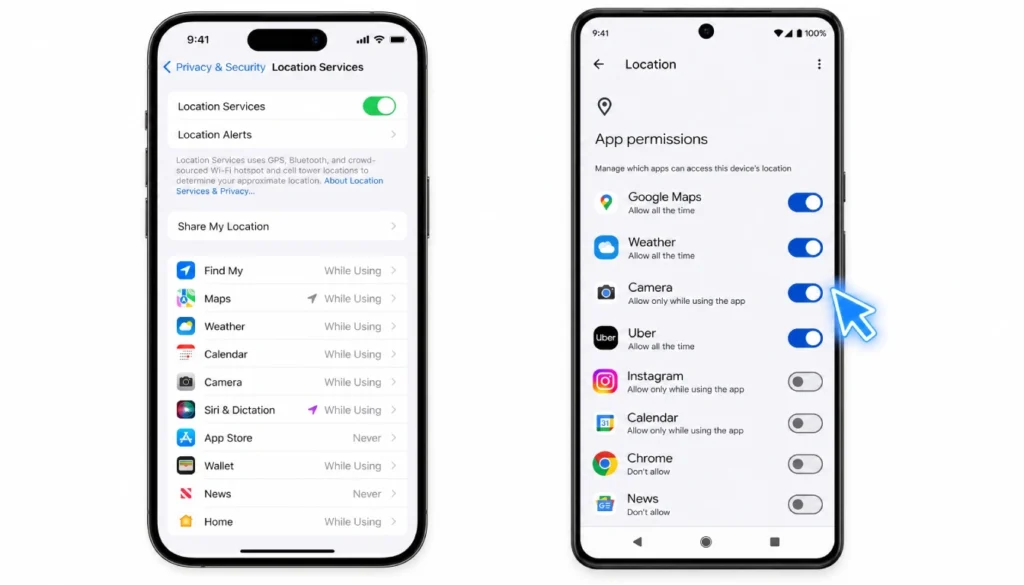
Step 1: Open the Settings app.
Step 2: Tap “Privacy & Security.”
Step 3: Tap “Location Services.”
Step 4: Scroll through your app list. Any app set to “Always” is running in the background. Tap any app to change it.
Step 5: For each app, choose the most restrictive option that still lets it do its job. Toggle “Precise Location” off if the app does not need exact coordinates.
On Android
Step 1: Open the Settings app.
Step 2: Tap “Location.”
Step 3: Tap “App permissions.”
Step 4: You will see three sections: “Allowed all the time,” “Allowed only while in use,” and “Not allowed.” Move apps between these groups based on whether they actually need background access.
Step 5: For Android 12 and later, you can also toggle approximate location. Look for the option after you tap an individual app.
Do this audit once every few months. Apps update, permissions reset, and new apps sneak in with aggressive defaults.
4 Common Myths About App Location Tracking (Debunked)
Myth 1: “If I deny location, the app can’t find me at all.” Not true. Apps can estimate your location from your IP address, Wi-Fi network name, and nearby Bluetooth signals even without GPS access. Denying location permission reduces what they know, but it does not make you invisible.
Myth 2: “If the app is closed, it can’t track me.” Only if you choose “While Using” or “Allow Once.” Apps with “Always” permission can check your location even when you have not opened them in days.
Myth 3: “Only sketchy apps collect location data.” Major, well-known apps have faced legal action and public scrutiny for location data collection. A familiar brand logo does not mean responsible data practices.
Myth 4: “Turning off location on my phone shuts everything down.” Turning off Location Services at the system level does block GPS. But apps can still collect coarse location data through other signals. It helps, but it is not a complete solution.
When Should You Say Yes? A Quick Risk-Based Cheat Sheet
Not every app asking for location is doing something shady. Here is a quick way to decide.
Say yes (While Using is usually fine):
- Navigation and maps apps
- Ride-share and delivery apps
- Public transit apps
- Local search and restaurant finders
- Weather apps (though a manual city entry works fine too)
Say yes only if you have a specific reason:
- Fitness and run-tracking apps (need “Always” to log your route)
- Smart home apps (depends on features you actually use)
- Find My Friends or family-sharing apps
Say no and test if anything breaks:
- Social media apps (Instagram, TikTok, X, etc.)
- Shopping and retail apps
- News apps
- Games
- Flashlight, QR scanner, or utility apps
- Any app where location is not part of the main feature
When in doubt, choose “Don’t Allow” first. If something stops working, you can always go back and change it. You lose nothing by testing.
Your 5-Minute Location Privacy Checkup
Do this right now. It takes five minutes and makes an immediate difference.
- Open Location Services (iPhone) or App Permissions (Android).
- Find every app set to “Always.” Ask: Does this app actually need background access?
- Switch anything that does not have a clear reason to “While Using” or “Don’t Allow.”
- Turn off “Precise Location” for any app that does not need your exact address.
- Delete any app you have not opened in three months. Unused apps still hold permissions.
- Repeat this every 90 days, especially after installing new apps.
I ran this audit on my own phone and moved six apps from “Always” to “While Using” in under four minutes. None of them broke. Two of them were apps I had not opened in months. They were sitting there, quietly checking my location, for no reason.
The Short Version
Why do apps ask for location permission? Sometimes it is to run a feature you actually want. Often, it is to collect data for ads or to sell it to third parties.
You have full control. The permission popup is not a formality; it is a real choice. Choose “While Using” as your default. Reserve “Always” for apps that genuinely need to work in the background. Turn off precise location whenever approximate is enough. And run a quick audit every few months to catch anything that slipped through.
Location data is specific and personal. Treating it that way takes five minutes and costs you nothing.
If you found this guide useful, share it with someone who still taps “Allow” without thinking. And if you want to go further, check out the related guides below.