

I still remember the day Windows decided to update itself right before a client call. I had ten minutes to prep. Instead, I stared at a blue screen with a spinning circle, watching my laptop reboot on its own schedule, not mine.
If you have ever lost work, missed a meeting, or watched your game freeze mid-match because of a surprise restart, you already know this frustration. Automatic updates are supposed to help us. Most days they just get in the way.
The good news is you have more control than you think. In this guide, I will show you how to stop automatic Windows updates, pause them, or manage them so they work around your life instead of against it.
Why Windows Updates Automatically in the First Place
Microsoft pushes updates automatically to keep your computer safe. Security patches close holes that hackers could use. Feature updates add new tools and fix bugs from older versions.
That sounds reasonable. But here is the problem. Windows does not always ask for a good time. It just updates, sometimes mid-task, sometimes overnight when you need your computer ready for the morning.
Knowing why updates happen helps you make smarter choices about which ones to block and which ones to keep. Security updates matter. Feature updates, you can usually wait on.
How to Stop Automatic Windows Updates Using Settings
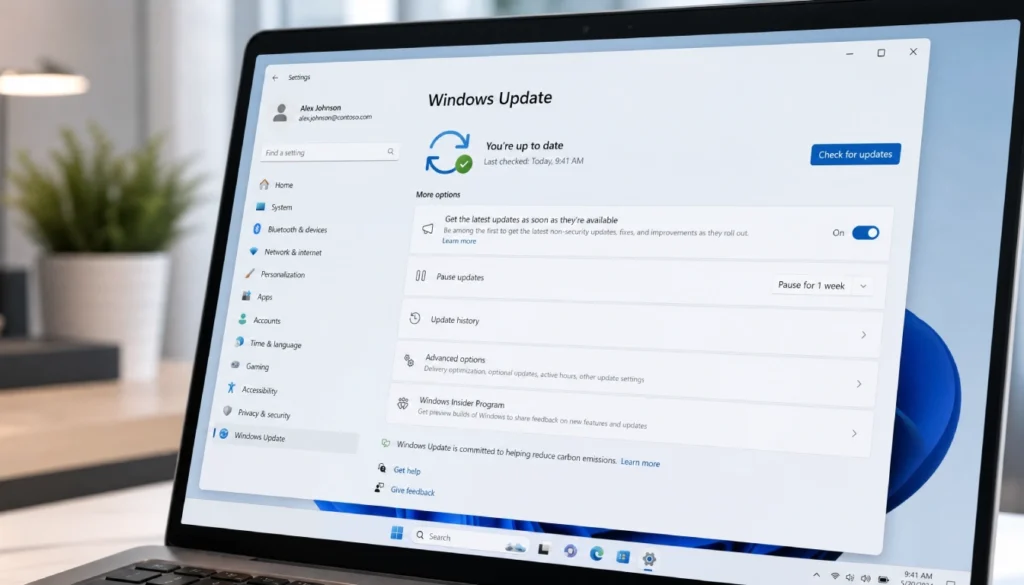
This is the simplest method, and it works for most home users. No registry editing, no scary warnings.
Steps to follow:
- Open Settings and go to Windows Update.
- Click Advanced Options.
- Turn on Pause Updates, or set a specific pause date.
- Adjust your Active Hours so updates do not install while you are working.
This will not stop Windows 10 updates permanently, but it buys you real time. Most versions let you pause updates for up to 35 days. That is enough breathing room for a big project or a long trip.
Turn Off Automatic Updates Windows 10 Permanently With Group Policy
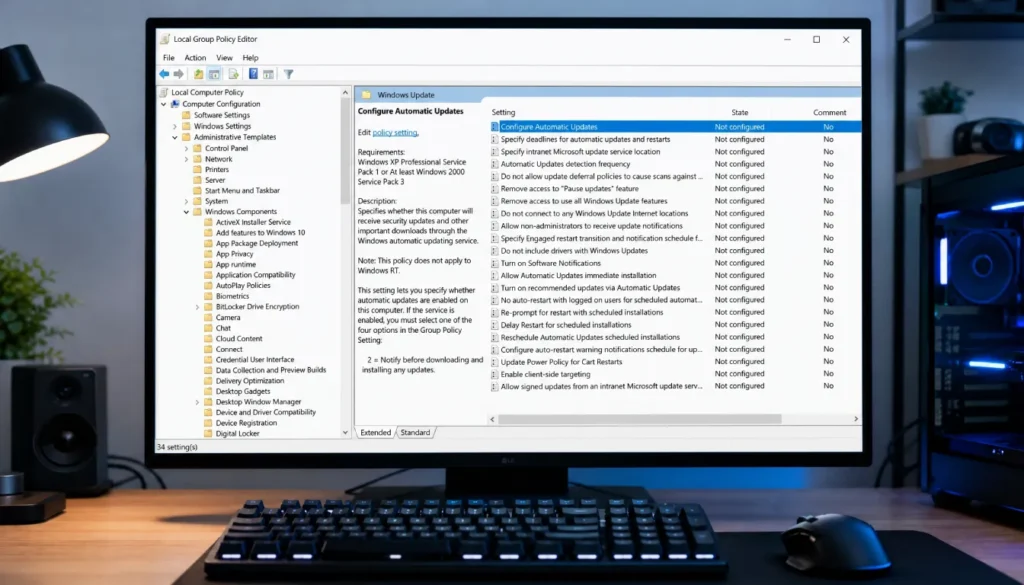
If pausing is not enough and you want to disable the Windows Update service completely, Group Policy Editor gives you more muscle. This only works on Windows 10 and 11 Pro, Enterprise, or Education editions.
Here is how:
- Press Windows key + R, type
gpedit.msc, and hit Enter. - Go to Computer Configuration, then Administrative Templates, then Windows Components, then Windows Update.
- Find “Configure Automatic Updates.”
- Set it to Disabled, or choose “Notify for download and auto install” for more control.
This method gives you a real say over when updates happen. It is one of the most reliable ways to stop forced Windows updates without third-party software.
Disable Windows Update Using the Registry (For Windows 10 Home Users)
Windows 10 Home does not include Group Policy Editor. If that is your setup, the registry is your next best option for how to disable Windows Update permanently using registry edits.
Back up your registry before you start. One wrong edit can cause bigger headaches than a surprise update ever would.
Quick steps:
- Open Registry Editor by typing
regeditin the search bar. - Navigate to
HKEY_LOCAL_MACHINE\SOFTWARE\Policies\Microsoft\Windows. - Create a new key named WindowsUpdate, then another inside it named AU.
- Add a DWORD value named NoAutoUpdate and set it to 1.
This blocks the Windows Update service from running automatically. You can still check for updates manually whenever you choose.
Stop Windows Update Service Through Services.msc
Some people prefer to just shut the whole service down. It is direct, and it works well if you want a quick fix without touching the registry.
Steps:
- Press Windows key + R, type
services.msc. - Scroll down to Windows Update.
- Right-click and choose Properties.
- Set Startup Type to Disabled, then click Stop.
Keep in mind, Windows sometimes turns this service back on after major updates. Check it every so often if you want it to stay off long term.
How to Block Specific Updates Without Turning Everything Off
Maybe you do not want to stop everything. You just want to block one troublesome update, like a driver update that broke your sound or a buggy patch that slows things down.
Microsoft has a tool for exactly this called wushowhide.diagcab, also known as the Show or Hide Updates troubleshooter. It lets you hide a single update while letting the rest install normally.
This is a smart middle ground. You stay protected from security threats while avoiding the one update that caused problems on your machine.
Setting Your Connection as Metered to Slow Down Updates
Here is a trick a lot of people miss. Windows treats metered connections differently. It holds back most automatic downloads to save your data.
Go to Settings, then Network and Internet, then select your Wi-Fi network. Turn on “Set as metered connection.” Windows will still notify you about updates, but it will not download big files without asking first.
This works especially well if you are on a limited data plan or just want fewer surprise downloads eating your bandwidth.
Third-Party Tools Worth Knowing About
If manual methods feel like too much, a few trusted tools can simplify things.
| Tool | Best For | Notes |
|---|---|---|
| Windows Update Blocker (Wub) | Simple on/off toggle | Lightweight, no install needed |
| O&O ShutUp10 | Privacy and update control | Also manages telemetry settings |
| WuMgr | Advanced users | Lets you choose specific updates |
Always download these from official sources. Search results are full of copycats bundled with junk software you do not want.
Common Mistakes to Avoid

- Disabling updates completely and forgetting to turn security patches back on
- Editing the registry without a backup first
- Assuming pausing updates means they are gone forever
- Ignoring active hours settings, which is often the easiest fix
- Downloading update blockers from unverified websites
A little caution here saves you a lot of cleanup later.
Is It Safe to Turn Off Automatic Windows Updates?
This depends on what you turn off. Blocking feature updates for a while is generally safe. These mostly add new tools or design changes you can live without for a bit.
Security updates are a different story. These patches protect you from real threats. If you disable them long-term, you are leaving your system open to risks that most updates exist to prevent.
My advice? Pause or defer feature updates as needed. Keep security updates running in the background. You get control without giving up protection.
Frequently Asked Questions
Can I permanently disable Windows 10 updates?
Yes, through Group Policy or the registry. Keep in mind that Microsoft sometimes re-enables the update service after major system updates, so check back periodically.
Is it safe to turn off automatic Windows updates?
Turning off feature updates is usually fine. Turning off security updates for a long time is risky and not recommended.
How long can I pause Windows updates?
Most versions allow pausing for up to 35 days at a time. After that, you will need to install pending updates before pausing again.
Can I stop automatic updates without administrator rights?
Not fully. Most reliable methods, including Group Policy and registry edits, require admin access on the device.
Will disabling updates stop Windows 11 upgrade prompts?
It helps, but Microsoft has been known to push Windows 11 upgrades even with updates paused. Group Policy settings targeting your release version give you the most control here.
Final Thoughts
Automatic updates come from a good place. Microsoft wants your computer safe and current. But you know your schedule better than any software does.
Whether you pause updates for a big deadline, disable them through Group Policy, or just hide one annoying patch, you now have real options. Start with the method that matches your comfort level. You do not need to be a tech expert to take back control.
If you try one of these fixes, I would love to hear how it worked for you. Drop a comment below, share your own update horror story, or ask a question if you get stuck. We have all been there, and figuring this out together makes it a lot less frustrating.