

Last month I sat down to watch the last ten minutes of a game I had waited all season for. My internet plan promised 500 Mbps. My speed test showed almost exactly that. And the stream froze on the biggest play of the night.
I stared at that little spinning circle and felt my stomach drop. Sound familiar? If you have ever asked why your video keeps buffering with good internet, you are not alone, and you are not doing anything wrong.
This happens to smart, careful people every single day. Fast internet fixes one problem. It does not fix all of them. In this article, I will walk you through the real reasons streaming apps buffer even on a fast connection, and I will give you clear steps to fix it.
What Buffering Actually Means
Buffering happens when your streaming app runs out of video data to play. The app loads a few seconds ahead of what you are watching. When that stored data runs dry, the screen freezes, and the spinning icon shows up.
Here is the part that surprises people. Buffering is not only about speed. It is about how steady and reliable your connection stays from second to second. A fast connection that dips even briefly can cause the same freeze as a slow one.
Why Fast Internet Doesn’t Guarantee Buffer-Free Streaming
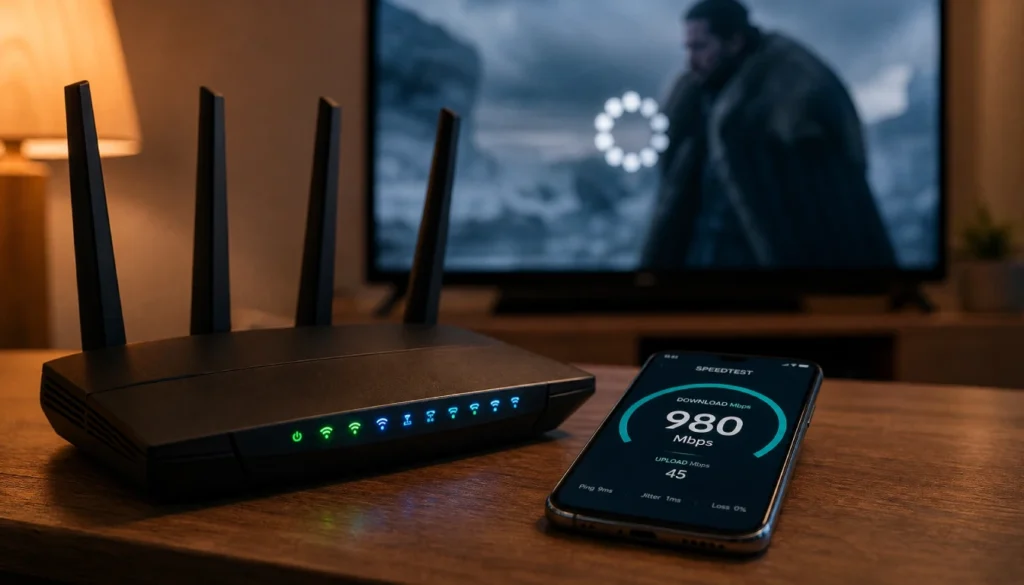
Latency and Jitter Get in the Way
Latency is the delay between your device asking for data and the server sending it. Jitter is when that delay changes unpredictably. Your download speed can be high while latency and jitter stay messy, and that mess is often the real cause of streaming lag with good internet speed.
Packet Loss Breaks the Flow
Streaming video travels in small packets of data. If some packets get lost on the way, your app has to pause and wait for replacements. This causes buffering problems with fast internet that speed tests never catch, because speed tests measure raw throughput, not packet reliability.
Bufferbloat Slows Everything Down
Bufferbloat happens when your router holds too much data in its queue at once. Other devices on your network, like a laptop doing a big download, can clog that queue. Your stream then waits in line behind other traffic, even though your total bandwidth looks fine.
Your ISP May Be Throttling Certain Traffic
Some internet providers slow down specific types of traffic during busy hours. This is one reason people search for how to test if my ISP is throttling my streaming. Running a speed test on a throttling-detection tool at different times of day can reveal patterns your regular speed test misses.
Server and CDN Congestion
Streaming services use content delivery networks, or CDNs, to send video from servers close to you. During huge live events, like a World Cup match or a major sports broadcast, those servers get overloaded. Your internet is fine. The service itself is straining under demand.
Adaptive Bitrate Streaming Reacts Fast
Most apps use adaptive bitrate streaming. This means the app constantly adjusts video quality based on your connection in real time. If your connection wobbles for even a second, the app drops quality or pauses to protect playback, which can feel like random buffering.
Router and Wifi Problems That Cause Buffering
2.4 GHz vs 5 GHz Matters More Than You Think
Your router likely broadcasts two signals. The 2.4 GHz band reaches farther but carries less data and picks up interference from microwaves and other devices. The 5 GHz band moves more data but has a shorter range. Streaming devices should connect to 5 GHz whenever possible.
Wifi Interference Is Sneaky
Walls, neighbors’ networks, baby monitors, and even certain lights can interfere with your wifi signal. This is why fast wifi still buffering is such a common complaint. Your speed test on a laptop next to the router will look great. Your smart TV two rooms away tells a different story.
Old Router Firmware Slows You Down
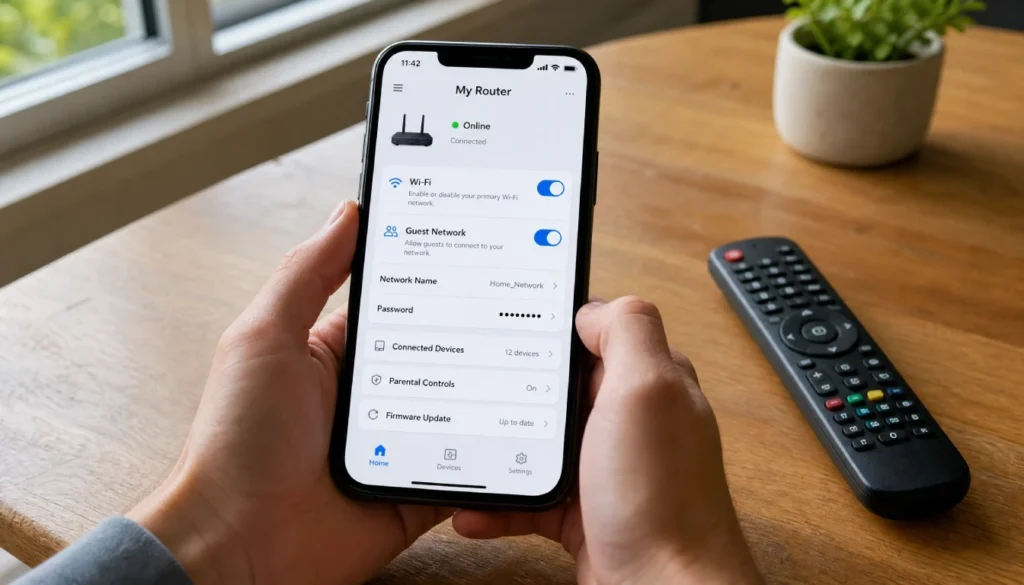
Router manufacturers release firmware updates that fix bugs and improve stability. An outdated router can mishandle streaming traffic even with a fast plan. Check your router settings page for a firmware update option and run it if one is available.
QoS Settings Can Prioritize Your Stream
Quality of Service, or QoS, lets you tell your router which traffic matters most. Setting your streaming device or TV as a priority can stop other devices from stealing bandwidth at the wrong moment. Most modern routers, including TP-Link and Asus models, include this feature in their app.
Device-Specific Buffering Issues
| Device | Common Cause | Quick Fix |
|---|---|---|
| Roku | Full cache, weak wifi | Clear cache, move closer to router |
| Fire TV Stick | Overheating, old app version | Unplug for 30 seconds, update apps |
| Apple TV | Background app refresh | Turn off unused background apps |
| Chromecast | Weak wifi handoff | Use a wired adapter if possible |
| Smart TV | Old firmware, small storage | Update TV software, clear app cache |
| PS5 or Xbox | Bandwidth split with downloads | Pause game downloads while streaming |
A streaming device with a weak wifi chip will struggle no matter how fast your internet plan is. Older Fire Stick and budget streaming boxes are common offenders here.
Streaming Service Specific Issues
Netflix, Hulu, Disney+, YouTube TV, and Twitch all use different servers and different adaptive streaming rules. Sometimes the problem sits with the service, not your home setup. During big live events, Peacock and YouTube TV often see spikes in buffering reports even from users with strong connections.
If only one app buffers while others run fine, the issue is likely on that service’s end. If every app buffers at once, the issue is almost always your network.
Step-by-Step Fixes for Buffering
- Restart your router and streaming device. This clears temporary glitches fast and solves a surprising number of cases.
- Switch to a 5 GHz wifi band or connect your device directly with an Ethernet cable for the most stable connection.
- Clear the cache on your streaming app or device through its settings menu.
- Update your router firmware and your streaming app to the latest version.
- Turn on QoS and set your TV or streaming box as a priority device.
- Change your DNS server to Google DNS or Cloudflare DNS for faster lookups.
- Limit other devices using heavy bandwidth while you stream, like large downloads or cloud backups.
- Move your router to a central, open spot away from walls and metal objects.
Mistakes to Avoid
- Do not judge your connection by a single speed test. Run tests at different times of day.
- Do not assume more speed always fixes buffering. Stability matters more than raw numbers.
- Do not ignore firmware updates on your router or streaming device.
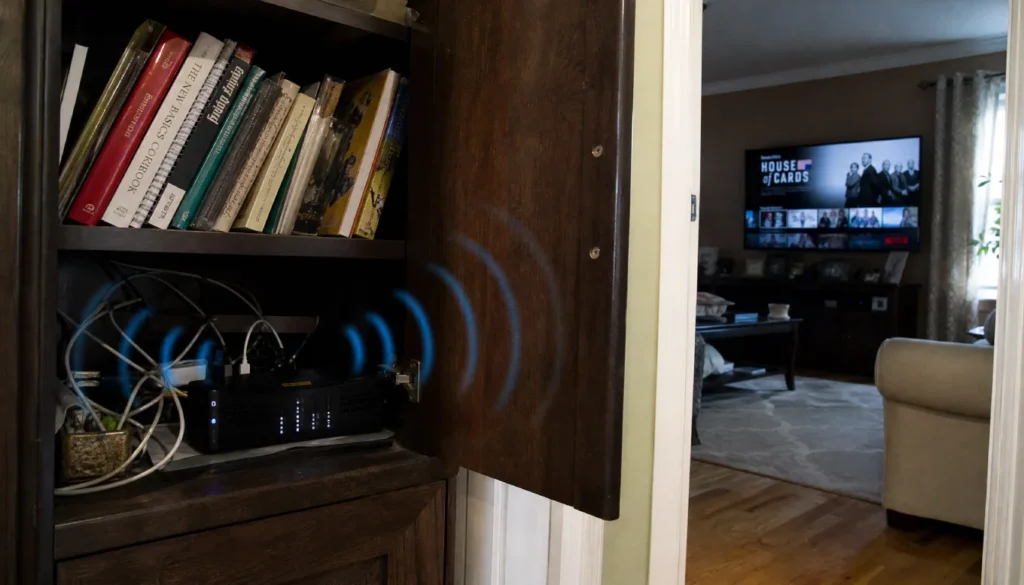
- Do not place your router inside a cabinet or behind a TV.
- Do not run a VPN during streaming unless you need it, since it can add latency.
Best Gear for Buffer-Free Streaming
If your setup is older, an upgrade can help. A mesh wifi system spreads a strong signal across your whole home. A wifi 6 router handles more connected devices without slowing down. A short Ethernet cable from your router to your streaming box removes wifi problems completely.
For homes with thick walls or multiple floors, a mesh network beats a single router every time. For anyone streaming 4K or HDR content regularly, wired Ethernet remains the most reliable option available.
FAQs
Why does my 4K video keep buffering even with 300 Mbps internet?
4K streaming needs steady bandwidth, not just high total speed. Wifi interference, bufferbloat, or an older streaming device can all interrupt that steady flow even when your plan offers plenty of speed.
Does a VPN cause buffering on streaming apps even with fast speeds?
Yes, sometimes. A VPN adds an extra step to your connection, which can raise latency and jitter. Try streaming without the VPN to see if buffering improves.
Why does Netflix keep buffering on fast internet but YouTube runs fine?
Different services route traffic through different servers and CDNs. One service having server issues while another runs smoothly is common and usually has nothing to do with your home network.
What internet speed do I need for 4K streaming without buffering?
Most services recommend at least 25 Mbps for a single 4K stream. But stability matters as much as speed, so a steady 25 Mbps connection often beats an unstable 100 Mbps one.
How do I know if my router is causing the buffering?
Connect your device directly to your modem with Ethernet. If buffering stops, your router or wifi setup is the problem. If it continues, the issue likely sits with your ISP or the streaming service.
Final Thoughts
Buffering with fast internet feels confusing because it breaks the rule we all assume is true, that more speed means fewer problems. The truth is more complicated, and now you know the real reasons behind it.
Start with the easy fixes first. Restart your gear, check your wifi band, and clear your app cache. Work your way down the list if the problem sticks around. You do not need to be a tech expert to solve this. You just need the right steps, and now you have them.
Have you found a fix that worked for your setup? Drop a comment and share what solved your buffering problem. Your experience might be exactly what another frustrated viewer needs to read tonight.