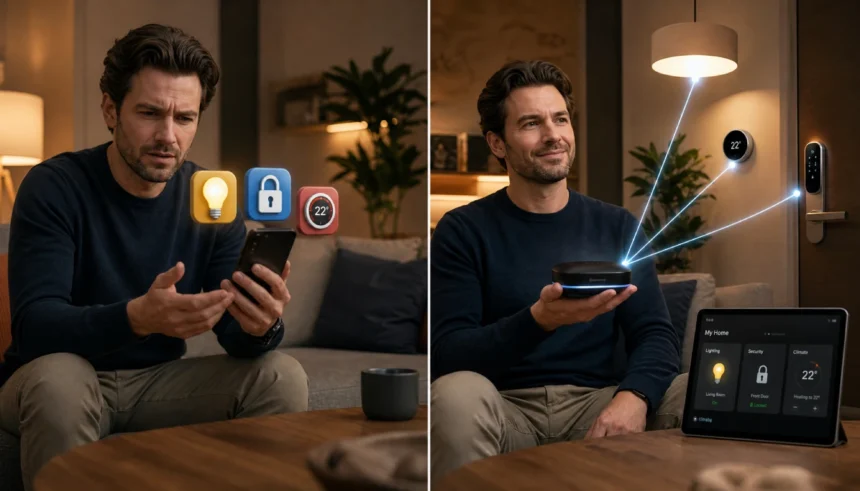
You bought a smart bulb, plugged it in, and now nothing works unless you open three different apps. Sound familiar?
The smart home world throws around words like hub, bridge, and Zigbee, and just assumes you already know what they mean. You don’t, and that’s fine.
This guide answers one question: what is a smart home hub for beginners, and do you actually need one? By the end, you’ll know exactly what a hub does, whether your setup needs one, and how to start without a headache. No tech degree required.
What Exactly Is a Smart Home Hub? (A Simple Analogy)
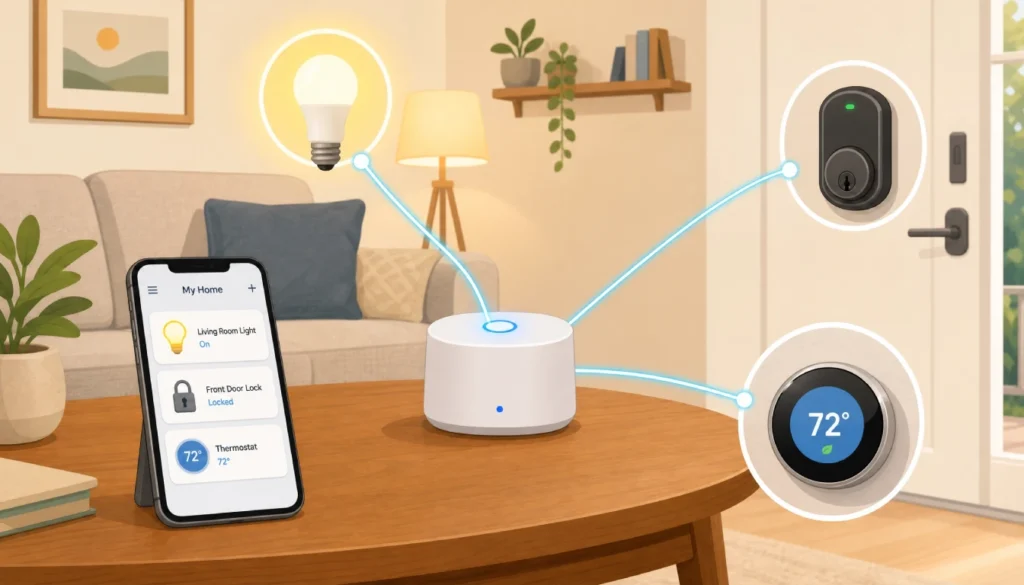
A smart home hub is a small device that connects all your smart gadgets so you can control them from one app.
Think of it as a universal remote for your entire house. Instead of switching between five apps to turn off a lamp, lock a door, and check a thermostat, you open one app and everything shows up in one place.
I remember setting up my first smart bulb. I screwed it in, downloaded the app, and it asked me to connect a bridge. I had no idea what that meant. After 30 minutes of searching, I realized a hub would have saved me from juggling three separate apps from day one.
Here’s the truth: a hub doesn’t add new features to your devices. It just gives them one shared language, so they can talk to each other and to you.
Do You Actually Need a Smart Home Hub?
Not everyone needs one. If you own two smart plugs and a smart bulb, all from the same brand, you can probably skip it.
You’ll likely want a hub if:
- You own devices from different brands (Philips Hue, Ring, Wyze, and so on).
- You want everything to respond to one voice command.
- You’re planning to keep adding gadgets over time.
- You use Alexa but keep wondering if you need a hub for Alexa to work with non-Wi-Fi devices like Zigbee locks or sensors.
If you’re using an Alexa or Google speaker only with Wi-Fi devices, you might not need a separate hub yet. But once you add a Zigbee or Z-Wave device, a hub becomes the missing piece.
Hub vs No Hub: Quick Pros and Cons
Weighing a smart home hub vs no hub setup comes down to how much you plan to expand.
With a hub:
- One app controls everything.
- Faster, more reliable local automations.
- Supports more device types (Zigbee, Z-Wave, Wi-Fi).
- Extra upfront cost, usually $30 to $130.
Without a hub:
- Fewer devices to set up and manage.
- Lower cost if you only own a couple of gadgets.
- You’ll juggle multiple apps as your collection grows.
- Some devices simply won’t connect without one.
If you only have one or two smart gadgets, skip the hub for now. If you’re building a real smart home, a hub saves you time and frustration later.
Smart Home Hub vs Smart Speaker: Don’t Confuse the Two
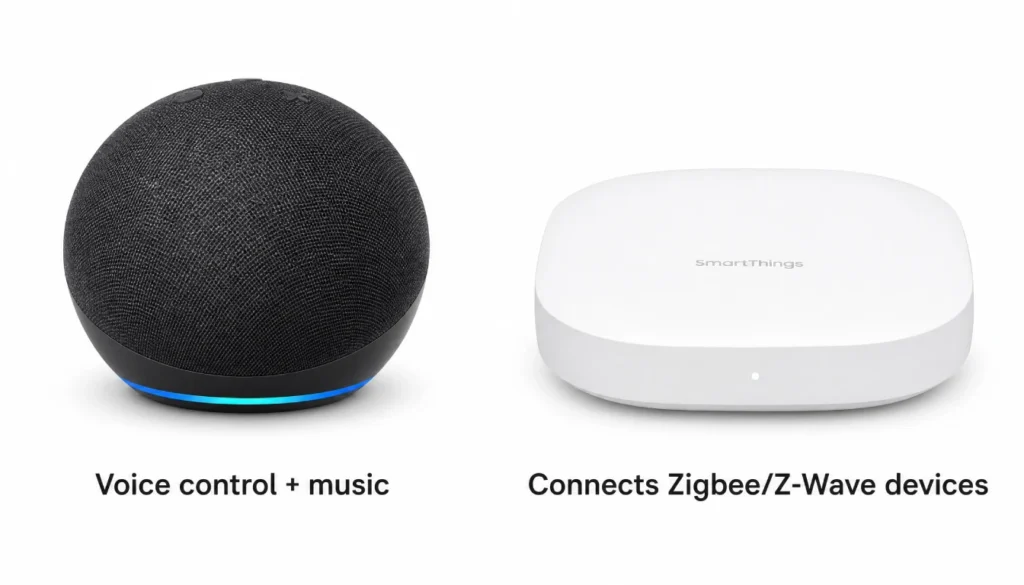
This mix-up trips up almost every beginner. A smart speaker, like an Echo Dot or Google Nest, listens to your voice and plays music. A smart home hub connects and controls your devices behind the scenes.
Some smart speakers include a built-in hub, but most don’t. Alexa can hear you say “turn off the lights,” but without a hub, it can only pass that command to Wi-Fi devices. It can’t talk to certain Zigbee or Z-Wave gadgets on its own.
I’ve helped several friends set up their first smart home, and this is the number one mistake. They buy a smart speaker, expect it to run everything, then get stuck when a lock or sensor won’t connect.
How a Hub Talks to Your Devices (No Tech Babble)
Your devices don’t all speak the same wireless language. That’s exactly what a hub solves.
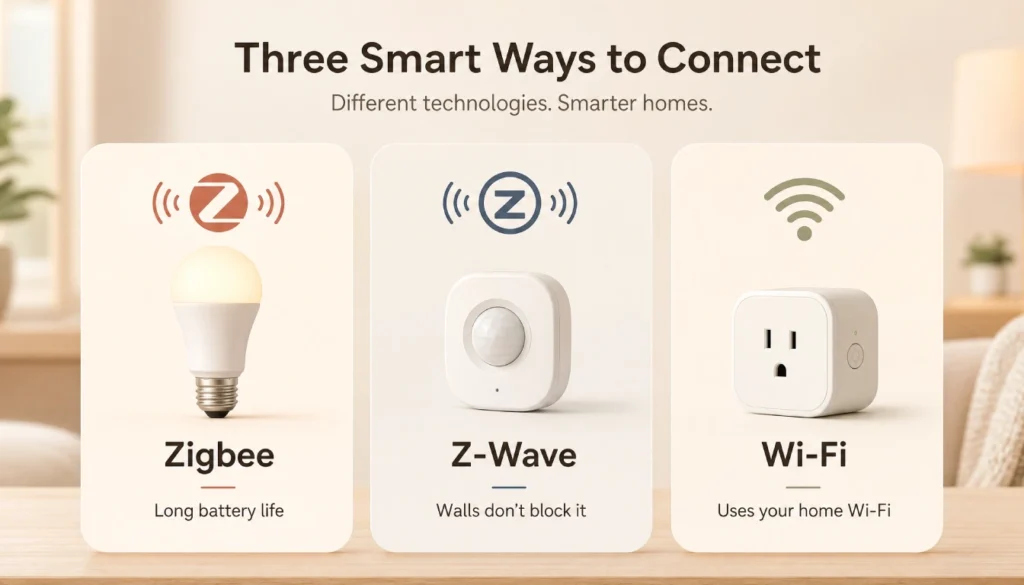
Here are the three you’ll run into most:
- Zigbee: Low power, great battery life, ideal for sensors and bulbs. If you’ve searched for a Zigbee hub for a smart home, this is the protocol it manages.
- Z-Wave: Similar to Zigbee, handles walls and distance well, common in locks and thermostats.
- Wi-Fi: Uses your home internet directly, no hub required, but can slow your router down if you add too many devices.
A hub acts as the translator between these signals and your phone app. Without it, a Zigbee lock and a Wi-Fi bulb simply can’t talk to each other.
How to Choose Your First Hub: A Beginner’s Checklist
Ask yourself these three questions before buying anything:
Step 1: Do you already own devices from different brands that use different apps?
Step 2: Do you want to control everything with one voice command or button press?
Step 3: Are you planning to add more smart gadgets over time?
If you answered yes to two or more, a beginner-friendly hub will save you real frustration. Popular starter options include SmartThings, Aqara, and Hubitat. Check which protocols each one supports before you buy, since not every hub covers Zigbee and Z-Wave.
Setting Up a Hub for the First Time (Basic Steps)
Setup varies slightly by brand, but the basic flow stays the same:
- Plug in the hub near your router, not in a closet or far corner.
- Download the hub’s app and create an account.
- Follow the in-app prompt to connect the hub to your Wi-Fi.
- Put each device into pairing mode, one at a time.
- Name each device by room, so voice commands stay simple.
Give yourself 20 to 30 minutes for your first setup. Rushing through pairing is the most common reason devices fail to connect.
Special Situations: Hub for Small Spaces
If you’re renting or living in a smaller space, a smart home hub for apartment renters works a little differently. You’ll want devices that don’t require permanent wiring, like plug-in smart outlets, battery-powered sensors, and removable smart locks.
Look for a compact hub you can unplug and take with you when you move. Most Zigbee and Z-Wave hubs fit this need well, since none of the setup depends on your building’s wiring.
Frequently Asked Questions
Does every smart device need a hub?
No. Many Wi-Fi devices connect directly to your router and app, no hub needed.
Can I use more than one hub?
Yes, though it adds complexity. Most beginners are better off picking one hub that supports multiple protocols.
Is a smart home hub the same as a router?
No. Your router connects you to the internet. A hub connects and controls your smart devices.
Do hubs work without internet?
Many hubs still run local automations during an outage, but remote access and voice commands usually need internet.
What’s the cheapest way to start a smart home?
Start with one or two Wi-Fi devices and skip the hub until you add a Zigbee or Z-Wave gadget.
Your First Smart Home: Start Simple, Grow Later
Now you know what a smart home hub is for beginners, why it matters, and whether your setup actually needs one. A hub isn’t required for everyone, but it becomes essential the moment you mix device brands or wireless protocols.
Start small. Add one device, get comfortable, then decide if a hub fits your next step. That’s exactly how most smart homes grow, one gadget at a time.
Ready to pick your first device? Drop a comment below with the brand you’re considering, and I’ll help you figure out if you need a hub for it.