

I still remember the panic. My laptop screen went black five minutes before a work deadline. No warning. Just gone.
I did what most people do. I Googled it, fell into a rabbit hole of confusing forum threads, and ended up more stressed than when I started. Eventually, I figured it out. But it took way longer than it should have.
That experience taught me something: most ordinary phone and laptop problems have simple fixes. You don’t need a tech background. You don’t need expensive tools. You just need to know where to start.
This guide is exactly that starting point. Whether you’re dealing with a slow laptop, a draining phone battery, or a black screen that came out of nowhere, you’ll find practical, beginner-friendly fixes here.
Why Your Devices Act Up (And Why It’s Usually Not a Big Deal)
Before you panic or rush to a repair shop, here’s something reassuring: most device problems are software issues, not hardware.
Software glitches, outdated drivers, clogged storage, and app crashes cause the majority of the issues people deal with daily. These are all fixable at home, often in minutes.
Hardware problems like cracked screens or damaged charging ports do happen. But even those have beginner-friendly workarounds. Knowing the difference between smartphone hardware vs software problems is the first real skill to build.
Fix 1: Your Laptop Is Running Slow
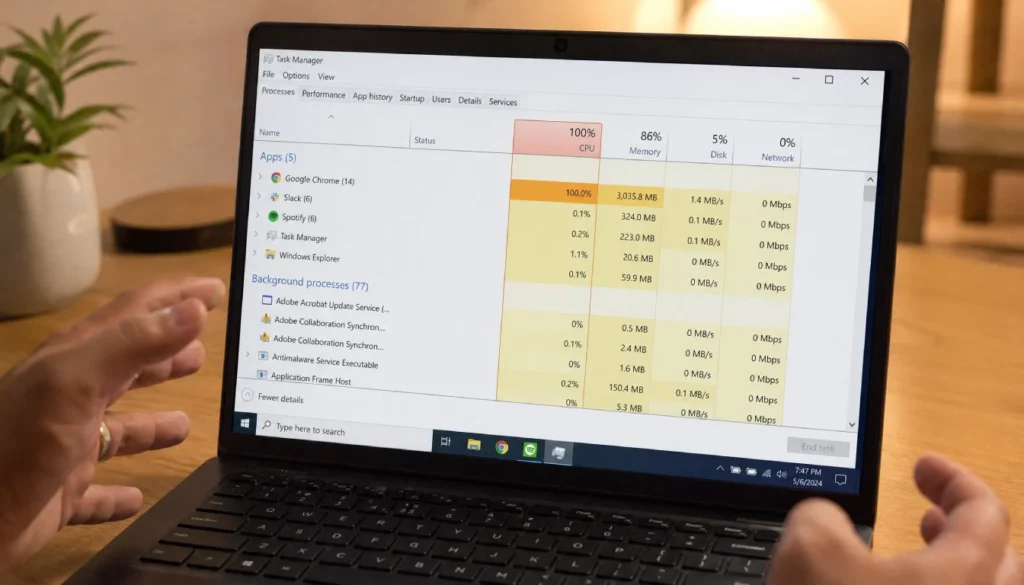
This is the number one complaint. A slow laptop feels like a nightmare, but nine times out of ten, it’s fixable without spending a rupee.
Try these steps first:
- Restart your laptop. A fresh boot clears temporary files and frees up memory.
- Check your startup programs. On Windows, press Ctrl + Shift + Esc, go to the Startup tab, and disable anything you don’t need running at boot.
- Clear your cache. Old, stored data builds up over time and bogs everything down.
- Run a quick virus scan. Malware is a silent slowdown culprit many beginners overlook.
If your laptop is running slow after a Windows update in 2026, roll back the update through Settings > Windows Update > Update History. That alone fixes the issue for many users.
Fix 2: Smartphone Battery Draining Too Fast
You charge your phone overnight. By noon, it’s already at 20%. Sound familiar?
Fast battery drain is one of the most common smartphone problems, and it’s almost always caused by apps running in the background, screen brightness, or a battery that needs attention.
Quick fixes that actually work:
- Go to Settings > Battery and check which apps are eating the most power. Close or restrict the worst offenders.
- Turn off features you’re not using: Bluetooth, GPS, and mobile hotspot drain battery silently.
- On iPhone, check your battery health in Settings > Battery > Battery Health. Anything below 80% means the battery is aging.
- On Android, clearing the system cache can sometimes reset battery performance that’s been degraded by a bad update.
For iOS 19 battery drain issues in 2026 specifically, Apple’s own support page recommends disabling Background App Refresh under Settings > General as a first step.
Fix 3: Laptop Won’t Connect to Wi-Fi
Your phone has internet. Your laptop does not. Frustrating, but fixable.
This is almost always a driver issue or a simple settings glitch, not a broken laptop.
Start here:
- Turn Wi-Fi off on your laptop, wait 10 seconds, and turn it back on.
- Restart your router. Unplug it, wait 30 seconds, and plug it back in.
- On Windows, open Command Prompt and type
netsh winsock reset, then restart your laptop. - Update your network driver. Go to Device Manager, find Network Adapters, right-click your Wi-Fi adapter, and select Update Driver.
If none of that works, running the Windows network troubleshooter (Settings > System > Troubleshoot) usually catches what you missed.
Fix 4: Phone Stuck in Boot Loop or Won’t Turn On
You press the power button. Your phone logo appears, disappears, and appears again. Or nothing happens at all.
Don’t assume it’s dead. This is a common software glitch with a straightforward fix.
For Android:
- Hold the power button and volume down together for 10 seconds. This is a force restart.
- If that doesn’t work, boot into safe mode by holding the power button, then long-pressing “Restart” when the option appears.
- As a last resort, boot into recovery mode and perform a factory reset. Back up your data first if you can access the phone at all.
For iPhone:
- Force restart varies by model. On iPhone 8 and later, press and release Volume Up, press and release Volume Down, then hold the Side button until the Apple logo appears.
- If still stuck, connect to a Mac or PC and use Finder or iTunes to restore the device.
Fix 5: Laptop Screen Is Black
Black screen panic is real. But in most cases, your laptop is fine.
Check these things in order:
- Is the brightness turned all the way down? Press the brightness key a few times.
- Is the laptop actually on? Check for the power light or listen for the fan.
- Connect an external monitor. If it works, the display itself is the problem, not your entire system.
- Hold the power button for 10 seconds to force a shutdown, then restart.
- On Windows, booting into safe mode can help diagnose whether a recent driver update caused the issue.
For the laptop power light on but no display issue, resetting the BIOS by removing the battery and holding the power button for 30 seconds often does the trick.
Fix 6: Charging Problems on Phones and Laptops
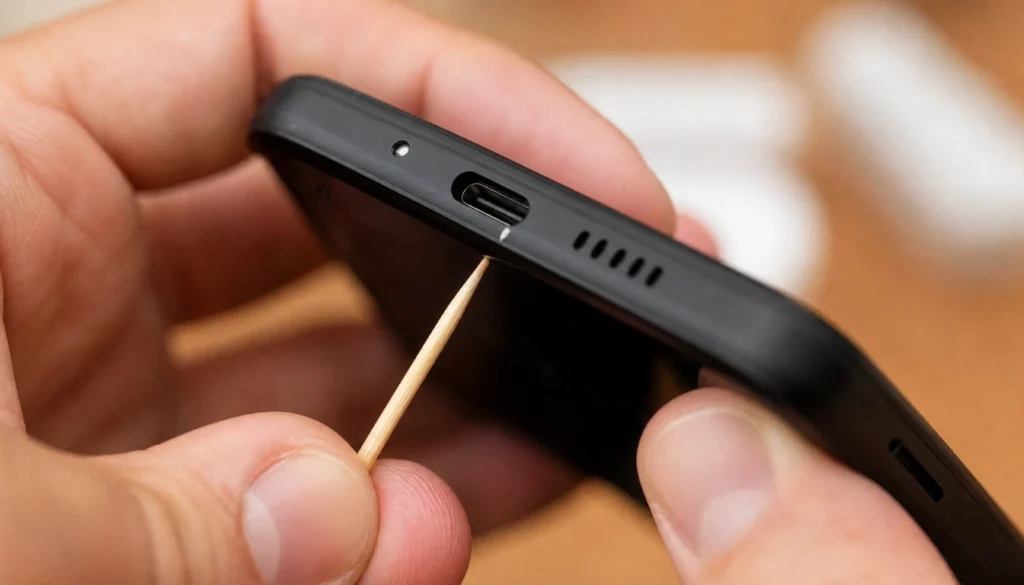
Your device is plugged in but not charging. Or it charges painfully slowly.
Nine out of ten times, the fix is simple.
For smartphones:
- Clean the charging port. Use a wooden toothpick or a soft brush to gently remove lint and debris. This is one of the most overlooked fixes and one of the most effective.
- Try a different cable. Cables fail more often than chargers do.
- Restart your phone and try again.
For laptops:
- Make sure the charger is fully seated in the port.
- Try a different power outlet.
- On Windows, go to Device Manager and look under Batteries. Uninstall “Microsoft AC Adapter” and restart. Windows will reinstall it and often fix the issue.
The Android phone won’t charge past 80% issue you might see in 2026 is often a feature, not a bug. Check Settings > Battery > Charging Optimization and adjust if needed.
Quick Reference: Common Problems and First Fixes
| Problem | First Fix to Try |
|---|---|
| Slow laptop | Disable startup programs, clear cache |
| Battery draining fast | Restrict background apps, check battery health |
| Wi-Fi not connecting | Restart router, reset Winsock |
| Black screen | Force restart, check brightness |
| Boot loop | Force restart, boot into safe mode |
| Not charging | Clean port, try different cable |
| Touchscreen not responding | Force restart, check for screen protector interference |
| Apps crashing constantly | Clear app cache, check for updates |
Mistakes Beginners Make (And How to Avoid Them)
A few common slip-ups can make a small problem worse.
- Skipping backups. Always back up your data before doing a factory reset or major update. It takes five minutes and saves hours of grief.
- Downloading random “fix” apps. Most of these are either useless or harmful. Stick to built-in tools.
- Forcing a device open with no experience. If the problem is physical, like a swollen battery or a damaged motherboard, take it to a professional. DIY hardware repair without the right tools creates more problems.
- Ignoring updates. Many bugs get patched through software updates. Keeping your OS current is free, basic maintenance.
When to Go to a Repair Shop
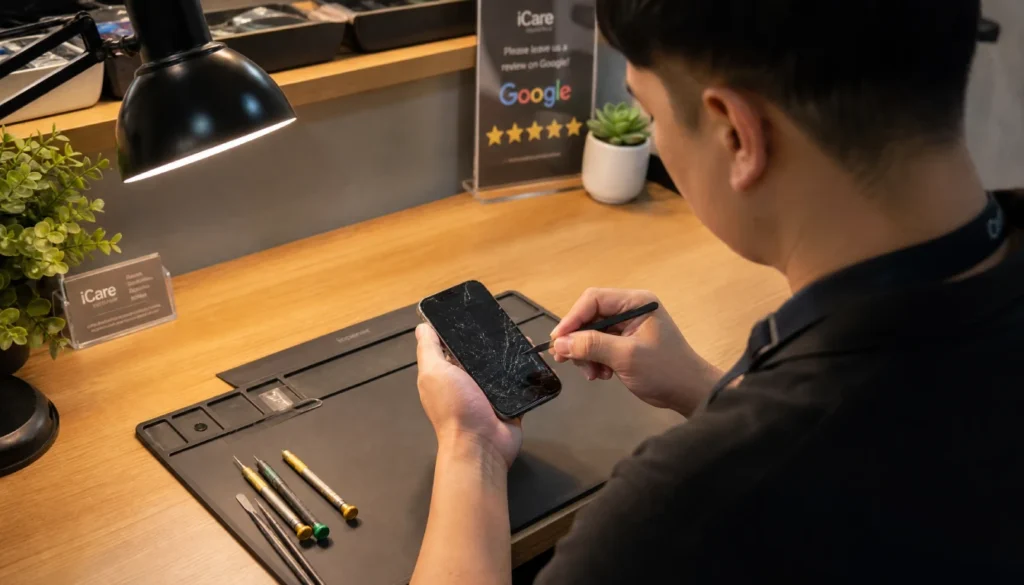
Not every problem is a DIY fix. Here are the signs your device needs professional help.
- The battery is visibly swollen or warped.
- The device was submerged in water for more than a few seconds.
- The screen has deep cracks with visible hardware damage.
- You hear grinding or clicking sounds from inside a laptop.
- Nothing you try makes any difference.
The right to repair movement has made professional repairs more affordable in 2026. Check repairability scores before buying your next device, as EU right to repair laws now require manufacturers to provide spare parts for at least five years.
FAQs
How do I know if my phone problem is hardware or software?
Start with a factory reset in safe mode. If the problem disappears in safe mode, it’s software. If it persists regardless of what you do, suspect hardware.
Is it safe to reset my laptop to factory settings?
Yes, as long as you back up your files first. On Windows, you can reset without losing personal files by choosing “Keep my files” during the reset process.
What tools do I need for basic phone repair at home?
A plastic spudger, a set of small screwdrivers (Phillips and Pentalobe for iPhones), and a soft cleaning brush cover most basic tasks. You don’t need much to start.
Can AI tools help me diagnose device problems in 2026?
Yes. AI-guided troubleshooting tools have gotten much better. Apps like ChatGPT or built-in device diagnostics can walk you through fixes step by step, especially for software issues.
How often should I clean my laptop fan?
Every six to twelve months if you use the laptop daily. If it’s running hot or the fan sounds louder than usual, clean it sooner. Compressed air works well without opening the case.
You Can Do This
Most device problems feel scarier than they are. A slow laptop, a draining battery, a screen that went dark; these are solvable. You don’t need to be a tech expert. You just need a starting point and a bit of patience.
Work through the fixes one at a time. Start simple before assuming the worst. And if something is genuinely beyond a home fix, that’s okay too. Knowing when to ask for help is its own kind of skill.
If this guide helped you, drop a comment below. Share what problem you were dealing with and what fixed it. Your experience might be exactly what someone else needs to read.