
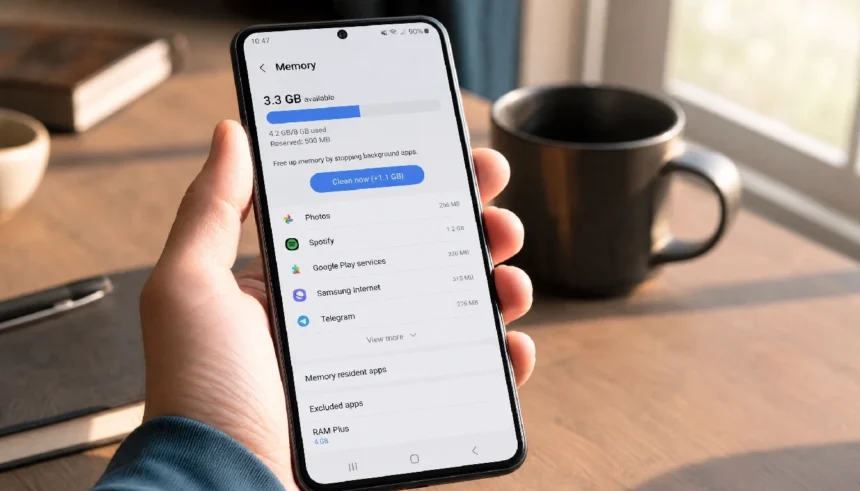
Let me tell you something embarrassing. A few years ago, I had four different “RAM booster” apps on my phone. Four. I genuinely believed they were keeping my Android running fast. Turns out, most of them were doing the opposite — sitting in the background, eating up the very memory I was trying to free.
If your Android phone feels sluggish, apps crash randomly, or you keep asking yourself “why is my Android RAM usage so high?”, you are not alone. And no, you do not need to download anything to fix it.
Here is everything you need to know about how to clear RAM on Android without apps — using only what your phone already gives you.
Why Your Android RAM Feels Full All the Time
Before you start clearing anything, it helps to understand what is actually happening.
Android is designed to use most of your available RAM. That is not a bug; it is intentional. The system keeps recently used apps in memory so they reopen faster. A phone with “full” RAM is often a phone working exactly as it should.
That said, sometimes background processes pile up, apps misbehave, or your phone genuinely runs low on memory — especially on 2GB or 3GB RAM devices. When that happens, the lag is real, and you want a fix that actually works.
The good news: Android memory management without apps is completely possible, and in many cases more effective than any cleaner you could download.
How to Clear RAM on Android Without Installing Any App
1. Use the Built-In Recent Apps Menu
This is the simplest method, and most people already know it.
Open your recent apps view (the square or three-line button at the bottom of your screen), then swipe away the apps you are not using. On most phones, there is also a “Close All” option. Tapping that will close all apps at once and free up Android RAM immediately.
Does clearing recent apps actually free RAM? Yes, it does — but only apps that were actively running in memory, not ones Android had already cached passively. It is still a quick win for phones that feel slow.
2. Force Stop Apps Through Settings
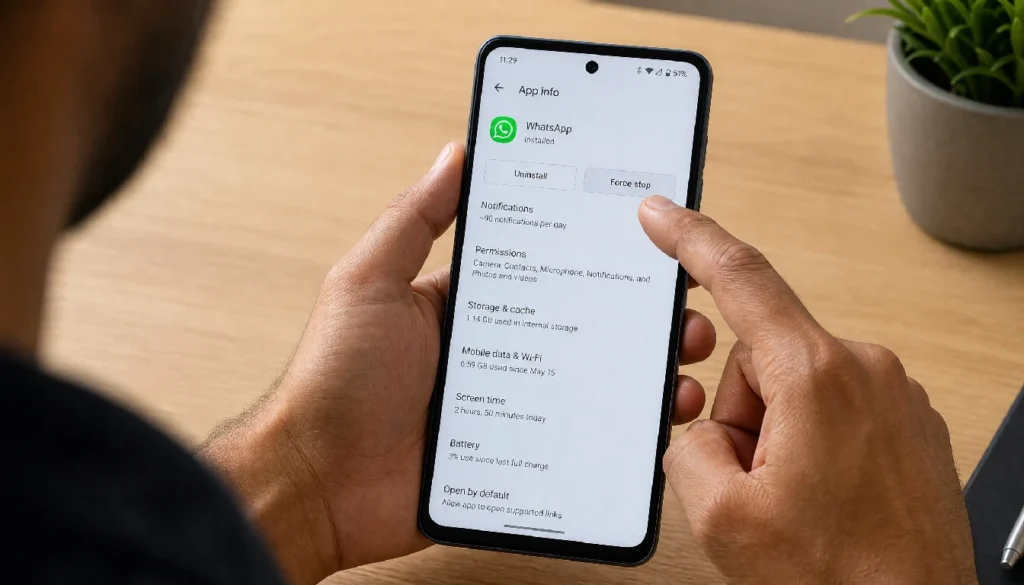
This one is more powerful. Go to Settings, then Apps (or Application Manager depending on your device). Tap any app that is running in the background and hit “Force Stop.”
Force stopping apps on Android frees memory more reliably than just swiping them away. It tells Android to completely shut that process down, not just move it to a cached state.
Good candidates for force stop: social media apps, music players you are not using, apps that auto-start after boot, and anything you notice using a lot of memory under Settings > Apps > Running.
3. Use Developer Options to Limit Background Processes
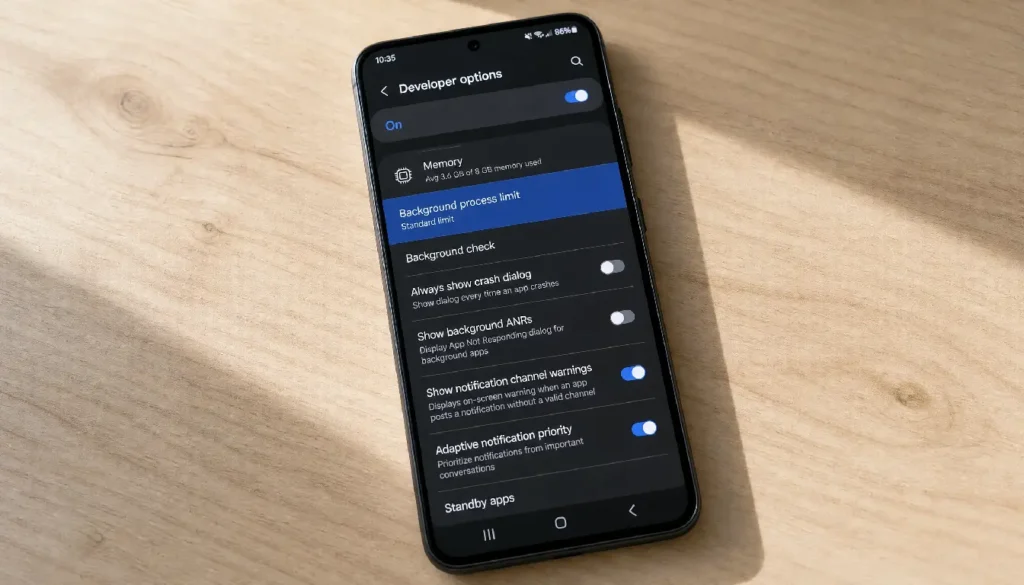
This is one of the best hidden tools on any Android phone, and almost nobody uses it.
Go to Settings > About Phone and tap “Build Number” seven times to unlock Developer Options. Then go to Settings > Developer Options > Background Process Limit.
Set it to “At most 2 processes” or “At most 3 processes.” This tells Android to stop keeping so many apps loaded in memory at once. It is one of the cleanest ways to reduce RAM usage on Android manually — no downloads, no root, no risk.
Android developer options to limit background processes is especially useful on older or low-RAM phones where multitasking feels painful.
4. Clear Cached Data for Individual Apps
There is an important difference between cache and RAM on Android. Cache is stored data that helps apps load faster. RAM is active memory used while an app is running.
Clearing cache does not directly free RAM while an app is open, but it does free up storage and can improve how smoothly apps run over time. Go to Settings > Apps > select an app > Storage > Clear Cache.
You can do this for apps like Chrome, Instagram, YouTube, or Google Maps, which tend to build up large caches. Reducing Google Chrome RAM usage on Android, for example, is as simple as clearing its cache and closing unused tabs.
5. Disable or Uninstall Bloatware
Pre-installed apps that you never use are often running quietly in the background. You cannot always uninstall them, but you can disable them.
Go to Settings > Apps, find the app, and tap “Disable.” This stops it from running entirely. Common culprits include manufacturer apps, duplicate browsers, and carrier-installed software you have never opened.
Disabling bloatware is one of the most underrated ways to fix an Android phone that constantly runs out of memory — no root, no app, just a few taps.
6. Restart Your Phone Regularly
This one sounds too simple, but it works. Restarting your phone clears RAM on Android without any settings changes. It wipes active memory, kills background processes, and gives your phone a clean start.
If you rarely restart your phone, try doing it once every few days. You will likely notice a real difference in speed, especially on phones with 3GB of RAM or less.
7. Turn Off Animations in Developer Options
Heavy animations use system resources, including memory. If your phone feels slow, go to Developer Options and set “Window animation scale,” “Transition animation scale,” and “Animator duration scale” all to 0.5x or off entirely.
Disabling animations to free RAM on Android is a small change that makes the phone feel noticeably snappier. It is a popular tip for older Android phones and budget devices.
Quick Tips at a Glance
- Check which apps use the most memory under Settings > Apps > Running
- Keep your phone’s storage at least 20% free — low storage slows RAM performance
- Update your apps regularly; buggy old versions often have memory leaks
- Avoid widgets for apps you rarely use; they keep processes active
- Use Lite versions of heavy apps (Facebook Lite, Maps Go) on low-RAM phones
Do You Actually Need to Clear RAM on Modern Android?
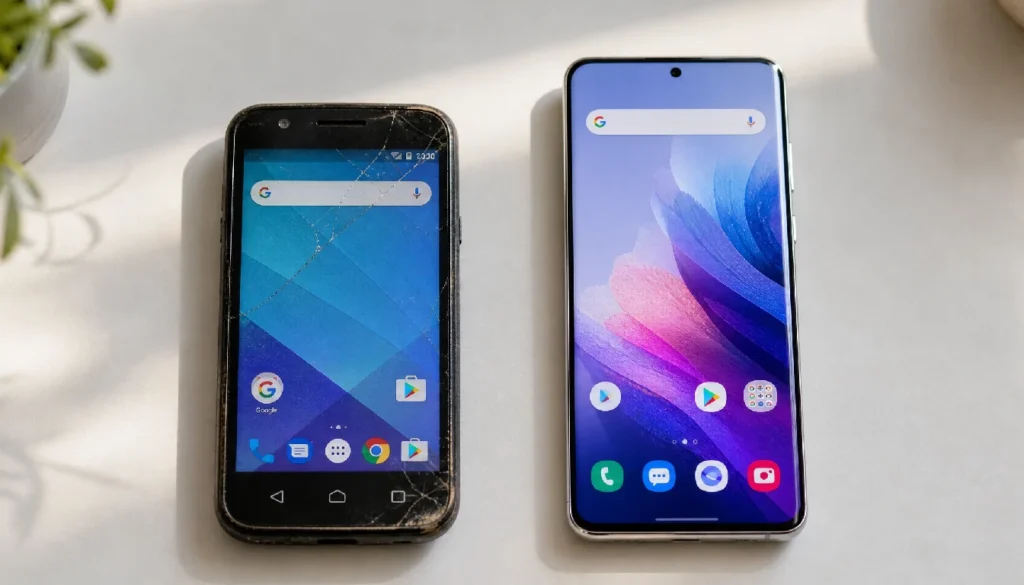
Here is an honest answer: on phones with 6GB of RAM or more running Android 10 and above, you rarely need to manually clear RAM. Android’s memory management has improved a lot. The system automatically kills processes it does not need and reclaims memory when required.
Virtual RAM features like Samsung’s RAM Plus or Xiaomi’s Memory Extension also help by using storage space as overflow memory. These are different from physical RAM clearing, but they reduce the symptoms you feel when RAM is full.
Where manual clearing still matters is on older phones, budget devices with 2GB to 4GB of RAM, and situations where a specific app is misbehaving or leaking memory.
Mistakes to Avoid
Using third-party RAM cleaner apps. Most of them are doing nothing useful. Many run constantly in the background, defeating their own purpose.
Clearing RAM too aggressively. If you force-stop every app constantly, your phone has to reload everything from scratch, which actually uses more battery and can make things slower.
Confusing storage with RAM. Low storage and low RAM feel similar but need different fixes. If your phone says storage is full, clearing RAM will not help much.
Frequently Asked Questions
Does clearing RAM on Android save battery?
It can help slightly. Apps running in the background use CPU and battery. Reducing active background processes means less drain. But the impact is small on modern phones with efficient chips.
Is it safe to use Developer Options to limit background processes?
Yes, completely safe. It is a built-in Android feature. The only side effect is that apps may take a moment longer to load when you switch back to them.
What is using my RAM on Android?
Go to Settings > About Phone > Memory (on Samsung) or use Developer Options > Running Services to see a real-time breakdown of what is eating your RAM.
Does force stop free up RAM on Android?
Yes. Force stopping an app removes it from active memory entirely, which is more effective than just closing it from the recent apps screen.
Why does my Android phone keep running out of memory even after clearing?
A specific app may have a memory leak, or your phone simply does not have enough RAM for your usage habits. Try disabling background apps, limiting background processes in Developer Options, or switching to lighter app versions.
You Do Not Need an App to Fix Your Phone
Your Android phone already has everything it needs to manage memory well. You just have to know where to look.
Start with force stopping heavy background apps, try the Developer Options background process limit, and restart your phone more often. Those three steps alone will make a noticeable difference on most devices.
And if someone tells you to download a RAM cleaner? You can smile and explain why that is probably not the answer they think it is.
Have a tip that worked well on your phone? Drop it in the comments. If you found this helpful, share it with someone whose phone could use a little breathing room.