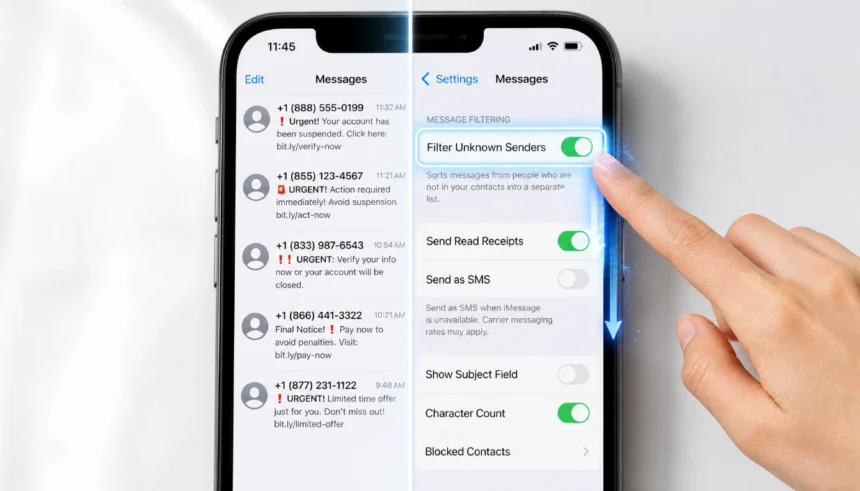
Your phone buzzes. It’s another text about a delayed package, a suspicious bank alert, or a prize you never entered to win. You block the number. The next day, a new one arrives from a different number. Sound familiar?
The good news: you do not need to buy an app or pay a monthly fee to fix this. Your iPhone already has built-in tools to filter, report, and block spam texts. This guide shows you exactly how to use them, step by step. Follow these methods today, and most spam will disappear within a few days.
Why You Keep Getting Spam Texts (And Why “Block” Alone Is Not Enough)
Blocking a number feels satisfying. But spammers use hundreds of different numbers, sometimes auto-generated ones that change every time. So blocking one number just means the next text comes from a different one.
The real fix is to stop unknown numbers from reaching your main inbox at all, report the messages so Apple and your carrier can act on them, and cut off the email-address loophole that many spammers use.
Here is what you need to do first:
- Step 1: Turn on Filter Unknown Senders so texts from strangers land in a separate folder.
- Step 2: Use “Delete and Report Junk” every time an obvious spam message arrives.
- Step 3: Forward any SMS spam to 7726 to alert your carrier.
Do all three today. You will see a clear drop within a few days.
1. Turn On iPhone’s Built-In Spam Filter (Filter Unknown Senders)
This is the single most effective free setting on your iPhone. It takes about 10 seconds to turn on.
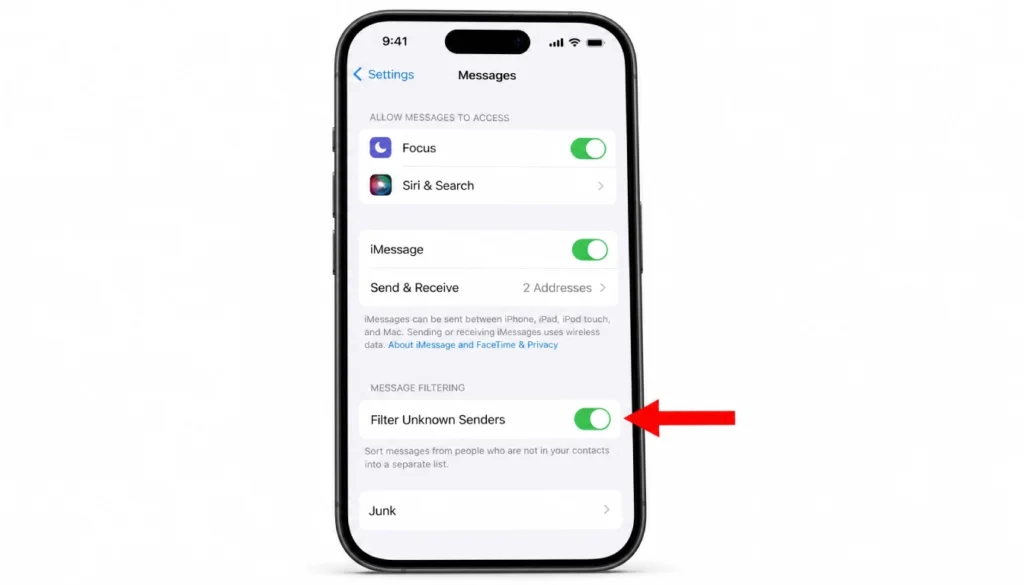
How to do it:
- Open the Settings app.
- Scroll down and tap Messages.
- Scroll to the “Message Filtering” section.
- Toggle on Filter Unknown Senders.
That is it. Once this is on, any text from a number not saved in your contacts goes into a separate “Unknown Senders” list inside your Messages app. You can still check it if you want, but it will never buzz your phone or sit in your main inbox.
One thing to know: this setting also turns off link previews for unknown senders, which is actually a security bonus. Scammers often use fake link previews to trick you into tapping.
I turned this on after getting six spam texts in a single day. Within 48 hours, my main inbox was clean. The junk was still arriving, but I never saw it unless I went looking.
2. Report Junk Messages with the “Delete and Report Junk” Option
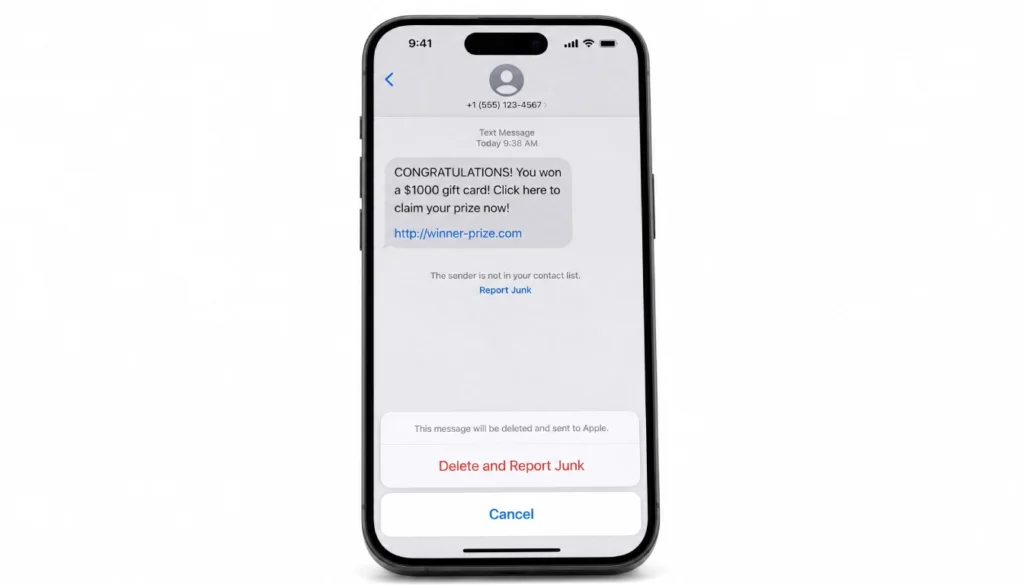
When a spam text arrives from an unknown sender, your iPhone shows a small link at the bottom of that conversation: “Delete and Report Junk.”
Most people just swipe and delete. But tapping “Delete and Report Junk” does two things at once: it removes the message and sends a report to Apple. Apple uses these reports to improve spam detection across all iPhones.
How to use it:
- Open the spam message.
- Look below the message bubble for the gray text that says “Delete and Report Junk.”
- Tap it. Then confirm.
This only appears for messages from numbers not in your contacts and only for iMessages (blue bubbles), not SMS (green bubbles). For green-bubble spam, use the 7726 method in the next section.
Important: If the spam came from someone already in your contacts, you will not see this option. In that case, you can report it by blocking the contact manually.
3. Forward Spam Texts to 7726: The Free Carrier Trick
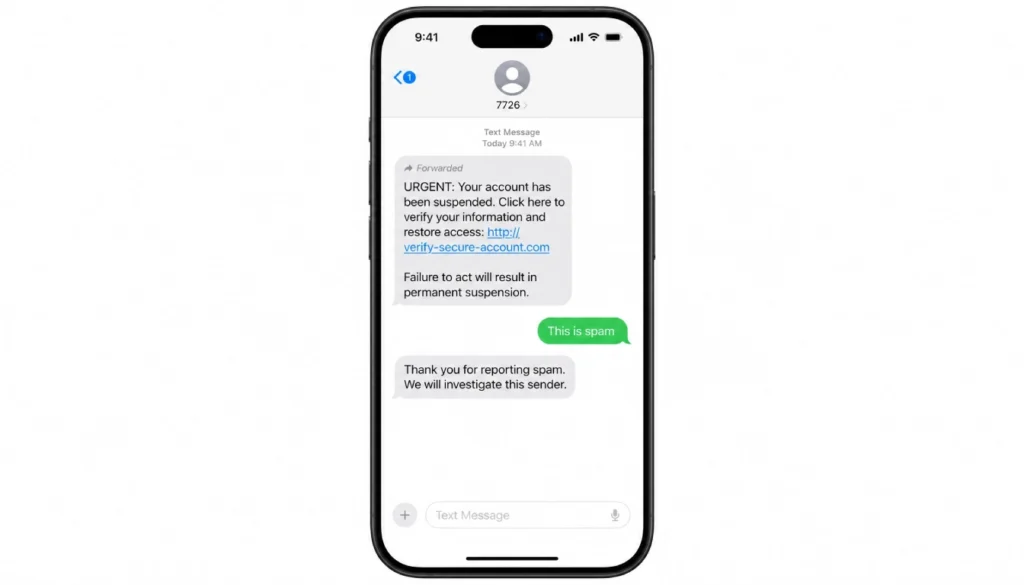
7726 spells “SPAM” on a phone keypad. All four major US carriers (Verizon, AT&T, T-Mobile, and US Cellular) use this number to collect spam reports. It is free, and it works on both iMessage and SMS.
How to do it:
- Press and hold the spam text bubble.
- Tap More from the menu that appears.
- Tap the arrow icon at the bottom right to forward it.
- Type 7726 as the recipient and send.
Your carrier will usually reply asking for the phone number the spam came from. Just reply with that number.
This helps your carrier flag the number across their network, which can block it for other users too, not just you.
I personally faced a flood of “your package is delayed” texts after the holidays. Blocking each number did nothing. After combining Filter Unknown Senders with the 7726 trick, I went from five or six spam texts a day to maybe one a week. The difference was immediate.
4. Stop Spam Texts That Come from Email Addresses
A lot of spam texts do not come from phone numbers at all. They come from email addresses. You can tell because the sender line shows something like randomname@domain.com instead of a 10-digit number.
Your iPhone has a setting to block all messages that come from email addresses, and it takes about 20 seconds to set up.
How to block email-origin spam:
- Go to Settings > Messages.
- Scroll down to Send & Receive.
- Under “You can receive iMessages to and from,” uncheck any email addresses listed there if you do not use iMessage on a Mac or iPad.
If you do use iMessage across devices, do not uncheck your Apple ID email. Instead, just make sure Filter Unknown Senders is on. That will push email-origin spam into the Unknown Senders folder automatically.
For email-based SMS spam (green bubbles from email addresses), your carrier can sometimes block these entirely. Contact them directly and ask to block messages sent from email addresses to your phone number. Most carriers offer this for free.
5. Free Carrier Tools You Might Already Have
Your carrier may already give you spam-blocking tools at no extra cost. Here is a quick breakdown:
Verizon: The free “Call Filter” app includes basic spam text detection. Go to your Verizon account online and check if it is activated under your plan.
T-Mobile: Scam Shield is free for all T-Mobile customers. Open the Scam Shield app or activate it at t-mobile.com. It blocks many known spam numbers automatically.
AT&T: ActiveArmor (basic version) is free and available in the App Store. It adds an extra layer of spam detection for SMS messages.
US Cellular: Log into your account and look under “Security & Protection.” Basic spam filtering is included in most plans.
Check your carrier’s app or website first. You may already have a tool sitting there unused. None of these require a subscription for the basic tier.
6. What Not to Do (And How to Avoid More Spam in the Future)
Some habits make spam worse. Here is what to avoid:
Do not reply “STOP” to unknown numbers. For legitimate marketing texts from real companies, replying STOP unsubscribes you. But for spam? It confirms your number is active, and you will get more.
Do not tap any links. Even if the text looks like it is from FedEx or your bank, do not tap the link. Go directly to the company’s website or app instead.
Do not call back unknown numbers. Especially short codes or international numbers. Some are premium-rate numbers that charge your account just for connecting.
To prevent new spam from finding you:
- Avoid entering your phone number on websites unless you have to.
- Uncheck the “text me promotions” box on shopping sites.
- Use a Google Voice number for online forms instead of your real number.
- Never post your phone number publicly on social media.
Spam tends to spike after your number gets sold in a data breach or added to a marketing list. Layering the iPhone settings above means even if spammers get your number, most of their messages will never reach your main inbox.
Frequently Asked Questions
Will Filter Unknown Senders block texts from my doctor or delivery service?
It might. Any number not saved in your contacts goes to the Unknown Senders folder. Save important numbers (pharmacy, dentist, school) in your contacts and their texts will go straight to your main inbox.
I turned on the filter but I am still getting spam. Why?
If the spam is coming from numbers already in your contacts (or numbers you have texted before), the filter will not catch them. In that case, block those numbers manually via Settings > Messages > Blocked Contacts.
Does this work for Android texts sent to my iPhone?
Yes. The filter applies to all incoming messages regardless of the sender’s phone type.
How do I know if a spam text is SMS or iMessage?
SMS texts show a green bubble. iMessages show a blue bubble. The “Delete and Report Junk” option only appears for blue-bubble messages from unknown senders.
Is 7726 really free?
Yes, on all major US carriers. Forwarding to 7726 does not count against your texting plan.
What if the spam is political or from a campaign?
Political texts operate under different rules in the US. You can still forward them to 7726 and report them to your carrier. Replying STOP to political campaign texts is actually one of the few cases where it works, since legitimate campaigns are required to honor opt-outs.
You Are Now Set Up to Stop Spam Texts on iPhone for Free
Here is a quick recap of everything you just set up:
- Filter Unknown Senders is on, so spam from new numbers lands in a separate folder.
- You know to tap “Delete and Report Junk” on any iMessage spam.
- You have the 7726 number saved to report SMS spam to your carrier.
- Email-origin spam is blocked or filtered.
- You checked your carrier’s free spam tools.
That is a complete, layered defense, and it cost you nothing. No app, no subscription. Just a few iPhone settings and one forwarding trick. If you follow these steps, you will see results fast.
If this guide helped you, share it with someone who is still getting buried in spam texts. And if you have a trick that worked for you that is not on this list, drop it in the comments below.