
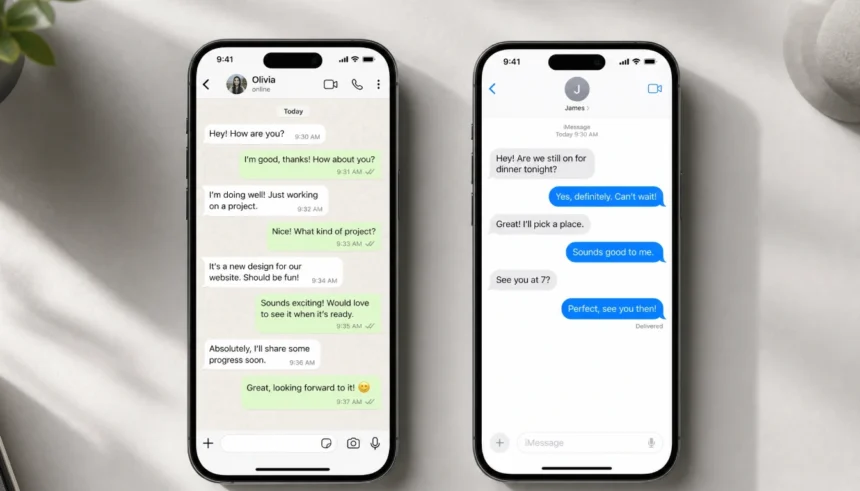
You open a message, read it, and immediately feel guilty. Now the other person knows you’ve seen it. No excuse. No buffer. Just that little “Read” or those two blue ticks staring back at both of you.
I’ve been there more times than I’d like to admit. Sometimes you genuinely need a few hours before you can reply. Sometimes the message is stressful, and you need space. Sometimes you just want to read your texts in peace without feeling like every moment is being tracked.
That’s exactly why so many people search “how to turn off read receipts” every single day. And if you’re here, you’re probably one of them.
This guide covers everything you need to know. We’re going over how to disable read receipts on WhatsApp and iMessage, what actually happens when you do, answers to the most common questions, and a few tips that most articles miss entirely.
What Are Read Receipts and Why Do They Stress People Out?
Read receipts are the little signals that tell the sender their message has been opened and read.
On WhatsApp, they show up as blue double tick marks. On iMessage, you see the word “Read” followed by a timestamp underneath your message.
They’re meant to be helpful. And honestly, sometimes they are. But a lot of people find them more anxiety-producing than useful. You read a message, life gets busy, and suddenly the other person is wondering why you haven’t replied, even though they can see you’ve seen it.
Turning them off gives you breathing room. It’s not about being dishonest. It’s about managing your own communication on your own terms.
How to Turn Off Read Receipts on WhatsApp
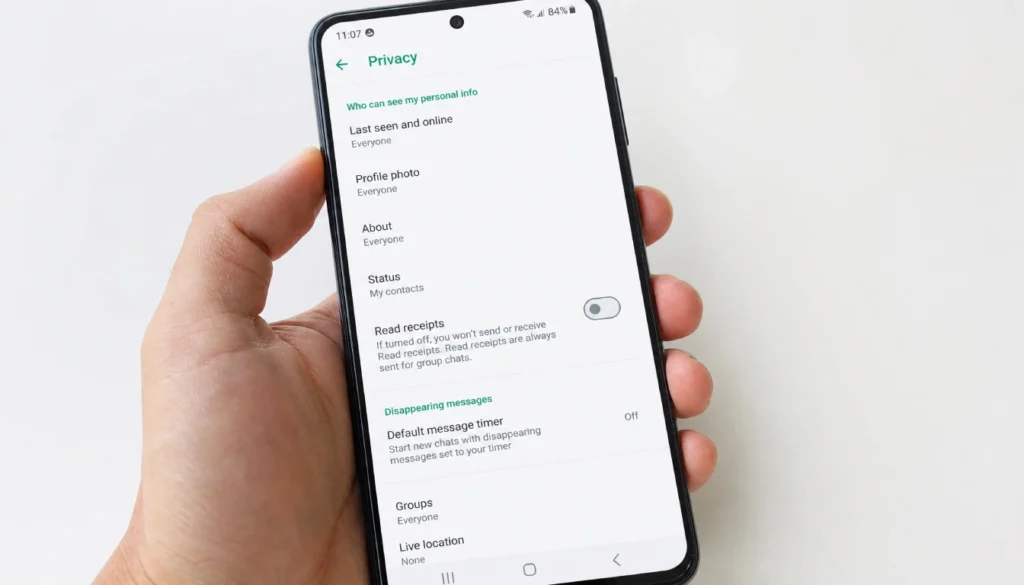
WhatsApp makes this fairly simple, and the steps are the same whether you’re on iPhone or Android.
Turn Off WhatsApp Read Receipts Globally
- Open WhatsApp and tap the three dots in the top right corner (Android) or go to Settings (iPhone)
- Tap Privacy
- Scroll down and find Read Receipts
- Toggle it off
That’s it. Once you do this, your blue ticks disappear for everyone. Nobody will see that you’ve read their message. The ticks will stay grey instead of turning blue.
One important note: this setting does not apply to group chats. WhatsApp group read receipts work differently, and we’ll get to that.
Turn Off Read Receipts on WhatsApp Web
If you use WhatsApp on your computer, the settings sync from your phone. You don’t need to change anything separately on WhatsApp Web. Whatever you’ve set on your phone applies everywhere.
WhatsApp Group Read Receipts
WhatsApp does not let you turn off read receipts in group chats at the moment. If you open a group message, the sender can still see that you’ve read it. This is a known limitation, and there’s no workaround inside the app itself.
If privacy in groups matters to you, the only option right now is to use notification previews to read the message without actually opening the chat.
How to Turn Off Read Receipts on iMessage
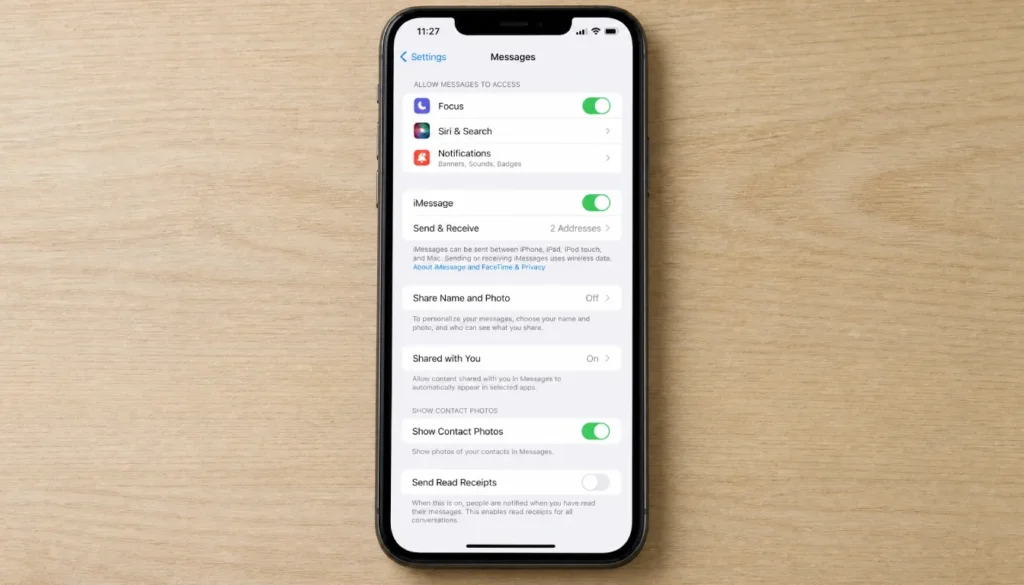
iMessage gives you two options that WhatsApp doesn’t: a global toggle and a per-contact setting. This makes it much more flexible.
Turn Off iMessage Read Receipts for Everyone
- Go to Settings on your iPhone
- Scroll down and tap Messages
- Find Send Read Receipts and toggle it off
That’s the global setting. Once it’s off, no one will see that you’ve read their iMessage.
Turn Off Read Receipts for a Specific Contact on iMessage
This is the option most people don’t know about, and it’s genuinely useful.
- Open the conversation in Messages
- Tap the person’s name at the top
- Tap the info icon (the small “i”)
- Toggle Send Read Receipts off for that contact
You can do this for individual people while keeping read receipts on for everyone else. It works in both directions, too. You can turn it on for one person while keeping it off globally.
Turn Off Read Receipts on Mac Messages
- Open the Messages app on your Mac
- Go to Messages in the top menu bar
- Click Settings (or Preferences on older macOS versions)
- Under the iMessage tab, uncheck Send Read Receipts
What Actually Happens When You Turn Off Read Receipts?
People ask this question a lot, so let’s clear it up.
On WhatsApp:
- Your ticks stay grey for others even after you’ve read the message
- You can still see read receipts from other people (unless they’ve also turned theirs off)
- Your last seen and online status are not affected by this setting; those are separate toggles
- Group chat read receipts remain visible regardless of this setting
On iMessage:
- The sender sees “Delivered” instead of “Read”
- You can still receive and see read receipts from contacts who have theirs turned on
- Turning off read receipts does not affect whether messages are delivered
A common question: if I turn off read receipts, can I still see theirs? Yes, in most cases. If the other person has their read receipts turned on, you’ll still see them. Turning yours off only affects what they see about you.
How to Read WhatsApp Messages Without Sending a Read Receipt
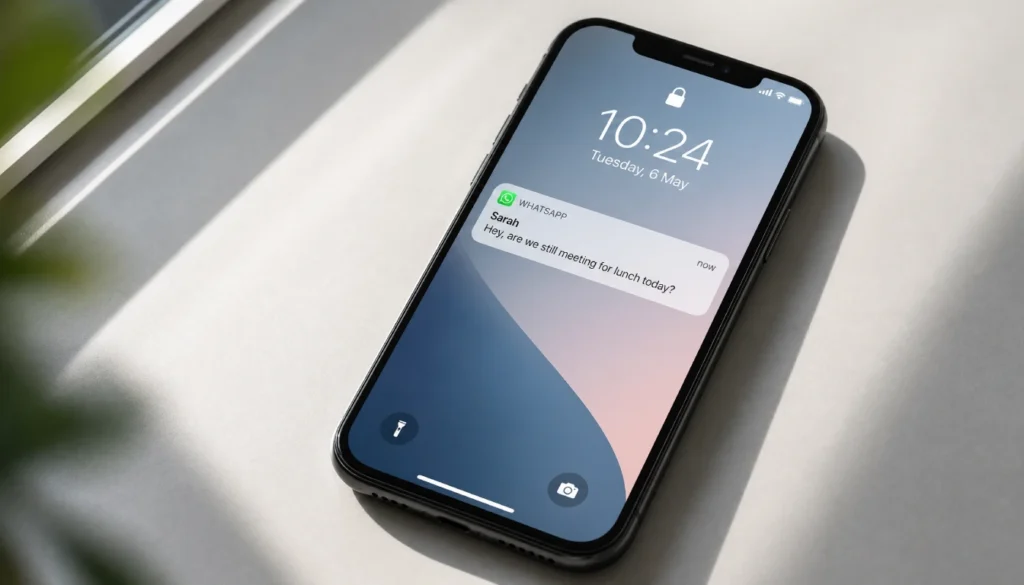
This is probably the most searched variation of this topic, and there are a few ways to do it without turning off read receipts permanently.
Use notification previews. If you read the message directly from your lock screen or notification bar without opening the app, WhatsApp won’t register it as read. The ticks stay grey.
Turn on airplane mode. Open WhatsApp while in airplane mode, read the message, close the app completely, then turn airplane mode off. This works, but it’s a bit clunky and doesn’t always work perfectly depending on your phone.
Use WhatsApp widgets (Android). Some Android setups let you read messages through widgets without triggering read receipts.
Honestly, if you find yourself needing to do this regularly, it’s probably just easier to turn off read receipts entirely.
Common Issues and Quick Fixes
Read receipts not turning off after changing the setting?
Force close WhatsApp or Messages and reopen the app. Sometimes the toggle needs a restart to take effect.
WhatsApp blue ticks still showing after turning off read receipts?
Make sure you’re not in a group chat. The setting only affects one-on-one conversations.
iMessage “Send Read Receipts” option is greyed out?
This can happen when Screen Time restrictions are active. Check Settings, then Screen Time, and see if communication limits are turned on.
Read receipts are turned off, but the message still shows “Read” on iMessage?
This can happen with contacts you have per-contact read receipts turned on for. Check the individual contact settings inside the conversation.
Frequently Asked Questions
Does turning off WhatsApp read receipts also hide my last seen?
No, these are two separate settings. Turning off read receipts only affects the blue ticks. To hide your last seen, go to WhatsApp Privacy settings and change your Last Seen visibility separately.
Can I turn off read receipts for just one person on WhatsApp?
Not at the moment. WhatsApp only offers a global toggle for read receipts in individual chats. iMessage is the platform that lets you control this per contact.
If I turn off read receipts on iMessage, can I still see when others read my messages?
Yes. Turning off your own read receipts only affects what others see about you. If someone else has their read receipts turned on, you’ll still see “Read” under your messages to them.
Will the other person know I turned off read receipts?
They won’t get a notification. But they might figure it out if they noticed blue ticks before and suddenly only see grey ones. There’s no way to hide that shift completely, though many people don’t pay that much attention.
Does disabling read receipts affect WhatsApp group chats?
No. WhatsApp group read receipts are always on, regardless of your individual privacy settings. The sender can always see who has read group messages.
A Few Last Thoughts
Turning off read receipts is one of those small settings that makes a surprisingly big difference to how you feel about using your phone.
You get space to read messages at your own pace. You reduce the pressure to reply immediately. You stay in control of your own communication without owing anyone an explanation.
Both WhatsApp and iMessage make it easy to do. WhatsApp gives you a global toggle for one-on-one chats. iMessage gives you both a global setting and a per-contact option, which is more flexible.
If you’ve been putting this off, it takes about thirty seconds to change.
Have questions about a specific situation, like group chats, syncing across devices, or settings that don’t seem to be working? Drop them in the comments. I read everything and I’m happy to help.
And if this guide helped you out, share it with someone who’s been stressing about the same thing. Read receipt anxiety is more common than people admit.