
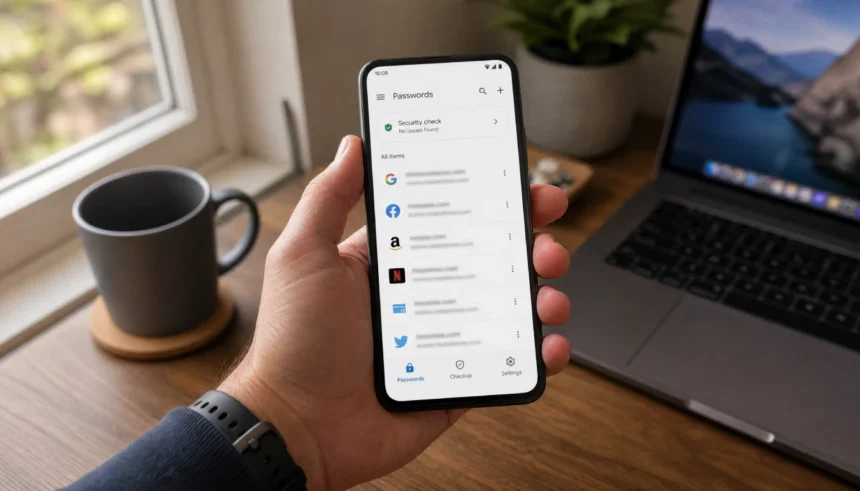
I used to have a sticky note on my monitor. Yes, a real sticky note, covered in passwords. “Netflix123,” “Fb!pass2019,” some half-remembered thing I made up in 2017 for a banking login I still use. It was embarrassing, honestly. And every time a website forced me to reset my password, I would stare at that note in defeat.
Then a friend told me to just use Google Password Manager. I resisted for a while because it sounded complicated or somehow risky. But once I set it up? I cannot believe I waited so long.
If you have ever forgotten a password, reused the same one everywhere, or felt a little anxious about how many accounts you actually have floating around the internet, this guide is for you.
What Is Google Password Manager, Exactly?
Google Password Manager is a free built-in tool inside your Google account. It saves, stores, and autofills your passwords across your devices. Think of it as a secure digital notebook that only you can open, and it fills in your login details for you automatically.
You do not need to download anything extra. If you use Chrome or have a Google account on your Android or iPhone, you already have access to it. You can also visit passwords.google.com at any time to view and manage everything in a browser.
It is completely free. No subscription, no ads, no catches.
Is Google Password Manager Safe to Use?
This is the first question most beginners ask, and it is a fair one.
Your saved passwords are encrypted, which means even Google cannot read them in plain text. The data is tied to your Google account, which you can protect further with two-factor authentication. That combination makes it quite secure for everyday use.
Google also runs a Password Security Checkup that scans your saved passwords for breaches, weak combinations, or reused credentials. It tells you which ones to fix and even helps you change them.
Is it perfect? No tool is. But for most people, it is far safer than a sticky note, a notes app, or reusing the same password everywhere.
How to Set Up Google Password Manager (Step by Step)
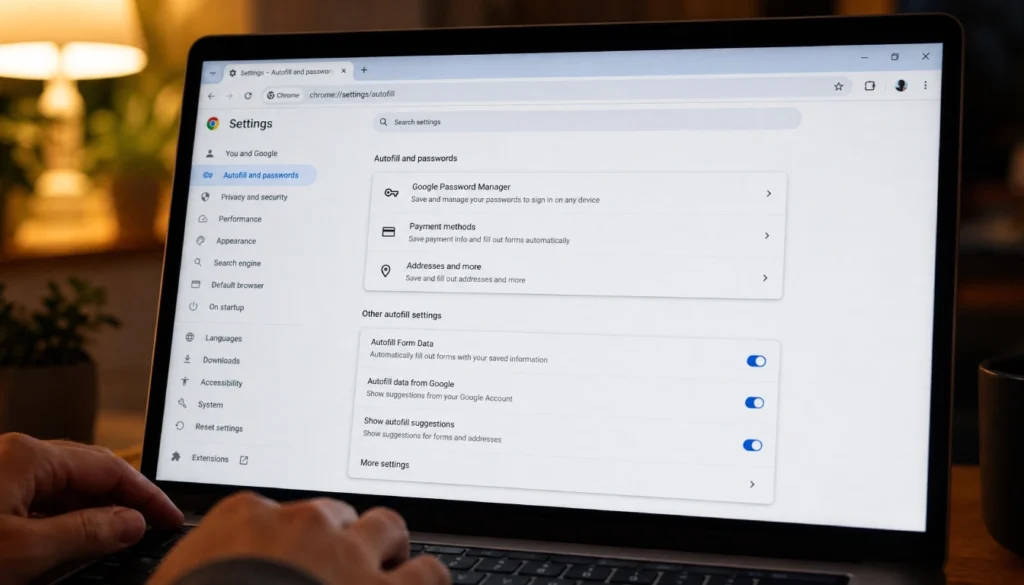
Setting this up takes about five minutes. Here is how to get started on different devices.
On Google Chrome (Desktop)
- Open Chrome and click the three-dot menu in the top right corner.
- Go to Settings, then click Autofill and passwords.
- Select Google Password Manager.
- Make sure “Offer to save passwords” is toggled on.
That’s it. The next time you log into a website, Chrome will ask if you want to save the password. Hit “Save,” and it is stored automatically.
On Android
- Go to your phone’s Settings.
- Search for “Passwords” or go to General Management, then Passwords and Autofill.
- Select Google as your autofill service.
Now your phone will suggest saved passwords whenever you open an app or browser login screen.
On iPhone
- Open Settings, then tap Passwords.
- Tap Password Options.
- Enable iCloud Passwords & Keychain if needed, or select Chrome if it appears.
You can also download the Google Chrome app on iPhone and sign in to your Google account. Your saved passwords will sync across automatically.
How to Save and Autofill Passwords
Once Google Password Manager is set up, it works mostly in the background. Here is what the everyday experience looks like.
Saving a new password: When you create an account or log in somewhere new, Chrome or your Android keyboard will pop up a small banner asking “Save password?” Tap or click Save, and it is done.
Autofilling a saved password: When you return to a site, Chrome will fill in your username and password for you. On Android, your keyboard may show a suggestion at the top. On iPhone with Chrome, it works similarly through the autofill settings.
Editing or viewing saved passwords: Visit passwords.google.com, and you can see every saved login, edit usernames or passwords, or delete ones you no longer need. You can even click the eye icon to see the actual password instead of just dots, which is handy when you need to log in somewhere manually.
How to Generate Strong Passwords With Google
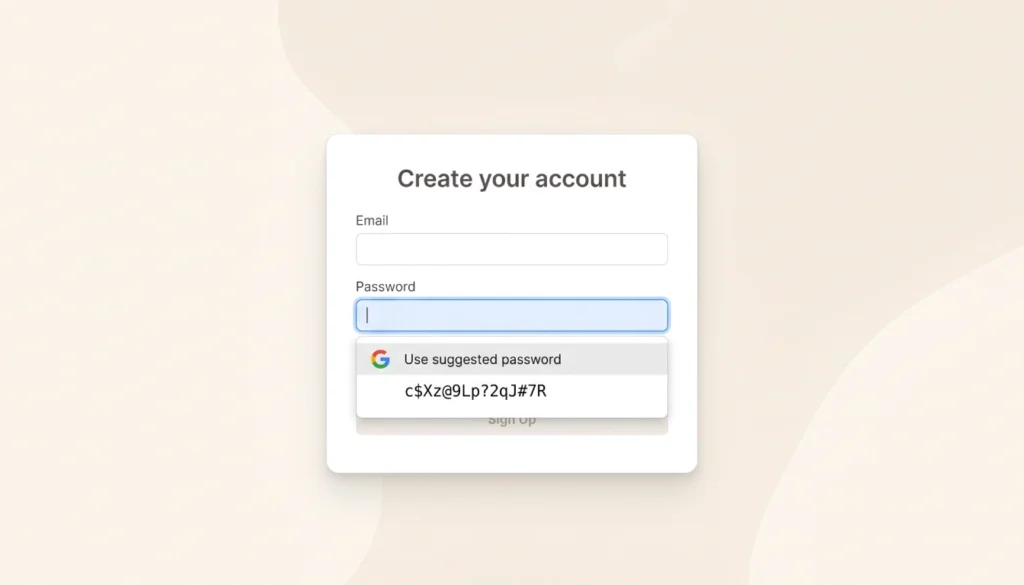
One underused feature is the built-in password generator. When you create a new account online, Chrome can suggest a strong, random password for you instead of letting you type something like “Summer2024.”
When you click on a password field during sign-up, Chrome will often show a key icon or a “Suggest strong password” option. Click it, accept the suggestion, and Chrome saves it automatically. You will never have to remember it because autofill handles that for you.
This is one of the simplest ways to improve your online security without any extra effort.
How to Check If Your Passwords Have Been Compromised
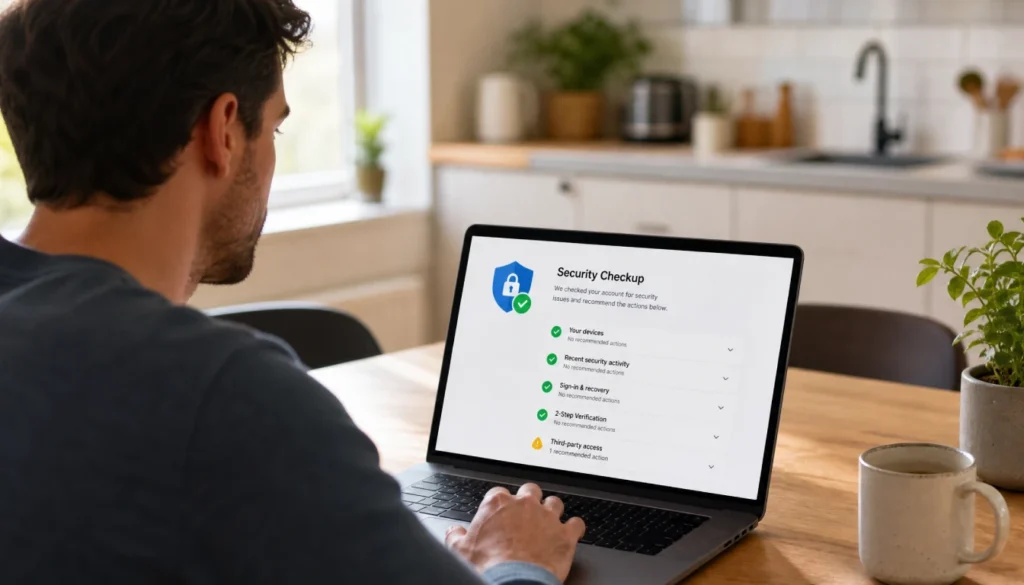
Google Password Manager has a built-in dark web monitoring feature called Password Checkup. Here is how to use it.
- Go to passwords.google.com.
- Click Check passwords at the top.
- Google will scan your saved credentials against known data breaches.
If any of your passwords show up in a breach, it will flag them as “Compromised” and help you change them. It also highlights passwords that are weak or reused across multiple sites.
Running this check once a month is a good habit, especially if you have had the same passwords for a few years.
How to Sync Google Passwords Across Devices
Your passwords automatically sync to any device where you are signed into the same Google account. That means you save a password on your laptop, and it shows up on your phone within seconds.
Make sure you are signed in to Chrome or your Android settings with the same Google account on every device. If syncing is not working, go to Chrome Settings and check that “Sync” is turned on under your account.
You can also access all your passwords from any browser by visiting passwords.google.com and signing in. No Chrome required.
Common Mistakes Beginners Make (And How to Avoid Them)
- Skipping two-factor authentication. If someone gets into your Google account, they get access to your passwords too. Turn on 2FA under your Google account security settings.
- Ignoring the security checkup. A lot of people save passwords and never look at them again. Check for breaches regularly.
- Using weak passwords anyway. Let Google generate passwords for you. Do not override the suggestions with something easy to guess.
- Not signing into Chrome. Password Manager only works well when you are signed in. Make sure you are logged into your Google account in Chrome.
Google Password Manager vs. Other Password Managers
Here is a quick comparison to help you decide if Google Password Manager is enough for your needs.
| Feature | Google Password Manager | LastPass | Bitwarden |
|---|---|---|---|
| Price | Free | Free / Paid tiers | Free / Paid tiers |
| Cross-browser support | Chrome-focused | All browsers | All browsers |
| Password generation | Yes | Yes | Yes |
| Dark web monitoring | Yes | Yes (paid) | Limited |
| Notes / secure storage | Basic | Yes | Yes |
| Offline access | Limited | Yes (paid) | Yes |
For most beginners and everyday users, Google Password Manager is more than enough. If you need advanced features like encrypted notes, secure file storage, or broad cross-browser support outside Chrome, Bitwarden is a great free alternative worth exploring.
Frequently Asked Questions
Can I use Google Password Manager on iPhone?
Yes. Download Google Chrome on your iPhone, sign in to your Google account, and enable Chrome as your autofill provider in your phone’s password settings.
What happens to my saved passwords if I lose my phone?
Your passwords are stored in your Google account, not just on your device. Sign in to your Google account on any new phone or browser, and your passwords come with you.
Can Google Password Manager be hacked?
Like any online service, it is not immune to risk. But your passwords are encrypted, and with two-factor authentication enabled on your Google account, the risk is very low for everyday users.
How do I export my Google passwords?
Go to passwords.google.com, click the settings icon at the top right, and select “Export passwords.” This downloads a CSV file with all your saved credentials. Store it somewhere safe.
Is Google Password Manager free?
Yes, completely free. You only need a Google account.
You Are More Ready Than You Think
Getting started with Google Password Manager does not require tech skills. It requires about five minutes and a willingness to let go of that sticky note on your monitor.
Start small. Let Chrome save the next password you type. Check your existing passwords for breaches. Let Google suggest a strong password the next time you create an account. Each small step adds up.
Your passwords are one of the few things standing between your personal life and someone who wants access to it. Taking care of them is worth it, and Google has made that easier than ever.
Have questions or want to share how you got started? Drop a comment below. Someone else probably has the same question.