
You know that sinking feeling. You tap “delete,” thinking you’re clearing one blurry photo, and then you realize you just wiped out three years of memories. Vacation shots. Your kid’s first birthday. That one perfect selfie you will never replicate.
I’ve been there. And my first instinct was to Google “recover deleted photos android no root” in full panic mode at midnight.
The good news? You don’t need to root your phone, break your warranty, or hand your device over to a repair shop. There are real, working ways to get your photos back, and I’m going to walk you through all of them, step by step.
First, Stop Using Your Phone Right Now
I know, easier said than done. But here’s the thing: when you delete a photo on Android, the file doesn’t disappear immediately. It sits in the storage space, waiting to be overwritten by new data.
Every photo you take, every app you open, every video you download increases the chance that your deleted photos get permanently buried.
So before we start, put the phone down. Don’t download any new apps. Don’t take new pictures. Give yourself the best shot at a full recovery.
Where Do Deleted Photos Actually Go on Android?
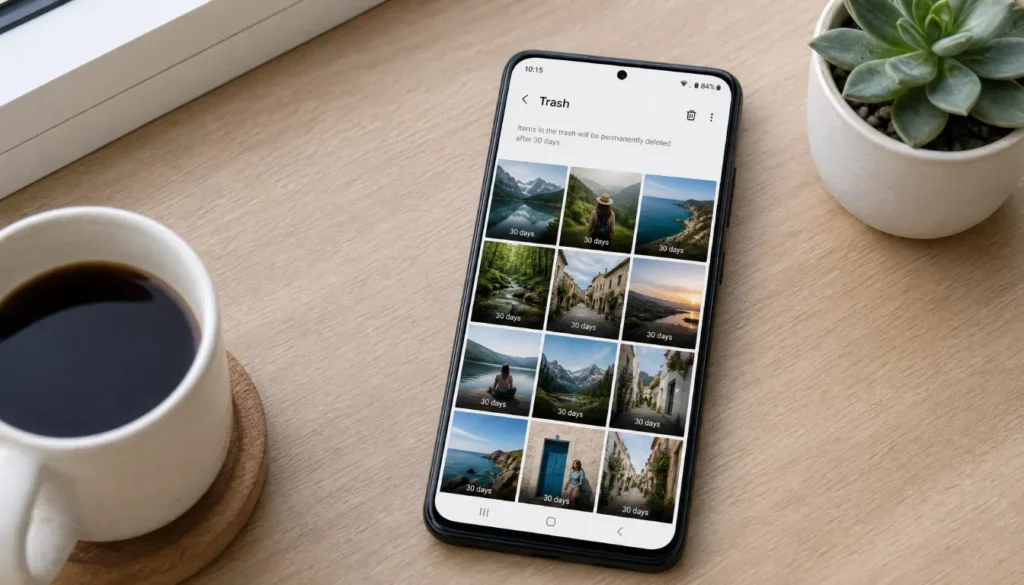
This is something most people don’t realize. Android doesn’t just vaporize your photos the moment you hit delete.
Most modern Android phones send deleted images to a trash or recycle bin inside the gallery app. This works a lot like the recycle bin on your computer. Your photos sit there for 15 to 30 days before permanent deletion.
Here’s where to check based on your phone:
| Phone Brand | Where to Find Deleted Photos |
|---|---|
| Samsung | Gallery app > Three-dot menu > Recycle Bin |
| Google Pixel | Google Photos > Library > Trash |
| Xiaomi | Mi Gallery > Albums > Recently Deleted |
| OnePlus | Gallery > Albums > Recently Deleted |
| Realme / Oppo | Gallery > Albums > Recycle Bin |
| Motorola | Google Photos (built-in) > Trash |
If your photos are still within that 30-day window, you can restore them in seconds with a single tap.
Method 1: Check the Google Photos Trash (Works on Almost Every Android)
Google Photos is installed on nearly every Android phone, and it has its own trash folder that keeps deleted photos for 30 days.
Here’s how to use it:
- Open Google Photos on your phone
- Tap Library at the bottom right
- Select Trash
- Find the photo you want back
- Tap and hold to select it, then tap Restore
That’s it. No app, no software, no root required.
If you were signed into Google Photos and had backup turned on, even photos deleted from your phone’s gallery might show up here. It has saved me more than once.
Method 2: Check Your Phone’s Built-In Gallery Trash
Most Android gallery apps, especially on Samsung, Xiaomi, and OnePlus, have a built-in recently deleted folder. Many people forget it exists.
On Samsung (One UI):
- Open Gallery
- Tap the three-dot menu (top right)
- Select Recycle Bin
- Restore what you need
On Xiaomi:
- Open Mi Gallery
- Tap Albums
- Scroll to find Recently Deleted
These built-in folders work without any third-party app. Check here before trying anything else.
Method 3: Use DiskDigger (The Best Free No-Root Recovery App)
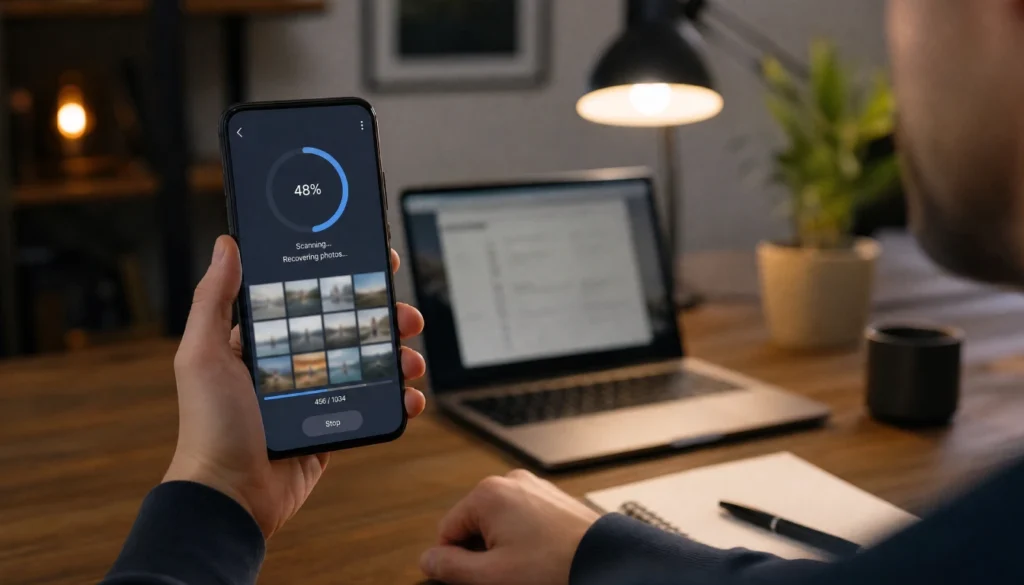
If the trash is empty or the 30-day window has passed, DiskDigger is your next best option. It’s the most popular Android photo recovery app without root, and it actually works.
How to use DiskDigger (no root version):
- Download DiskDigger Photo Recovery from the Google Play Store
- Open the app and tap Start Basic Photo Scan
- Let it scan your phone’s internal storage
- Browse the recoverable photos
- Select the ones you want and tap Recover
The free version scans for JPEG and PNG files, which covers most photos. The paid version recovers more file types.
One honest note: the no-root version doesn’t scan as deeply as the rooted version. But for recently deleted photos, it often finds exactly what you need.
Method 4: Check Google Drive or WhatsApp Backups
Sometimes the photo you’re looking for isn’t gone; it’s just somewhere you haven’t checked.
Google Drive: If you back up your phone to Google Drive, open the app and search through your backups. Some media files get included depending on your settings.
WhatsApp: If someone sent you that photo on WhatsApp or you shared it there, check the WhatsApp Media folder in your file manager under Internal Storage > WhatsApp > Media > WhatsApp Images.
Gmail: If you ever emailed the photo to anyone, it might still be in your Sent folder.
These aren’t guaranteed wins, but they’re worth checking before you move on to more involved methods.
Method 5: Try Dumpster, the Android Recycle Bin App
Dumpster is a popular app that acts like a recycle bin for your entire phone. If you had it installed before you deleted your photos, it may have automatically saved copies in the background.
If you didn’t have it installed before, download it now anyway. It won’t recover photos deleted before the install, but it will protect everything going forward.
Think of Dumpster as the safety net you install once and never have to think about again.
What About Photos Deleted After a Factory Reset?
This is the hardest situation. If you did a factory reset and didn’t have a backup, Android photo recovery without root becomes much more limited.
A factory reset wipes the phone’s storage and overwrites data aggressively. The chances of recovery drop significantly without root access, which lets recovery tools read deeper into the file system.
Your best options in this case:
- Check Google Photos trash (if backup was active before the reset)
- Check Google Drive for any auto-backups
- Try a no-root scan with DiskDigger (results vary)
- If photos were on an SD card, use a PC-based tool like Recuva to scan the card directly
For phones with removable SD cards, recovery after a factory reset is much more realistic. The SD card often retains data that the internal storage has overwritten.
Quick Tips to Avoid Losing Photos Again

Prevention is so much easier than recovery. Once you’ve gotten your photos back (or accepted the loss), set up these habits:
- Turn on Google Photos backup under Settings > Backup. Free storage compresses photos; Google One gives you original quality.
- Enable your gallery app’s recycle bin if it has one and make sure it’s turned on.
- Install Dumpster as a backup recycle bin.
- Check your phone brand’s cloud service. Samsung has Samsung Cloud, and Xiaomi has Mi Cloud. These can save you automatically.
- Back up to a PC or external drive every few months, especially for irreplaceable photos.
FAQs
Can I really recover deleted photos without rooting my Android phone?
Yes, in many cases you can. If the photos are still in your trash or recycle bin, recovery is easy and immediate. If they’ve been permanently deleted, apps like DiskDigger can scan internal storage without root, though the results depend on how recently the photos were deleted and how much new data has been written since.
How long do deleted photos stay recoverable on Android?
This varies. Most gallery apps and Google Photos keep deleted photos in the trash for 15 to 30 days. After that, recovery depends on whether the storage space has been overwritten. The sooner you try to recover, the better your chances.
Is DiskDigger safe to use on my Android phone?
Yes. DiskDigger is a legitimate app available on the Google Play Store. The no-root version reads your phone’s storage without making system-level changes, so it’s safe for regular use. Always download it from the official Play Store to avoid fake versions.
Can I recover deleted WhatsApp photos without root?
Often yes. WhatsApp stores media files in a separate folder on your internal storage or SD card. Check Internal Storage > WhatsApp > Media > WhatsApp Images. You may also find deleted WhatsApp photos in Google Photos trash if backup was enabled.
What if none of these methods work?
If standard recovery methods fail and the photos are very important, professional data recovery services exist that use specialized hardware tools. These services are expensive (often $200 to $500 or more) and not guaranteed, but they’re the last resort for critical files.
You’ve Got This
Losing photos feels awful, especially when they hold real memories. But most of the time, those photos aren’t gone forever. They’re sitting in a trash folder, a backup, or a recoverable portion of your storage, waiting for you to find them.
Start with the simplest check first: Google Photos trash, then your gallery’s recycle bin, then DiskDigger. Don’t overthink it. Work through the steps one at a time.
And once you have your photos back, take five minutes to set up a proper backup. In the future, you will be grateful.
Have you ever recovered deleted photos on Android? Which method worked for you? Drop your experience in the comments. Or if you’re stuck on a specific step, ask away. Happy to help you figure it out.