
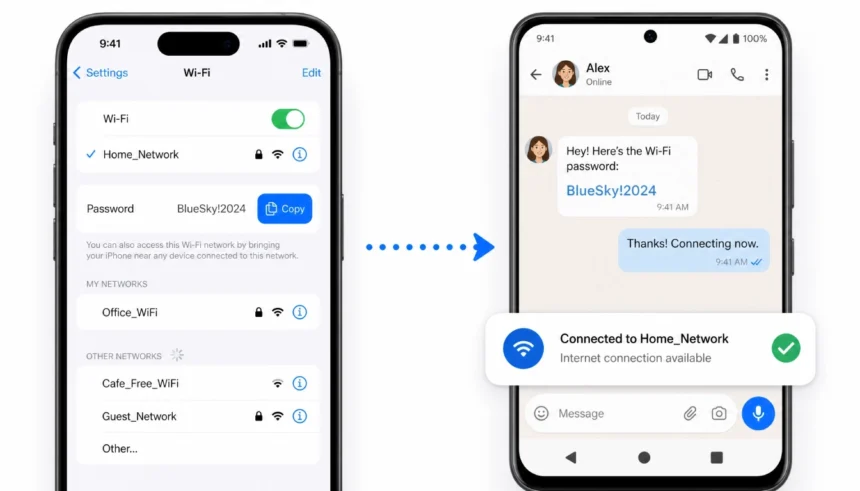
You tap “Share Password” on your iPhone and hold it next to your friend’s Android. Nothing happens. No pop-up. No prompt. Just awkward silence while everyone waits to get online.
Sound familiar?
Apple’s built-in Wi-Fi sharing only works between iPhones and Macs. If you’re trying to share a Wi-Fi password from an iPhone to an Android manually, that button is completely useless. But the fix is quick — and you don’t need any app to do it.
I’ll walk you through two methods that actually work, plus what to do when things go sideways.
Why iPhone’s “Share Password” Button Ignores Android
Here’s the short answer: Apple’s password-sharing feature runs through iCloud Keychain. It’s a closed system that only talks to other Apple devices signed into nearby Apple IDs.
Android isn’t part of that system. It never will be.
So when you bring two phones close together and tap “Share Password,” your iPhone is looking for an Apple handshake that an Android phone simply can’t give. It’s not broken — it’s just not built for cross-platform sharing.
That’s why you need a manual method. And honestly, once you know it, it takes less than 30 seconds.
Before You Share – How to See Any Saved Wi-Fi Password on iPhone
This is the step most guides skip — and it’s the most important one.
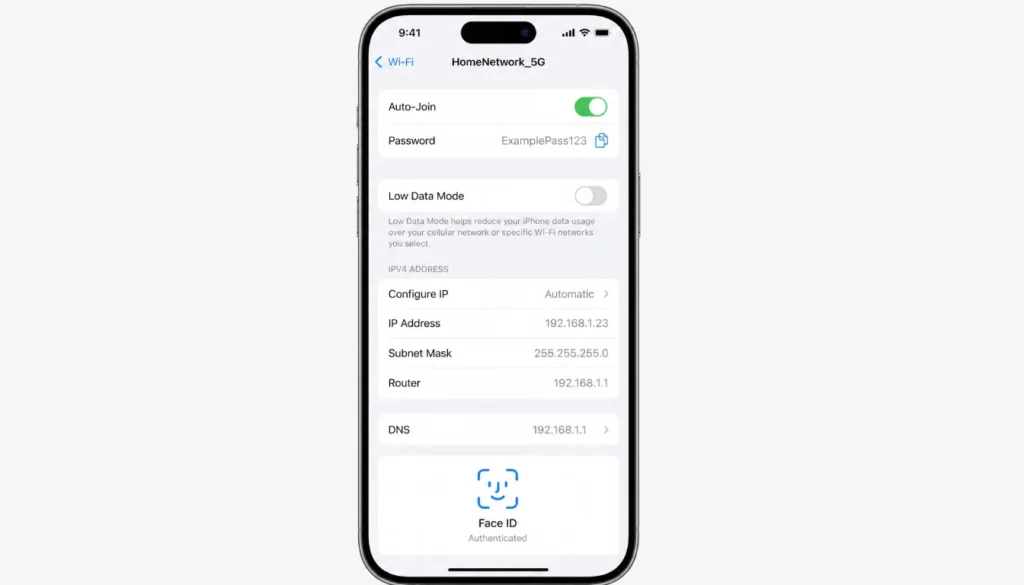
Before you can share the password, you need to actually see it. If you joined the network months ago, there’s a good chance you have no idea what it is. Here’s how to find it on iOS 16 and later:
Step 1: Open the Settings app on your iPhone.
Step 2: Tap Wi-Fi. Make sure you’re connected to the network you want to share.
Step 3: Tap the small (i) icon next to the network name.
Step 4: Tap the Password field. Your iPhone will ask for Face ID or Touch ID.
Step 5: Once verified, the password appears on the screen. Tap it to copy.
That’s it. You now have the password ready to share.
Note: This only works on iOS 16 and later. If you’re on iOS 15 or older, you’ll need to log into your router’s admin panel to find the password — or ask whoever set up the network
Method 1 – Copy and Send the Password Manually (No QR, No App)
This is the most reliable way to send a Wi-Fi password to Android. No app. No QR code. No setup. Just copy and paste.
Step 1: Follow the steps above to copy the password from your iPhone Settings.
Step 2: Open Messages, WhatsApp, or any chat app on your iPhone.
Step 3: Open a conversation with the Android user — or create a new one.
Step 4: Long-press in the message box and tap Paste.
Step 5: Send the message.
Step 6: On the Android phone, the user taps the password in the message, copies it, then heads to Settings → Wi-Fi, taps the network name, and pastes it into the password field.
Done. They’re online.
I’ve used this method more times than I can count. Last month, my cousin visited with his Samsung Galaxy and needed the Wi-Fi. I automatically reached for the “Share Password” button — nothing. Switched to this copy-paste method, and he was connected in under 20 seconds. Now it’s my go-to.
Tips to avoid mistakes:
- Watch for autocorrect changing characters in the password before you send.
- If the password has special characters like
@#Double-check they copied correctly. - Passwords are case-sensitive — make sure the Android user types it exactly as sent.
Method 2 – Share Wi-Fi Password iPhone to Android Using a QR Code
If you want something a little slicker — or you share your Wi-Fi with guests often — a QR code is the way to go. Any Android phone running Android 9 or later can scan a Wi-Fi QR code directly from the camera app.
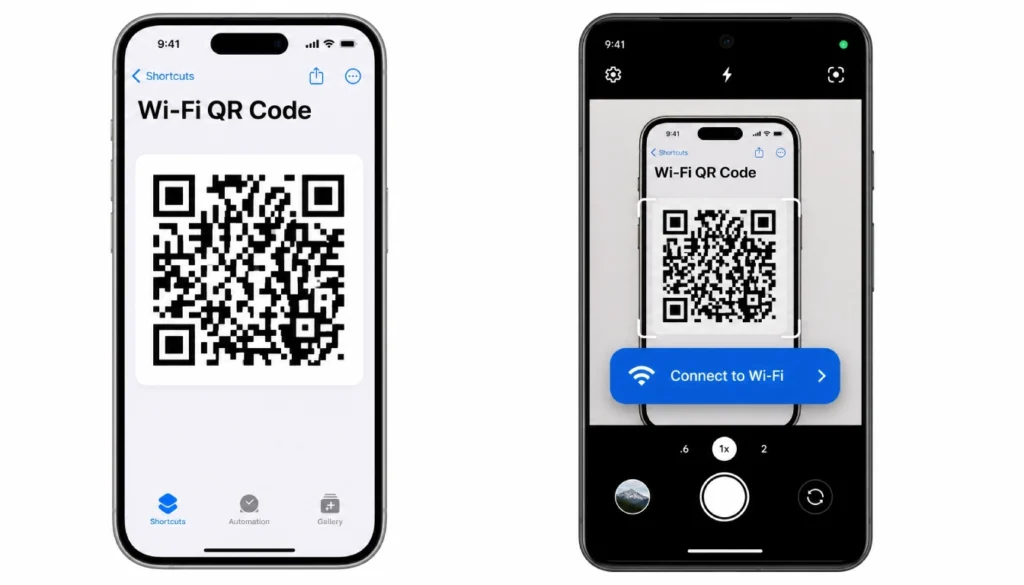
Here’s how to create one using the iPhone Shortcuts app (free, pre-installed on iOS 13+):
Step 1: Open the Shortcuts app on your iPhone.
Step 2: Tap the + button to create a new shortcut.
Step 3: Search for the action “Generate QR Code” and add it.
Step 4: In the text field, type this exactly (replace the placeholders):
WIFI:T:WPA;S:YourNetworkName;P:YourPassword;;
- Replace
YourNetworkNameWith your exact Wi-Fi name (case-sensitive). - Replace
YourPasswordWith your actual password.
Step 5: Add a “Show Result” action after it so the QR code displays on screen.
Step 6: Run the shortcut. A QR code appears on your iPhone screen.
Step 7: Hand your phone to the Android user. They open the Camera app, point it at the QR code, and tap the “Connect to Wi-Fi” notification that pops up.
That’s it. No typing required on their end.
I tested this on both a Samsung Galaxy S23 and a Google Pixel 7. Both connected instantly using the native camera — no extra app needed.
Older Android phones (Android 8 or below): The built-in camera may not recognise Wi-Fi QR codes. In that case, the user can open Google Lens and scan it from there.
What to Do If the QR Code Doesn’t Work
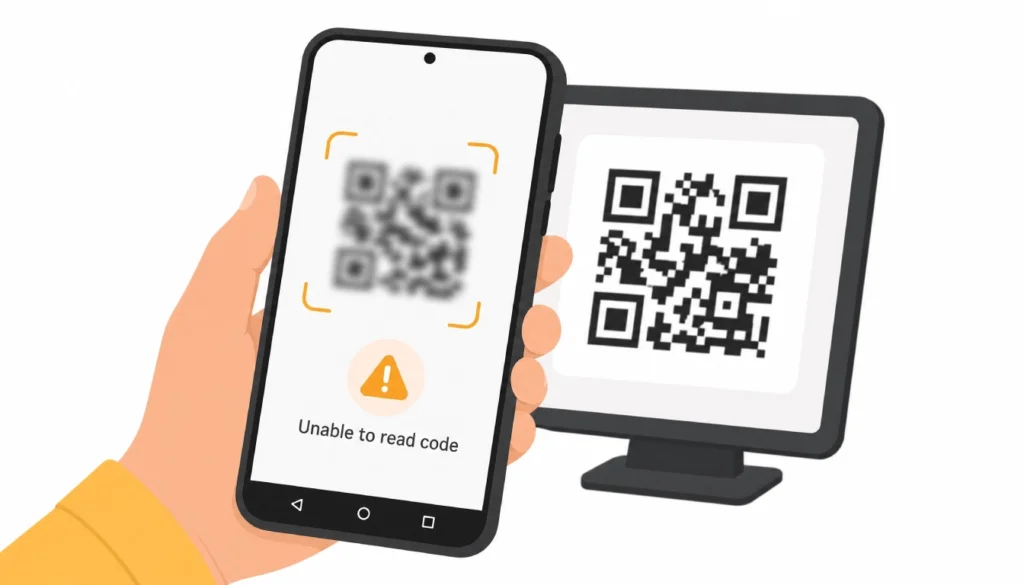
QR code not scanning? Don’t panic. This happens for a few common reasons, and each one has a fast fix.
Problem 1: Camera won’t focus. Hold the Android phone 6–10 inches from the screen — not too close, not too far. Make sure the iPhone screen brightness is turned all the way up.
Problem 2: The code looks blurry or pixelated. This usually means the Shortcuts action didn’t generate high-resolution code. Re-run the shortcut and try again. Make sure there are no typos in the WIFI string you entered.
Problem 3: The pop-up appears but won’t connect. Double-check that your Wi-Fi password has no typos in the Shortcut. Even one wrong character breaks it. Copy the password fresh from Settings and update the shortcut.
Problem 4: Hotel or public Wi-Fi with a login page (captive portal): QR codes won’t work here. These networks require you to open a browser and accept terms before connecting. Use the manual copy-paste method instead — and even that may only get them to the login screen.
Problem 5: The Android phone is too old. If scanning fails, use Google Lens (available on any Android with the Google app installed). Open Google Lens → point at the QR code → tap the Wi-Fi connect link.
If none of the above works, fall back to Method 1. It never fails.
Frequently Asked Questions
Can I share Wi-Fi from iPhone to Android without knowing the password?
No — you need the actual password to share it. But if it’s saved on your iPhone, you can reveal it in Settings (iOS 16+) using Face ID, as shown above.
Does iPhone’s “Share Password” feature work with Android at all?
No. It only works between Apple devices — iPhone, iPad, and Mac — when both are signed into Apple IDs saved in each other’s contacts.
Is it safe to send my Wi-Fi password over WhatsApp?
It’s low risk for home networks. WhatsApp messages are end-to-end encrypted. Just avoid sharing it in group chats or over SMS if you’re security-conscious.
What if I changed the Wi-Fi password and the QR code stopped working?
You need to update the Shortcut. Open it, edit the WIFI string with the new password, save it, and regenerate the QR code.
Does this work for 5 GHz and 2.4 GHz networks?
Yes. The method works for both bands. Just make sure you’re sharing the password for the specific band the Android user wants to connect to — they have different network names.
Will the Android phone remember the password after connecting?
Yes, just like any other network. Once connected, Android saves it automatically.
Keep Your Network Safe When Sharing Passwords
Sharing your Wi-Fi password is convenient — but a few quick habits keep your network secure.
Don’t screenshot your QR code and post it publicly. Anyone who sees it can connect to your network. If you share it in a family group chat, that’s fine. Posting it on social media is not.
Change your Wi-Fi password after a house party or Airbnb stay. If you’ve shared it with guests you don’t fully trust, a quick password change in your router settings cuts their access immediately.
Use a Guest Network for visitors. Most modern routers let you set up a separate guest Wi-Fi. It keeps visitors online but off your main network — so your smart home devices, laptops, and files stay private. Share that password freely.
Check who’s connected. You can log into your router (usually at 192.168.1.1) to see a list of all connected devices. If you see anything unfamiliar, change the password.
The Bottom Line
Apple’s “Share Password” button is great — until an Android user shows up. But you don’t need any app, workaround, or tech knowledge to fix it.
To share a Wi-Fi password from iPhone to Android manually, just reveal it in iOS Settings, copy it, and send it over any chat app. For a smoother experience, build a quick QR code in Shortcuts that any Android camera can scan in seconds.
Both methods take under a minute. Pick whichever fits your situation, bookmark this page for the next time a guest needs the Wi-Fi, and you’ll never face that awkward pause again.
Did this work for you? Drop a comment below and let me know which method you used — or share this post with someone who always struggles to connect at your place.