
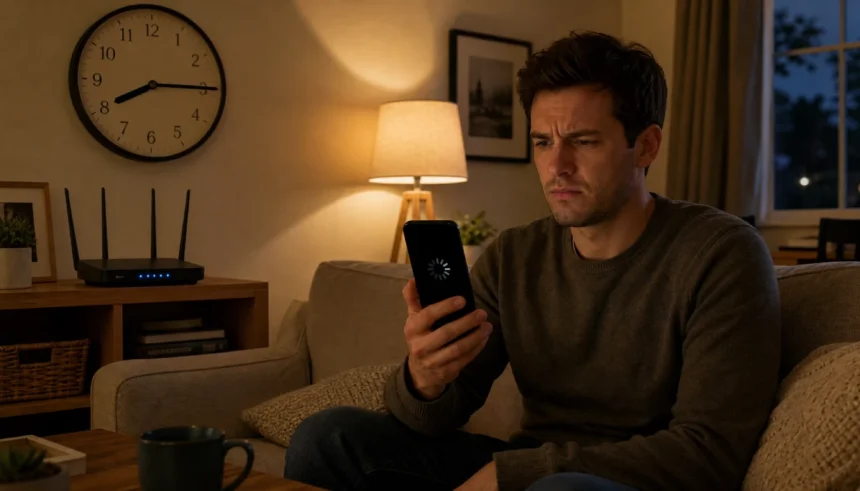
You sit down after a long day, open Netflix or hop into a game, and your screen freezes. But this morning? Your connection was perfect. If your Wi-Fi is slow at night but fine during the day, you are not imagining it. Millions of people face the same problem every evening. The good news: there are real, specific causes, and most of them have fixes you can do right now. This article covers all of them, step by step.
Is It Normal for Wi-Fi to Slow Down at Night?
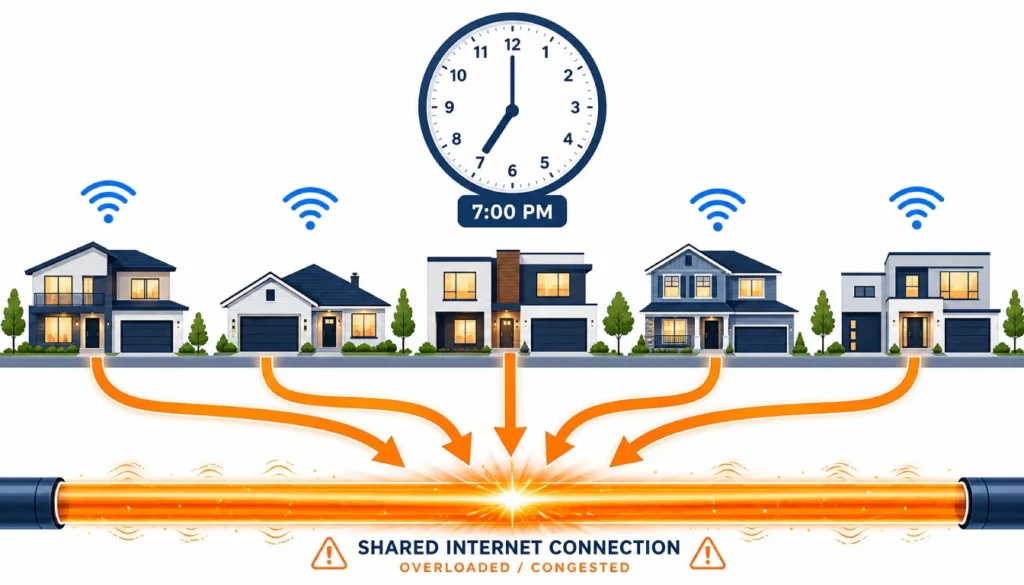
Yes, and it is more common than you think. Evening hours, roughly 7 PM to 11 PM, are when internet usage spikes. Everyone in your neighborhood is home, streaming, gaming, or video calling at the same time. Your ISP’s network handles far more traffic than it does at noon, and that puts pressure on the shared infrastructure.
This is called network congestion, and it is the single most common reason your Wi-Fi crawls at night. But it is not the only one. Your router settings, your device behavior, and even your apartment building can all play a role.
7 Real Reasons Your Internet Crawls in the Evening
Here are the seven most common causes of slow night-time Wi-Fi.
1. Peak-hour network congestion
Your ISP shares bandwidth across hundreds or thousands of homes in your area. When everyone logs on after work, the available bandwidth shrinks for everyone on that shared line.
2. ISP throttling
Some ISPs deliberately slow your connection after you hit a data usage threshold. This often kicks in during evenings when you have streamed or downloaded the most that month. If you notice your internet is slow at night only after a few weeks into your billing cycle, throttling is worth investigating.
3. Router overload
Your router manages every connected device in your home. After a full day of background updates, smart home activity, and app syncing, the router’s memory and processor can get bogged down. A simple reboot at 7 PM can sometimes fix this entirely.
4. Crowded Wi-Fi channels
If you live in an apartment building, your neighbors’ routers broadcast on the same Wi-Fi channels as yours. At night, all those signals compete, causing interference that slows your speeds. This is one of the most underdiagnosed causes of slow Wi-Fi in apartment settings.
5. Background device activity
Phones, smart TVs, and laptops often run automatic updates, cloud backups, and app syncs during the evening hours. These tasks quietly eat into your bandwidth while you are trying to stream.
6. The 2.4 GHz band is getting crowded
Most devices default to the 2.4 GHz frequency. It has a longer range but far less bandwidth than 5 GHz. At night, with more devices active, this band gets congested fast. If your internet is slow at night only on your phone, this is often the reason.
7. Old or outdated router firmware
Routers that have not been updated in months can develop performance issues. Manufacturers push firmware updates to fix bugs that affect speed and stability. If you have never updated your router, it could be hurting your evening performance.
Is it your ISP or Your Home? How to Check
Before you change anything on your router, you need to know where the problem actually lives.
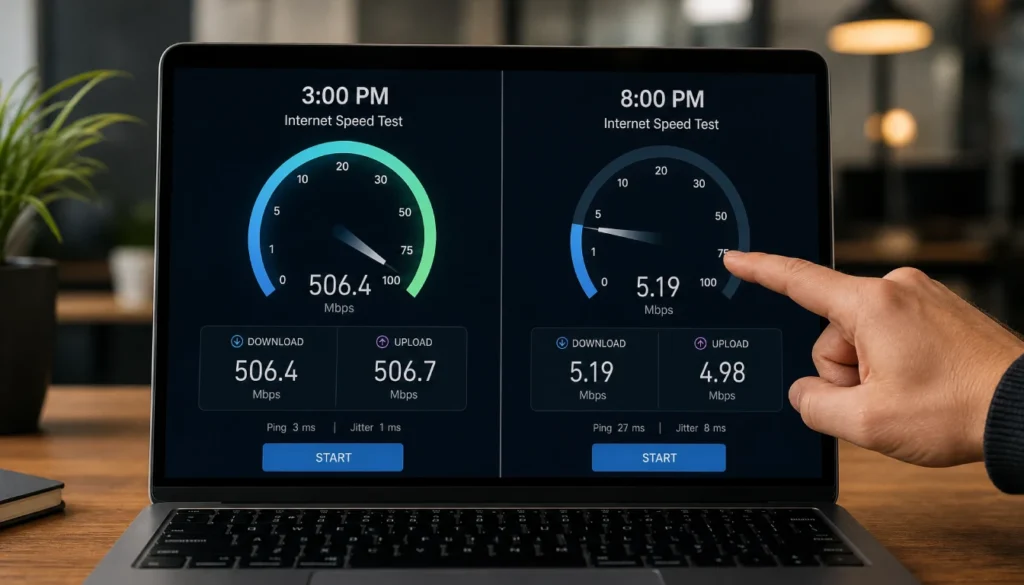
Step 1: Run a speed test at two different times.
Go to fast.com or speedtest.net and run a test at around 3 PM on a weekday. Write down the result. Run the same test again at 8 PM. If your speed drops by 40% or more, your ISP is likely the cause.
Step 2: Connect directly via Ethernet for your evening test.
Plug your laptop straight into the router with an Ethernet cable. If the speed improves dramatically compared to Wi-Fi, the problem is inside your home network. If it is still slow, the issue is on the ISP’s end.
Step 3: Check if the pattern repeats on the same days.
If the slowdown happens every weekday at 7:30 PM but not on Saturday mornings, peak congestion is almost certainly the cause. If it happens every night regardless of day, throttling or a faulty line is more likely.
I ran this exact test after noticing Netflix would buffer every night around 8 PM, but my lunch-hour speed was consistently fast. My 3 PM speed was 180 Mbps. By 8 PM, it had dropped to 62 Mbps. That 65% drop told me the issue was outside my home. I contacted my ISP, who confirmed high congestion in my area and offered a plan upgrade. But before paying more, I also tried the fixes below, and my evening experience improved enough that I did not need to upgrade.
10 Proven Fixes for Slow Wi-Fi at Night
Work through these in order. Start with the fastest fixes first.
Fix 1: Reboot your router and modem
Unplug both devices, wait 30 seconds, then plug the modem in first. Wait for it to fully connect, then plug in the router. This clears the memory and refreshes the connection to your ISP. Do this every few weeks as routine maintenance.
Fix 2: Switch to the 5 GHz band
Log into your router settings (usually by typing 192.168.1.1 into your browser). Look for the wireless settings and find the 5 GHz network. Connect your streaming devices and phone to this band. It has a shorter range but much faster speeds and far less congestion.
Fix 3: Change your Wi-Fi channel manually
In your router’s wireless settings, look for “Channel” under the 2.4 GHz network. Change it to channel 1, 6, or 11 since these are the only non-overlapping channels. Use a free app like Wi-Fi Analyzer (Android) or Apple’s Wireless Diagnostics (Mac) to find which channel has the least competing traffic in your area.
Fix 4: Enable Quality of Service (QoS)
QoS lets you tell your router which activities get priority. Most modern routers have this under advanced settings. Set streaming and gaming as high priority so they get bandwidth first, ahead of background updates and smart home devices.
Fix 5: Disconnect unused devices
Go to your router’s connected devices list and count how many things are online. Smart bulbs, old tablets, and game consoles sitting in standby mode all of these consume small amounts of bandwidth. Disconnect anything you are not actively using.
Fix 6: Schedule updates for off-peak hours
On Windows, go to Settings, Windows Update, and set active hours so updates do not run in the evening. On your phone, go to Settings, App Store or Play Store, and turn off automatic downloads. Schedule these for 2 AM instead.
Fix 7: Update your router firmware
Log into your router admin page and check for a firmware update option. Install any available updates and reboot. This alone has fixed unexplained slowdowns for many users.
Fix 8: Move your router to a central location
If your router sits in a corner or inside a cabinet, the signal weakens before it reaches your living room or bedroom. Place it on a shelf, in an open area, and as central as possible in your home.
Fix 9: Use a wired Ethernet connection for heavy tasks
For gaming, video calls, or 4K streaming, plug directly into the router. Ethernet eliminates Wi-Fi interference and gives you consistent speeds regardless of channel congestion.
Fix 10: Use a VPN to bypass ISP throttling
If your tests point to ISP throttling, a VPN can sometimes help. ISPs throttle based on the type of traffic they detect. A VPN encrypts your traffic so the ISP cannot categorize it. This does not work for congestion, but it can help with targeted throttling.
Fix Slow Night Wi-Fi on Specific Devices (Phone, Laptop, TV)
The fix sometimes depends on which device is struggling.
Phone
If your internet is slow at night only on your phone, start here.
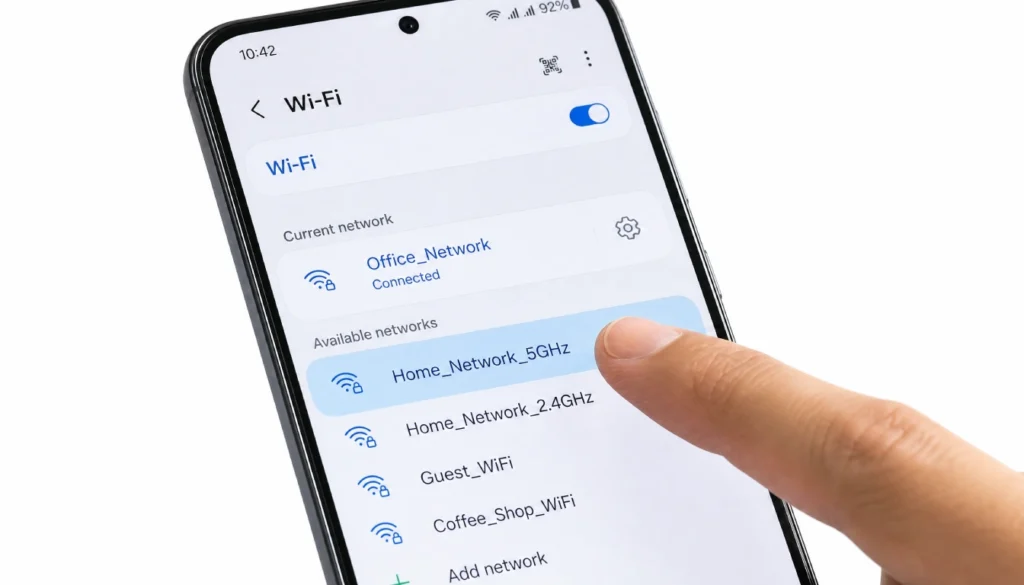
On iPhone: Go to Settings, Wi-Fi, and tap the name of your 5 GHz network (it often has “5G” or “5GHz” in the name if your router broadcasts separate networks). Connect to it.
On Android: Go to Settings, Wi-Fi, and long-press your current network. Select “Forget.” Then reconnect and choose the 5 GHz option. Also go to Settings, Battery, and turn off battery optimization for Wi-Fi-related services, as some Android phones throttle Wi-Fi in low-power mode.
Laptop
On Windows: Open Device Manager, expand Network Adapters, right-click your Wi-Fi adapter, and choose Properties. Under Advanced, find “Preferred Band” or “Band Preference” and set it to 5 GHz. Also disable “Allow the computer to turn off this device to save power” under the Power Management tab.
On Mac: Go to System Settings, Wi-Fi, and look for the 5 GHz network. Under Network Preferences, you can also set a priority order for networks.
Smart TV or Streaming Stick
Most smart TVs default to 2.4 GHz. Go to your TV’s network settings and manually connect to the 5 GHz network. If your TV does not support 5 GHz (check the spec sheet), connect it with an Ethernet cable directly to the router for the most stable stream.
When to Call Your Internet Provider
Try the fixes above first. But call your ISP if any of these apply.
- Your speed test via Ethernet at 8 PM is still less than half of your advertised speed.
- The slowdown happens at the same time every night, regardless of the day of the week.
- Your connection drops entirely in the evening, not just slows down.
- You have rebooted the router, tried Ethernet, and nothing has changed over several nights.
When you call, mention the specific speed test numbers and the times you ran them. Ask them to check the line signal levels and the contention ratio in your area. Contention ratio is the number of homes sharing the same connection bandwidth. A ratio of 50:1 or higher during peak hours is a sign of an overloaded network in your area.
Frequently Asked Questions
Why does my Wi-Fi slow down at the same time every night?
This is almost always peak congestion. Your ISP’s network sees the highest traffic between 7 PM and 10 PM when most people are home. If the slowdown happens at exactly the same time each night, it is a reliable sign that shared network load is the cause.
How do I check if my ISP is throttling at night?
Run speed tests at 3 PM and 8 PM and compare results. Then connect a VPN and run the same test at 8 PM. If speed improves with the VPN active, your ISP is likely throttling your traffic type. If it does not improve, the issue is network congestion, not throttling.
My Wi-Fi slows down at night in my apartment. Is that different from a house?
Yes. In an apartment building, you share walls with dozens of neighbors. Their routers broadcast on the same Wi-Fi channels. The signal interference at night is significantly higher than in a standalone house. Switching to the 5 GHz band and setting a manual, less-crowded channel makes the biggest difference in apartment settings.
Does rebooting my router every night actually help?
It can. Routers accumulate small memory errors and stale connections over time. A nightly reboot at a scheduled time (you can set this in most router admin panels) keeps the hardware performing cleanly.
Will upgrading my internet plan fix slow evening speeds?
Not necessarily. If your ISP’s network is congested in your area, paying for faster speeds does not guarantee better performance during peak hours. Address the fixes in this article first, then decide if an upgrade is worth it.
The 3-Step Quick Fix if Your Wi-Fi Is Slow Every Night
If you want to start right now, follow these three steps before anything else.
Step 1: Run a speed test at 3 PM and again at 8 PM and note the difference. This tells you whether the problem is inside your home or outside it.
Step 2: Log into your router and switch your main devices to the 5 GHz band. If they are already on 5 GHz, manually set the 2.4 GHz channel to 1, 6, or 11, whichever is least congested.
Step 3: Reboot your router and modem, disconnect unused devices, and enable QoS in your router settings to prioritize streaming and gaming traffic.
Most people who follow all three steps see a noticeable improvement the same evening. If you do not, work through the full list of 10 fixes above before calling your ISP.
Your Wi-Fi being slow at night but fine during the day is a solvable problem. Start with the speed test comparison, switch to 5 GHz, and clear out the devices that are quietly eating your bandwidth. If all else fails, you now have the numbers and the language to have a productive conversation with your internet provider.
Try Fix 2 tonight and let us know in the comments if it made a difference.