You’ve heard it a thousand times. Make a long password. Add symbols, numbers, and capital letters. So you do it, and then you forget it five minutes later.
You write it on a sticky note. You reset it every week. Or you give up and type “password123” again.
Here’s how to create a strong password that’s easy to remember, without any of that stress. It’s called the passphrase method, and once you learn it, you’ll never dread a password prompt again. This guide covers beginner digital safety tips you can use today, no tech background required.
Why Weak Passwords Are a Big Risk (Explained Simply)
A weak password is like leaving your front door unlocked. Hackers don’t need to guess your exact password. They run programs that try millions of common combinations in seconds.
Words like “password,” “123456,” and your pet’s name are the first ones tried. If your password shows up on a leaked list from another website, criminals will test it everywhere else you have an account.
I’ve walked dozens of friends and family members through password cleanups. Almost every time, the same weak password shows up on five or six different accounts. That’s the real danger. One leak turns into a chain reaction.
The Passphrase Method – The “Four Random Words” Trick
Security experts agree on something surprising. Length beats complexity. A password with four random, unrelated words is harder to crack than a short jumble of symbols.
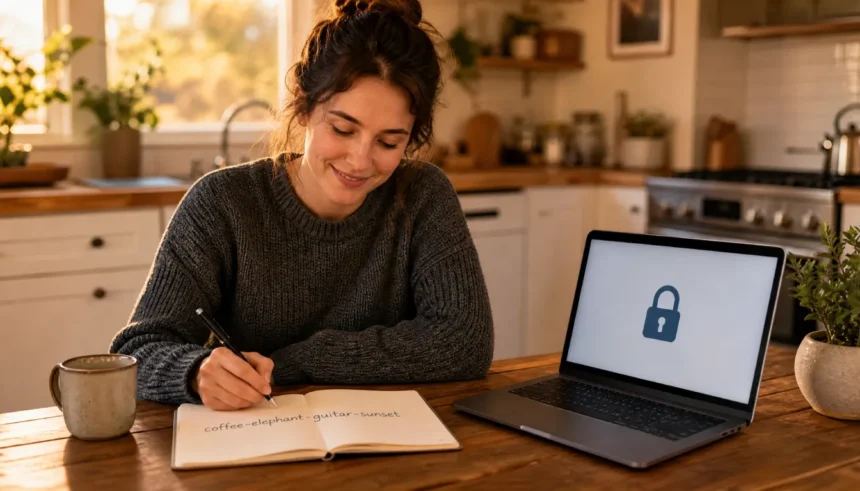
Here’s why. purple-elephant-guitar-coffee has more characters than P@ss1!. More characters means more possible combinations for a hacker’s program to try. Your brain also finds it far easier to picture four objects than to memorize a random string of symbols.
When I switched to this method myself, I stopped resetting my passwords every month. I picked four words I could picture clearly, and they stuck in my memory without any effort.
Step-by-Step: Create Your First Unforgettable Password
Follow these three steps to build your first passphrase.
Step 1 – Pick Four Unrelated Words
Choose four words that have nothing to do with each other. Unrelated words are harder to guess than a phrase that makes sense, like “ilovemydog.”
Good example: banana-rocket-umbrella-tiger
Avoid: song lyrics, movie titles, or anything tied to your name or birthday.
Step 2 – Add Numbers and Symbols the Easy Way
Don’t scatter random symbols everywhere. Pick one number and one symbol, and place them somewhere you’ll remember.
Example: banana22-rocket!umbrella-tiger
Key takeaway: one number, one symbol, placed in a spot that makes sense to you, is enough.
Step 3 – Make It Unique for Every Account (Without Going Crazy)
Reusing the same password everywhere is one of the biggest risks online. Add a short hint of the site name to your base passphrase instead of creating a whole new one each time.
For Netflix: banana22-rocket!umbrella-tiger-Net For your email: banana22-rocket!umbrella-tiger-Mail
You keep the same easy-to-remember core, but every account gets its own unique twist.
How to Remember All Your Strong Passwords (Without Losing Your Mind)
You don’t need to memorize dozens of separate passwords. You only need to remember one base passphrase and a simple rule for changing it per site.
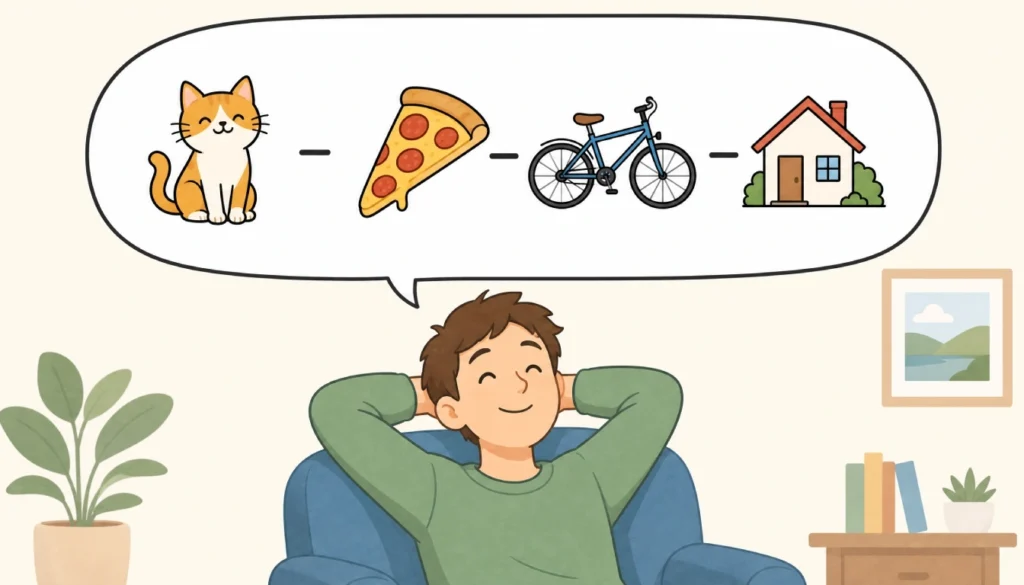
Picture your four words as a short scene. Banana-rocket-umbrella-tiger might become “a tiger holding an umbrella while riding a rocket made of banana.” The sillier the image, the easier it sticks.
Should You Use a Password Manager? A Beginner’s Honest Take
A password manager stores every password for you behind one master password. You only need to remember that one master passphrase, and the app fills in the rest automatically.
Is it safe to save passwords in a browser for beginners? It’s better than reusing the same weak password everywhere, but a dedicated password manager offers stronger encryption and works across every browser and app you use, not just one.
Setting up a password manager for the first time feels intimidating, but it usually takes under ten minutes. Most apps walk you through importing your existing logins and generating new, unique passwords for each site.
I resisted using one for years because it felt like extra work. Once I set it up, I realized I’d been wasting time resetting forgotten passwords every single week. That time saved alone made it worth trying.
5 Common Password Mistakes (and How to Fix Them Now)
These are the common password mistakes I see most often, and the simple fix for each one.
- Reusing the same password everywhere. Fix: add a site-specific tag to your passphrase, like the Netflix example above.
- Using personal information. Fix: avoid birthdays, pet names, or your address. Stick to unrelated random words.
- Making it too short. Fix: aim for at least four words plus one number and one symbol.
- Never updating leaked passwords. Fix: check a breach-checking site occasionally and update anything flagged.
- Skipping two-factor authentication. Fix: turn on 2FA wherever it’s offered. It blocks most break-in attempts even if your password leaks.
Frequently Asked Questions
Is a passphrase really stronger than a complex short password?
Yes. Length matters more than complexity. Four random words create more possible combinations than a short string of symbols.
Is it safe to save passwords in the browser for beginners?
It’s a step up from reusing passwords, but a dedicated password manager gives you stronger protection and works everywhere you log in.
How often should I change my passwords?
Only when there’s a reason, like a breach alert. Constant changing leads to weaker, more forgettable passwords.
What if I forget my passphrase anyway?
Write down a clue, not the password itself. For example, jot down “tiger scene” instead of the full phrase.
Your 3-Minute Action Plan for Safer Passwords Today
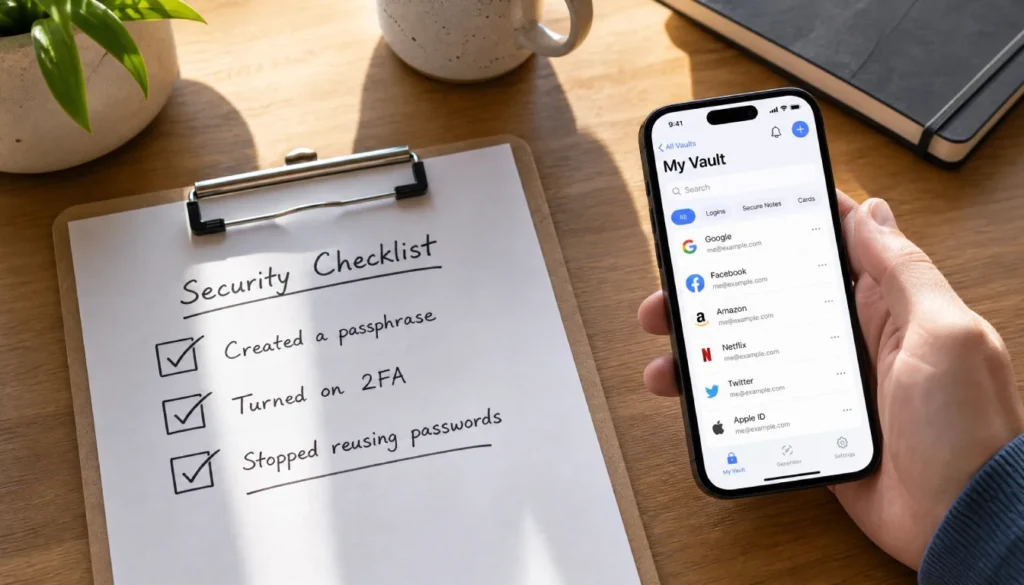
Here’s your quick checklist. Do these three things right now.
- [ ] Pick four random words and turn them into a passphrase.
- [ ] Add one number and one symbol in a spot you’ll remember.
- [ ] Turn on two-factor authentication for your most important accounts.
Conclusion
Learning how to create a strong password that’s easy to remember doesn’t require a tech background. Pick four random words, add a number and a symbol, then customize the phrase for each account. That’s the whole method.
You now have a repeatable system, a way to remember it, and a plan for using a password manager for the first time if you want extra protection. This is one of the simplest beginner digital safety tips you can put into practice today.
Try it right now. Build your first passphrase, update one account with it, and leave a comment letting me know which four words you picked.