
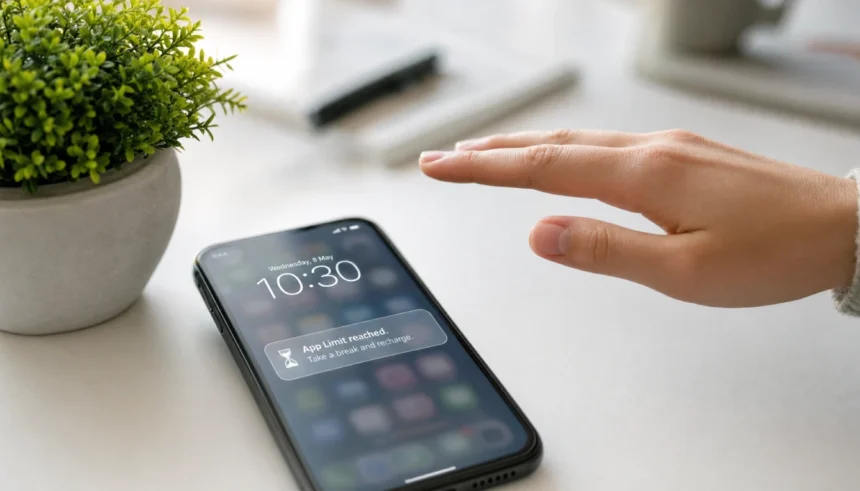
You open Instagram for two minutes. Forty minutes later, you’re watching a stranger’s travel reel from 2019. You’ve tried deleting apps before. You always reinstall them. The truth is, you need those apps — for work, for family, for staying connected. But they’re eating your time alive.
If you want to know how to reduce screen time without deleting apps, you’re in exactly the right place. These seven methods use built-in phone settings, a few habit tweaks, and zero guilt trips. No radical steps. No cold turkey. Just real changes that stick.
Why Deleting Apps Doesn’t Always Work (And What to Do Instead)
Deleting apps feels like a solution because it creates a hard stop. But it rarely works long-term. You reinstall the app, you log back in, and you’re right back where you started — sometimes scrolling more to “catch up.”
The real problem isn’t the app. It’s the habit loop the app lives inside. Your brain gets a hit of novelty every time you pick up your phone, and that loop runs on autopilot. Breaking it means interrupting the cue, not burning down the whole system.
Here’s what I noticed when I first tried deleting Instagram: I lasted three days. By day four, I’d reinstalled it and spent two hours catching up on what I’d missed. My weekly average actually went up that week.
What worked instead was making the phone less rewarding — not less functional. The seven methods below do exactly that.
1. Set App Limits That Actually Stick
Both iPhone and Android have built-in screen time controls. Most people set them up, tap “Ignore Limit” every day, and give up. Here’s how to use them so they actually create a pause.
On iPhone:
- Go to Settings > Screen Time > App Limits.
- Set a limit for your highest-use category (Social Networking, Entertainment, etc.).
- Turn on “Block at End of Limit” instead of leaving the ignore option open.
- Set the Screen Time passcode and give it to someone you trust — or use a random string you won’t remember.
On Android (Digital Wellbeing):
- Go to Settings > Digital Wellbeing & Parental Controls > Dashboard.
- Tap the app you want to limit.
- Set a daily timer.
- Enable “Manage your data” so limits reset each day.
The key is making the override hard, not impossible. You’re not locked out forever. You’re just adding a speed bump that forces a conscious choice.
If you want to reduce iPhone screen time without deleting apps, app limits with a trusted passcode are the single most effective first step.
2. Turn On Grayscale Mode — Your Phone’s Boring Superpower
This one sounds too simple, but it works. The grayscale mode reduces screen time trick is grounded in real behavioral psychology. Color is one of the primary design tools apps use to grab your attention. Red notification badges, vivid thumbnails, bright Like buttons — all of it is calibrated to keep your eyes locked in. Strip the color out, and the whole experience becomes noticeably less compelling.
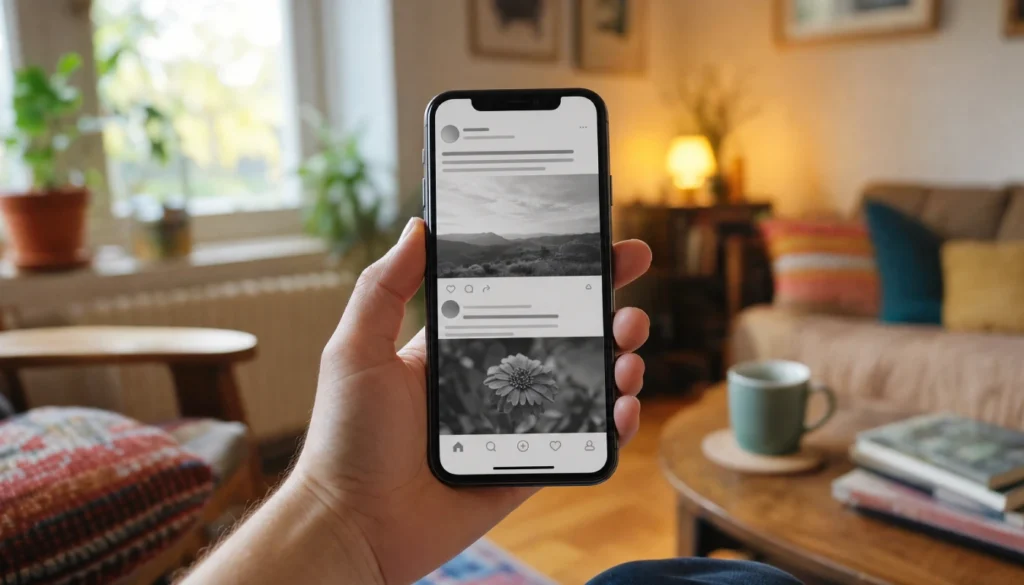
On iPhone:
- Go to Settings > Accessibility > Display & Text Size > Color Filters.
- Toggle Color Filters on, then select Grayscale.
- Or set up a shortcut: Settings > Accessibility > Accessibility Shortcut > Color Filters. Now triple-click your side button to toggle it on and off.
On Android:
- Go to Settings > Digital Wellbeing > Bedtime Mode.
- Enable Grayscale. You can schedule it for specific hours or leave it on all day.
I ran grayscale for a full month. My average daily pickups dropped from around 140 to 85, and my social media time went from 2.5 hours to about 90 minutes. I didn’t change anything else that month. The screen just became less interesting to stare at.
3. Build a Distraction-Proof Home Screen (Hide, Don’t Delete)
Your home screen is prime real estate. Every app sitting on it is a visual prompt that says “open me.” You can remove that prompt without deleting the app entirely.
Step 1. Move every social, entertainment, and news app off your main home screen. On iPhone, they go into the App Library. On Android, drag them into a folder on a second page or remove them from the home screen entirely.
Step 2. Replace them with nothing. Leave space or a clean wallpaper. The goal is a home screen with only tools — calendar, maps, phone, messages.
Step 3. To open a hidden app, you have to search for it deliberately. That small friction — typing the name — gives your brain half a second to decide if you actually want it right now.
This method is one of the most effective digital wellbeing tips because it removes the passive cue without changing your access. The app still exists. You just have to want it on purpose.
4. Tame Notifications So You Control the Phone, Not the Other Way
Every notification is a demand for your attention. Most of them don’t deserve it. The average smartphone user receives around 80 notifications per day. That’s 80 interruptions — each one pulling you back to the phone.
Step 1. Go to Settings > Notifications on iPhone, or Settings > Apps & Notifications on Android.
Step 2. Turn off every notification that isn’t from a real person or a time-sensitive event. That means no likes, no “trending now,” no app badges unless it’s a direct message.
Step 3. For the apps you do want alerts from, switch from banners to silent notifications. You’ll see them when you choose to check — not when the app decides to interrupt you.
Step 4. Turn off notification badges (the little red number dots) for social apps. That number is specifically designed to create urgency. Removing it removes the itch.
This single change is often enough to cut pickups by 30 to 40 percent. When your phone stops pulling you in, you stop reaching for it unconsciously.
5. Schedule Focus Modes and Downtime Like a Pro
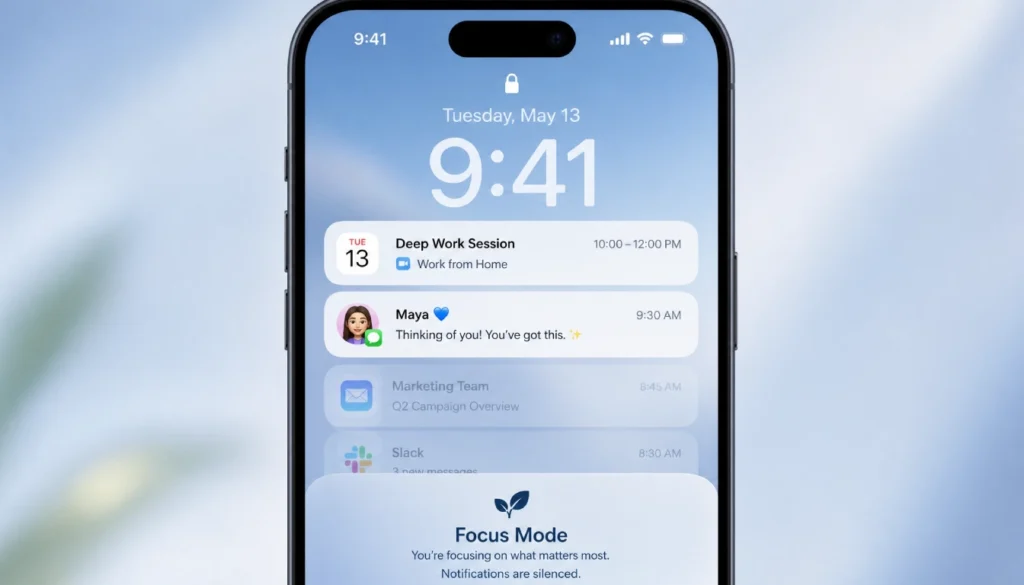
Built-in Focus modes on iPhone and Bedtime Mode on Android let you schedule your phone’s availability instead of relying on willpower every time.
On iPhone:
- Go to Settings > Focus.
- Set up a “Personal” or custom Focus that blocks all social and entertainment apps.
- Schedule it for your peak work hours or evening wind-down time.
- Enable “Share Focus Status,” so people know you’re unavailable without you having to explain it.
On Android:
- Go to Settings > Digital Wellbeing > Focus Mode.
- Select distracting apps to pause.
- Set a schedule or use Quick Settings to turn it on manually.
The key insight here is that scheduling removes the decision. You don’t have to choose to put the phone down every evening — you set it once, and the phone does it for you. Willpower is a limited resource. Automation is not.
6. Add Friction to Break the Automatic Tap
This is one of the most underrated methods for phone addiction help. The automatic tap — picking up your phone and opening an app before you’ve consciously decided to — is a habit, not a choice. You can break it by adding a small delay between the impulse and the action.
Tools that add friction:
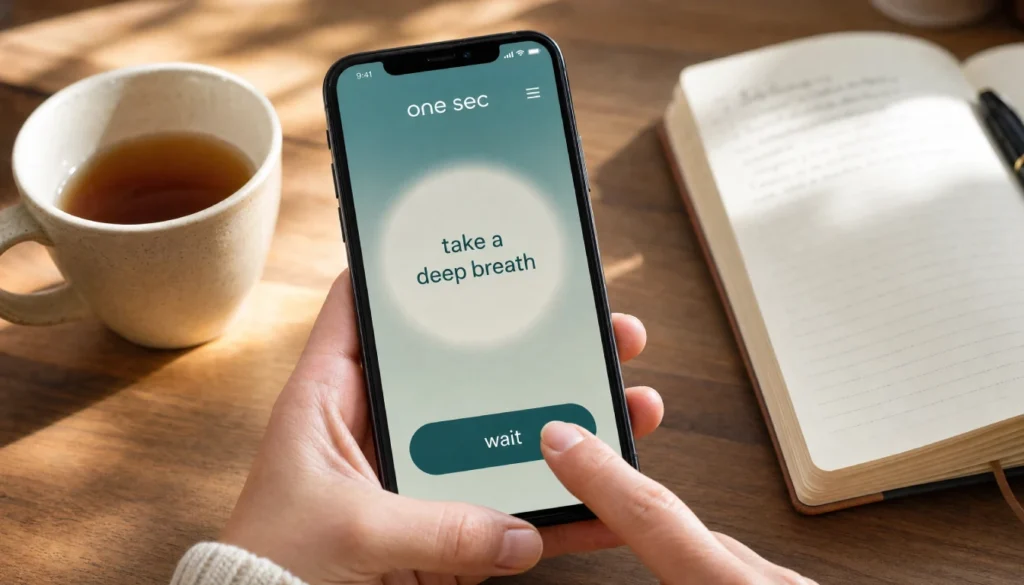
- One Sec (iOS and Android): This app inserts a short breathing exercise before your chosen apps open. You tap Instagram, and One Sec makes you take one breath first. It sounds minor. It isn’t. That one-second pause interrupts the reflex and gives you a conscious moment to decide.
- iPhone Screen Time passcode: As mentioned in Method 1, a passcode you don’t memorize means you have to type it in (or call your passcode holder) to override limits. That’s friction.
- Move apps to your weakest hand. Seriously. If you’re right-handed, move Instagram to the bottom left corner. You have to reach awkwardly to open it. Small irritation, surprisingly effective.
- Log out of apps after each session. Having to log back in every time is annoying enough to stop 70 to 80 percent of mindless opens.
The point isn’t to make your phone impossible to use. It’s to make unconscious use slightly harder than conscious use.
7. Create Phone-Free Time Blocks (Without FOMO)
You don’t need to go phone-free for a whole weekend. A well-designed 60-minute block each day is often enough to reset the pattern.
How to set it up without anxiety:
- Pick one hour that’s currently high-scroll time. For most people, it’s the first hour after waking up or the hour before bed.
- Put your phone in a different room for that hour — not face-down on the table. In a different room.
- Tell one person (a partner, roommate, colleague) that you’ll be offline during that window. Accountability helps.
- If you’re worried about emergencies, turn on “Emergency Bypass” for specific contacts so calls still come through.
The FOMO fades faster than you think. After three to five days of a consistent block, most people report that they stopped thinking about the phone during that window entirely.
How to Track Your Progress Without Obsessing
Checking your screen time stats every hour defeats the purpose. Instead, do a weekly review.
- On iPhone: Settings > Screen Time > See All Activity. Check Sunday evening.
- On Android: Settings > Digital Wellbeing > Dashboard. Set a weekly summary notification.
Set one specific number you want to hit — say, under 2 hours of social media per day — and compare it each week. Don’t judge individual days. Look at the weekly trend.
After four weeks of combining even two or three of these methods, most people see a 30 to 50 percent reduction in their highest-use apps. My own average dropped from 6 hours a day to 3.5 hours over one month using grayscale, app limits, and notification pruning alone.
What If You Still Struggle? A Gentle Reset Plan
If you’ve tried a few of these and still find yourself defaulting to heavy use, try this three-day reset:
Day 1: Turn on grayscale and log out of your top two apps.
Day 2: Add a one-hour phone-free morning block and turn off all non-essential notifications.
Day 3: Move all social apps off your home screen and set app limits with a passcode.
By day four, most people notice a natural reduction without having to fight themselves. The environment changed, so the behavior changed with it.
If you’re consistently struggling despite these changes, it may be worth looking into structured phone addiction help from a digital wellness coach or therapist who works with tech habits. There’s no shame in that. These tools are built by teams of behavioral engineers, and sometimes you need a professional in your corner.
Frequently Asked Questions
Does grayscale really reduce screen time?
Yes, for most users. Studies on screen use behavior show that color increases engagement and dwell time. Removing it makes the phone less stimulating, which means you pick it up less and put it down sooner.
Will app limits actually work if I can just ignore them?
Only if you make them hard to ignore. Set a Screen Time passcode you don’t control, or use a trusted person to hold it. An easily bypassed limit is nearly useless.
Does this work on Android as well as iPhone?
Yes. Android’s Digital Wellbeing suite includes app timers, Focus Mode, grayscale under Bedtime Mode, and notification controls. The steps differ slightly by manufacturer, but the features are there.
How long before I see results?
Most people notice fewer mindless pickups within three to five days. A measurable drop in total screen time usually shows up by the end of the first week.
Is it better to reduce screen time gradually or all at once?
Gradually, for most people. Cutting too sharply creates the same rebound effect as deleting apps cold turkey. Start with one or two methods, run them for a week, then add more.
Start With One Change Today
You don’t need to overhaul your entire phone today. Pick the method that sounds most manageable and try it for seven days.
If you want a quick win, start with grayscale. It takes 30 seconds to set up and requires zero willpower after that.
If you want the highest impact, combine app limits with a passcode and home screen cleanup. Those two together cut passive use dramatically for most people.
Learning how to reduce screen time without deleting apps is mostly about redesigning your environment, not relying on self-control. Your phone’s default settings are designed to maximize your time on it. Changing a few of them puts you back in charge.
Try one method this week. Check your screen time stats next Sunday. You’ll see the difference.
Have you tried any of these? Drop a comment below and tell me which one made the biggest difference for you. If this helped, share it with someone who’s been trying (and failing) to cut their screen time.